A COMPLETE SMALLTALK APPLICATION
Build a
standard calculator.
A familiar desktop keypad, a clear display, and arithmetic you can test independently.
Create a Windows-style standard calculator in Squeak with original neutral styling. The app supports digits, decimal entry, +, −, ×, ÷, equals, C, CE, backspace, and sign change. It uses native Morphic widgets and no external packages.
Run in the SqueakJS playground
The separate playground loads the real Smalltalk image on demand. This lesson keeps its native setup instructions; browser compatibility notes appear beside each demo.
Load and run the finished app
Start with a copy of your learning image. Download the complete source below, open Squeak’s File List, select the downloaded .st file, and choose fileIn. This installs LearnSqueakCalculatorModel and LearnSqueakCalculatorUI; it does not open the window until you evaluate the opener.
Download complete calculator source
This download is a Smalltalk file-in with chunk separators. Do not paste the whole file into a Workspace. Check that these class names are unused in your own project; filing in replaces the tutorial methods. Author initials may be requested.
LearnSqueakCalculatorUI new open
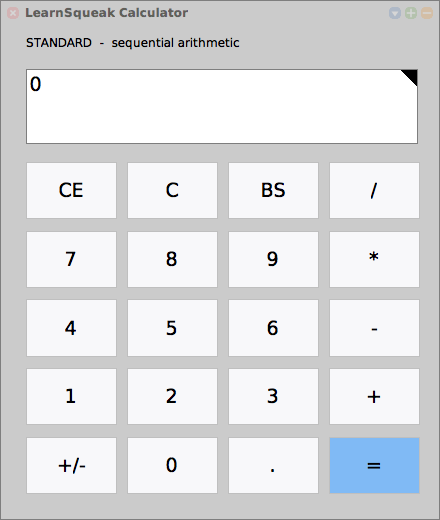
Activate the window, then click its keypad. The labels * and / mean multiplication and division; BS means backspace. The display is read-only. This version is mouse-operated; it does not add global keyboard shortcuts.
FROM AN EMPTY WINDOW TO A WORKING KEYPAD
Build the interface in eight small steps.
First file in the complete calculator source from the section above. This installs the tested arithmetic model and its small UI adapter. We will reuse those classes while constructing the window ourselves, so you can concentrate on adding and connecting the controls.
- Open Tools → Workspace.
- Copy a complete stage, select all of that code, and choose do it (usually Ctrl+D / Cmd+D).
- Compare the native window with the screenshot, then close that window before running the next stage.
Each complete stage is a fresh, independent window. Do not paste a later stage onto the earlier one or expect temporary variables to survive between evaluations. Short blocks labeled “Changed lines” explain the difference; run the accompanying complete stage to try it. Stages 2–8 require the installed calculator classes. Stage 1 also works on its own.
Every stage returns its window. You can choose inspect it instead of Do it to keep a reference while experimenting. Closing a stage removes its visual controls; it does not remove the installed tutorial classes.
BUILD IT STEP BY STEP
Open an empty calculator window
Start with the container. SystemWindow gives you a title bar, close control, resizing, and a content area. The color belongs to the window; its size and position are Points.
| window |
window := SystemWindow new.
window setLabel: 'LearnSqueak Calculator'.
window color: (Color r: 0.92 g: 0.93 b: 0.95).
window openInWorld; extent: 440@520; position: 320@80.
window
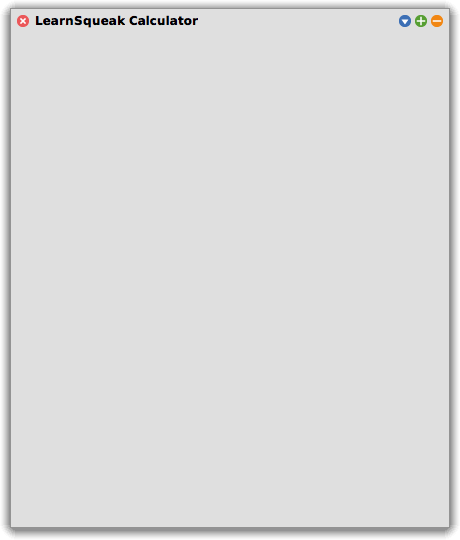
Call openInWorld before the final extent: because opening applies the initial SystemWindow size. Width 440 and height 520 create the familiar portrait shape. Position is measured in Squeak’s world, not in your web browser.
BUILD IT STEP BY STEP
Add the title and display
Create the UI adapter, attach it as the window’s model, and add two child Morphs. The title is a StringMorph. The display is a PluggableTextMorph that asks the adapter for #display.
| window ui title display button keys row column x y |
window := SystemWindow new.
window setLabel: 'LearnSqueak Calculator'.
window color: (Color r: 0.92 g: 0.93 b: 0.95).
ui := LearnSqueakCalculatorUI new.
window model: ui.
title := StringMorph contents: 'STANDARD  -  sequential arithmetic'.
window addMorph: title frame: (0.04@0.02 corner: 0.96@0.08).
display := PluggableTextMorph on: ui text: #display accept: nil.
display readOnly: true; font: (TextStyle default fontOfSize: 24).
window addMorph: display frame: (0.04@0.09 corner: 0.96@0.25).
window openInWorld; extent: 440@520; position: 320@80.
window
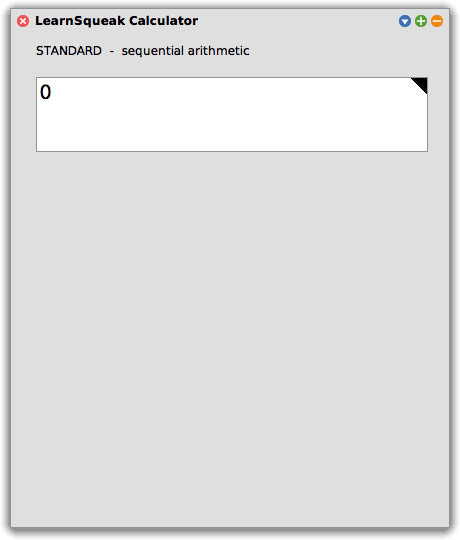
text: #display names the getter; it does not copy a fixed zero into the field. accept: nil and readOnly: true make the output non-editable. When the adapter later announces changed: #display, this view reads the latest value.
Frames use fractions of the content area. 0.04@0.09 is the upper-left corner, and 0.96@0.25 is the lower-right. These leave a 4% side margin and reserve space below for keys.
BUILD IT STEP BY STEP
Add just one button
Place a 7 button where it will live in the final keypad: the first column of the first numeric row. At this stage it is only a visual object. Clicking it will not change the display yet.
button := SimpleButtonMorph new.
button label: '7' font: (TextStyle default fontOfSize: 24);
    color: (Color r: 0.97 g: 0.97 b: 0.98);
    borderWidth: 1; borderColor: (Color gray: 0.75).
window addMorph: button
    frame: (0.04@0.42 corner: 0.26@0.545).
Show the complete runnable stage 3
| window ui title display button keys row column x y |
window := SystemWindow new.
window setLabel: 'LearnSqueak Calculator'.
window color: (Color r: 0.92 g: 0.93 b: 0.95).
ui := LearnSqueakCalculatorUI new.
window model: ui.
title := StringMorph contents: 'STANDARD  -  sequential arithmetic'.
window addMorph: title frame: (0.04@0.02 corner: 0.96@0.08).
display := PluggableTextMorph on: ui text: #display accept: nil.
display readOnly: true; font: (TextStyle default fontOfSize: 24).
window addMorph: display frame: (0.04@0.09 corner: 0.96@0.25).
button := SimpleButtonMorph new.
button label: '7' font: (TextStyle default fontOfSize: 24);
    color: (Color r: 0.97 g: 0.97 b: 0.98);
    borderWidth: 1; borderColor: (Color gray: 0.75).
window addMorph: button frame: (0.04@0.42 corner: 0.26@0.545).
window openInWorld; extent: 440@520; position: 320@80.
window
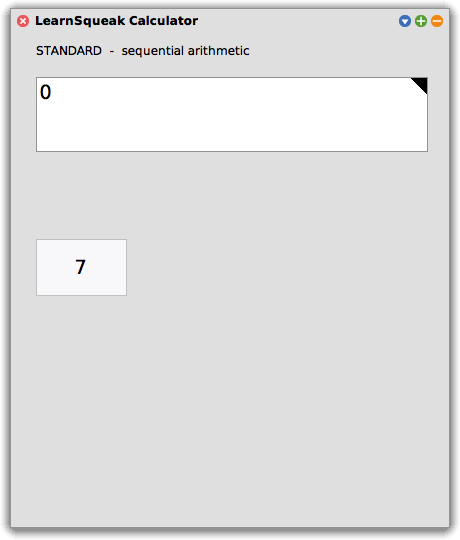
label: controls what the user sees. addMorph:frame: makes the button a child of the window and gives it a layout rectangle. Creating the button alone does not put it on screen. The empty space above is reserved for CE, C, BS, and division.
BUILD IT STEP BY STEP
Connect target, selector, and argument
Now give the same button a job. These three messages connect it to the UI adapter:
button target: ui;
    actionSelector: #press:;
arguments: (Array with: '7').- target: is the object that receives the action, here
ui. - actionSelector: is the Symbol naming the method. The colon in
#press:means one argument. - arguments: supplies that argument. The button sends the String
'7', not the integer 7.
Show the complete runnable stage 4
| window ui title display button keys row column x y |
window := SystemWindow new.
window setLabel: 'LearnSqueak Calculator'.
window color: (Color r: 0.92 g: 0.93 b: 0.95).
ui := LearnSqueakCalculatorUI new.
window model: ui.
title := StringMorph contents: 'STANDARD  -  sequential arithmetic'.
window addMorph: title frame: (0.04@0.02 corner: 0.96@0.08).
display := PluggableTextMorph on: ui text: #display accept: nil.
display readOnly: true; font: (TextStyle default fontOfSize: 24).
window addMorph: display frame: (0.04@0.09 corner: 0.96@0.25).
button := SimpleButtonMorph new.
button label: '7' font: (TextStyle default fontOfSize: 24);
    color: (Color r: 0.97 g: 0.97 b: 0.98);
    borderWidth: 1; borderColor: (Color gray: 0.75).
window addMorph: button frame: (0.04@0.42 corner: 0.26@0.545).
button target: ui; actionSelector: #press:;
    arguments: (Array with: '7').
window openInWorld; extent: 440@520; position: 320@80.
window
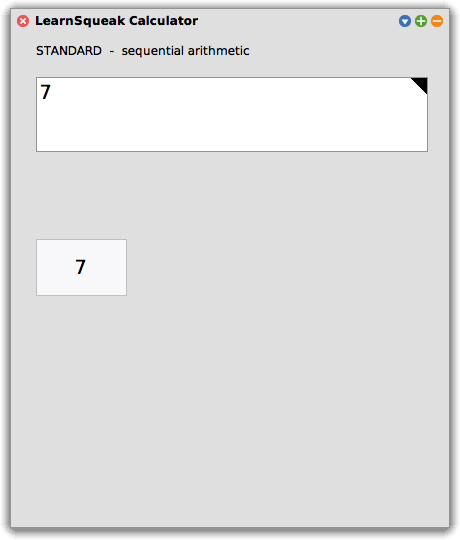
Run stage 4, activate its window, and click 7. It starts at zero; the screenshot shows the result after the button action. The adapter’s already-installed handler is short enough to read in full:
press: aToken
    calculator press: aToken.
    self changed: #display
The complete route is button → ui press: → calculator model → changed: #display → display getter. Returning a number from a handler is not enough to refresh a pluggable view; the change notification is the connection. Do not Do it on this method definition in a Workspace. View or edit it in the class’s instance-side Browser.
BUILD IT STEP BY STEP
Generate the 7–8–9 row
Replace the one-off button construction with a loop. An array represents positions in the final 4-column keypad. Empty strings reserve positions without creating buttons. The four leading empty entries reserve the top function-key row.
keys := #('' '' '' ''
          '7' '8' '9' '').

keys withIndexDo: [:token :index |
    token isEmpty ifFalse: [
        row := (index - 1) // 4.
        column := (index - 1) rem: 4.
        x := 0.04 + (column * 0.235).
        y := 0.28 + (row * 0.14).
        button := SimpleButtonMorph new.
        button label: token font: (TextStyle default fontOfSize: 24);
            target: ui; actionSelector: #press:;
            arguments: (Array with: token);
            color: (Color r: 0.97 g: 0.97 b: 0.98);
            borderWidth: 1; borderColor: (Color gray: 0.75).
        window addMorph: button
            frame: (x@y corner: (x + 0.22)@(y + 0.125))]].
Show the complete runnable stage 5
| window ui title display button keys row column x y |
window := SystemWindow new.
window setLabel: 'LearnSqueak Calculator'.
window color: (Color r: 0.92 g: 0.93 b: 0.95).
ui := LearnSqueakCalculatorUI new.
window model: ui.
title := StringMorph contents: 'STANDARD  -  sequential arithmetic'.
window addMorph: title frame: (0.04@0.02 corner: 0.96@0.08).
display := PluggableTextMorph on: ui text: #display accept: nil.
display readOnly: true; font: (TextStyle default fontOfSize: 24).
window addMorph: display frame: (0.04@0.09 corner: 0.96@0.25).
keys := #('' '' '' ''
    '7' '8' '9' '' ).
keys withIndexDo: [:token :index |
    token isEmpty ifFalse: [
        row := (index - 1) // 4.
        column := (index - 1) rem: 4.
        x := 0.04 + (column * 0.235).
        y := 0.28 + (row * 0.14).
        button := SimpleButtonMorph new.
        button label: token font: (TextStyle default fontOfSize: 24);
            target: ui; actionSelector: #press:;
            arguments: (Array with: token);
            color: (token = '='
                ifTrue: [Color r: 0.50 g: 0.73 b: 0.96]
                ifFalse: [Color r: 0.97 g: 0.97 b: 0.98]);
            borderWidth: 1; borderColor: (Color gray: 0.75).
        window addMorph: button
            frame: (x@y corner: (x + 0.22)@(y + 0.125))]].
window openInWorld; extent: 440@520; position: 320@80.
window
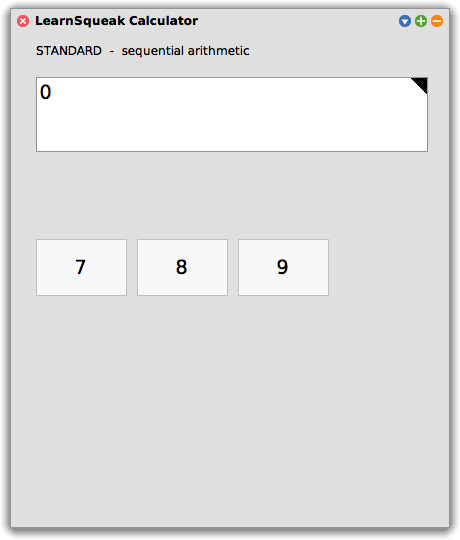
The array is one-based, so subtract 1 before calculating a zero-based row and column. For the 7 key, index 5 gives row 1 and column 0: x = 0.04, y = 0.42. For 8, x becomes 0.275; for 9, x becomes 0.51. The 0.235 column spacing exceeds the 0.22 key width, leaving a gap.
// is integer division. rem: finds the column remainder. withIndexDo: supplies both the token and its index. Each button keeps its own argument array, so the keys do not all send the final loop value.
BUILD IT STEP BY STEP
Fill in all ten digits
Keep the same construction loop and extend only the token array. This is why a data-driven keypad is easier to maintain than ten copied button definitions.
keys := #(''  ''  ''  ''
          '7' '8' '9' ''
          '4' '5' '6' ''
          '1' '2' '3' ''
          ''  '0' ''  '').
Show the complete runnable stage 6
| window ui title display button keys row column x y |
window := SystemWindow new.
window setLabel: 'LearnSqueak Calculator'.
window color: (Color r: 0.92 g: 0.93 b: 0.95).
ui := LearnSqueakCalculatorUI new.
window model: ui.
title := StringMorph contents: 'STANDARD  -  sequential arithmetic'.
window addMorph: title frame: (0.04@0.02 corner: 0.96@0.08).
display := PluggableTextMorph on: ui text: #display accept: nil.
display readOnly: true; font: (TextStyle default fontOfSize: 24).
window addMorph: display frame: (0.04@0.09 corner: 0.96@0.25).
keys := #('' '' '' ''
    '7' '8' '9' ''
    '4' '5' '6' ''
    '1' '2' '3' ''
    ''  '0' ''  '').
keys withIndexDo: [:token :index |
    token isEmpty ifFalse: [
        row := (index - 1) // 4.
        column := (index - 1) rem: 4.
        x := 0.04 + (column * 0.235).
        y := 0.28 + (row * 0.14).
        button := SimpleButtonMorph new.
        button label: token font: (TextStyle default fontOfSize: 24);
            target: ui; actionSelector: #press:;
            arguments: (Array with: token);
            color: (token = '='
                ifTrue: [Color r: 0.50 g: 0.73 b: 0.96]
                ifFalse: [Color r: 0.97 g: 0.97 b: 0.98]);
            borderWidth: 1; borderColor: (Color gray: 0.75).
        window addMorph: button
            frame: (x@y corner: (x + 0.22)@(y + 0.125))]].
window openInWorld; extent: 440@520; position: 320@80.
window
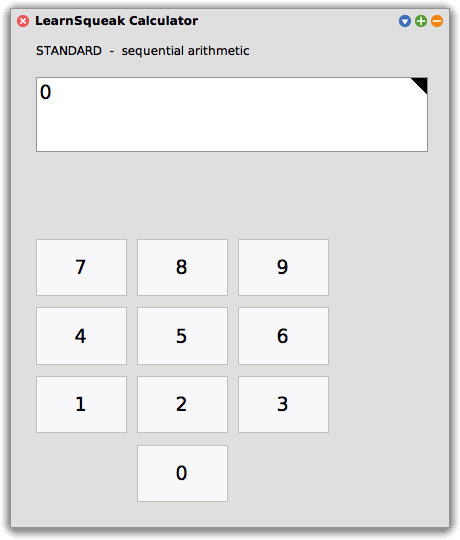
Try clicking 1, 2, and 3. The model appends digits and the same display notification handles every key. There is still no equals button, but entry already works. The empty fourth column is reserved for operators; the bottom-row gaps are for sign, decimal, and equals.
BUILD IT STEP BY STEP
Add operators and function keys
Replace the empty entries with the remaining commands. No new event-handler methods are needed. The model already understands all twenty tokens.
keys := #('CE' 'C' 'BS' '/'
          '7' '8' '9' '*'
          '4' '5' '6' '-'
          '1' '2' '3' '+'
'+/-' '0' '.' '=').button color: (token = '='
ifTrue: [Color r: 0.50 g: 0.73 b: 0.96]
ifFalse: [Color r: 0.97 g: 0.97 b: 0.98]).Show the complete runnable stage 7
| window ui title display button keys row column x y |
window := SystemWindow new.
window setLabel: 'LearnSqueak Calculator'.
window color: (Color r: 0.92 g: 0.93 b: 0.95).
ui := LearnSqueakCalculatorUI new.
window model: ui.
title := StringMorph contents: 'STANDARD  -  sequential arithmetic'.
window addMorph: title frame: (0.04@0.02 corner: 0.96@0.08).
display := PluggableTextMorph on: ui text: #display accept: nil.
display readOnly: true; font: (TextStyle default fontOfSize: 24).
window addMorph: display frame: (0.04@0.09 corner: 0.96@0.25).
keys := #('CE' 'C' 'BS' '/'
    '7' '8' '9' '*'
    '4' '5' '6' '-'
    '1' '2' '3' '+'
    '+/-' '0' '.' '=').
keys withIndexDo: [:token :index |
    token isEmpty ifFalse: [
        row := (index - 1) // 4.
        column := (index - 1) rem: 4.
        x := 0.04 + (column * 0.235).
        y := 0.28 + (row * 0.14).
        button := SimpleButtonMorph new.
        button label: token font: (TextStyle default fontOfSize: 24);
            target: ui; actionSelector: #press:;
            arguments: (Array with: token);
            color: (token = '='
                ifTrue: [Color r: 0.50 g: 0.73 b: 0.96]
                ifFalse: [Color r: 0.97 g: 0.97 b: 0.98]);
            borderWidth: 1; borderColor: (Color gray: 0.75).
        window addMorph: button
            frame: (x@y corner: (x + 0.22)@(y + 0.125))]].
window openInWorld; extent: 440@520; position: 320@80.
window
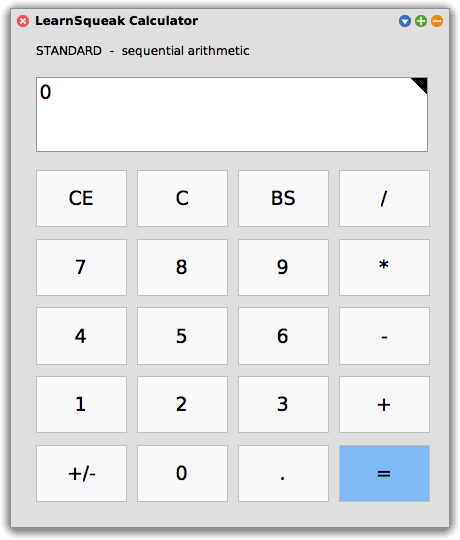
Now try 12.5 + 7.5 =. CE clears only the current entry; C resets the calculation; BS removes one entered character; +/- changes the sign. The visible labels * and / represent × and ÷. Styling changes do not alter the string tokens sent to the model.
This complete stage is the same layout and message wiring used by the installed LearnSqueakCalculatorUI>>open method. The Workspace version spells out ui; inside that instance method, the receiver is simply self.
BUILD IT STEP BY STEP
Use the finished app and check the wiring
When you are happy with the construction, use the installed opener rather than rebuilding controls in a Workspace each time:
LearnSqueakCalculatorUI new open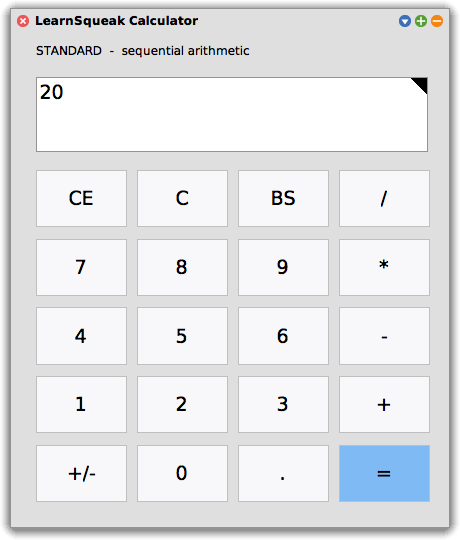
This runnable check finds the actual button Morphs and invokes their actions in order. It tests the UI wiring as well as the arithmetic, rather than sending messages directly to the calculator model. The result is the window shown above.
| window buttons |
window := LearnSqueakCalculatorUI new open.
buttons := window submorphs select: [:m | m isKindOf: SimpleButtonMorph].
#('1' '2' '.' '5' '+' '7' '.' '5' '=') do: [:token |
    (buttons detect: [:b | b label = token]) doButtonAction].
window
The search is restricted to this new window’s direct children. detect: finds the button by its label, and doButtonAction follows the same target/selector/arguments connection. This is a scripted action check, not simulated mouse movement. For a real mouse-click walkthrough, play the recording near the top of this page.
Ready to change behavior? Keep the UI’s press: adapter small and put arithmetic rules in the calculator model. The next sections explain that model, the full UI class, and its edge cases.
How the arithmetic model works
The model is an ordinary Object. It owns entry text, the accumulated exact number, a pending operation, and the last operation/operand for repeated equals. The view only sends string tokens and reads a display string.
| calculator |
calculator := LearnSqueakCalculatorModel new.
#('2' '+' '3' '=' '=') do: [:key | calculator press: key].
calculator display
This answers '8': 2 + 3 gives 5, and the next equals adds 3 again. You can run it without opening a window. Download the model alone if you want to study it separately.
(self isDigit: aToken) ifTrue: [
    errorState ifTrue: [self clearAll].
    self enterDigit: aToken.
    ^ self display].
press: dispatches each token to an editing or arithmetic method. Unknown tokens are ignored. Decimal input is parsed as digits and an exact fraction, never evaluated as arbitrary Smalltalk source. Avoid Compiler evaluate: for calculator input.
Pending operations and exact numbers
This is a sequential standard calculator: 2 + 3 * 4 = gives 20, not 14. Choosing another operator after entering a right operand first completes the pending operation. Choosing one before entering a new operand replaces the pending operator.
pendingOperator := anOperator.
lastOperator := nil.
lastOperand := nil.
freshEntry := true.
entry := self formatNumber: accumulator.
The freshEntry flag means the next digit should start a new number rather than append to a completed result. lastOperator and lastOperand are separate because repeated equals must remember the last completed action after the pending operation has cleared.
Integer and Fraction arithmetic keep values exact internally. The display rounds to 12 significant digits and switches to scientific notation for very large or small values. For example, 1 / 3 = * 3 = returns exactly 1 even though the intermediate displayed third is rounded. Parsing and formatting helpers are included in the full source; read them after the core state transitions.
Read the complete UI class
The UI is a Model containing a calculator. It publishes a display getter and one action method. This is the same target/selector pattern as the form tutorial.
initialize
    super initialize.
calculator := LearnSqueakCalculatorModel newdisplay
^ calculator displaypress: aToken
calculator press: aToken.
self changed: #displayA read-only PluggableTextMorph listens for #display. The update notification refreshes it after every button press.
display := PluggableTextMorph on: self
    text: #display accept: nil.
display readOnly: true;
    font: (TextStyle default fontOfSize: 24).
These are installed method excerpts, not standalone Workspace expressions. Browse LearnSqueakCalculatorUI to read or change them. The complete UI setup below can also be evaluated in a Workspace after the model is loaded.
Show complete UI setup
Model subclass: #LearnSqueakCalculatorUI
 instanceVariableNames: 'calculator'
 classVariableNames: ''
 poolDictionaries: ''
 category: 'LearnSqueak-Calculator'.
(Smalltalk at: #LearnSqueakCalculatorUI) compile: 'initialize
 super initialize.
 calculator := LearnSqueakCalculatorModel new'.
(Smalltalk at: #LearnSqueakCalculatorUI) compile: 'display
 ^ calculator display'.
(Smalltalk at: #LearnSqueakCalculatorUI) compile: 'press: aToken
 calculator press: aToken.
 self changed: #display'.
(Smalltalk at: #LearnSqueakCalculatorUI) compile: 'open
 | window display keys button row column x y title |
 window := SystemWindow new model: self; setLabel: ''LearnSqueak Calculator''; yourself.
 window color: (Color r: 0.92 g: 0.93 b: 0.95).
 title := StringMorph contents: ''STANDARD  -  sequential arithmetic''.
 display := PluggableTextMorph on: self text: #display accept: nil.
 display readOnly: true; font: (TextStyle default fontOfSize: 24).
 window addMorph: title frame: (0.04@0.02 corner: 0.96@0.08).
 window addMorph: display frame: (0.04@0.09 corner: 0.96@0.25).
 keys := #(''CE'' ''C'' ''BS'' ''/'' ''7'' ''8'' ''9'' ''*'' ''4'' ''5'' ''6'' ''-'' ''1'' ''2'' ''3'' ''+'' ''+/-'' ''0'' ''.'' ''='').
 keys withIndexDo: [:token :index |
  row := (index - 1) // 4. column := (index - 1) rem: 4.
  x := 0.04 + (column * 0.235). y := 0.28 + (row * 0.14).
  button := SimpleButtonMorph new.
  button label: token font: (TextStyle default fontOfSize: 24);
   target: self; actionSelector: #press:; arguments: (Array with: token);
   color: (token = ''='' ifTrue: [Color r: 0.50 g: 0.73 b: 0.96] ifFalse: [Color r: 0.97 g: 0.97 b: 0.98]);
   borderWidth: 1; borderColor: (Color gray: 0.75).
  window addMorph: button frame: (x@y corner: (x + 0.22)@(y + 0.125))].
 window openInWorld; extent: 440@520; position: 320@80.
 ^ window'.
Why one handler serves every key
The keypad is an array of 20 tokens arranged in five rows and four columns. Every button sends the same selector, #press:, with its own token as an argument. This avoids creating a separate method for every digit.
keys := #('CE' 'C' 'BS' '/'
          '7' '8' '9' '*'
          '4' '5' '6' '-'
          '1' '2' '3' '+'
          '+/-' '0' '.' '=').

button target: self;
    actionSelector: #press:;
    arguments: (Array with: token).
For index 1–20, integer division computes the row and remainder computes the column. Frames use fractions of the window’s content area. The full method sets a pale background, high-contrast labels, and a blue equals key.
row := (index - 1) // 4.
column := (index - 1) rem: 4.
x := 0.04 + (column * 0.235).
y := 0.28 + (row * 0.14).
window addMorph: button
    frame: (x@y corner: (x + 0.22)@(y + 0.125)).
The label is presentation; the token is the model’s API. You can change displayed symbols or colors while keeping the model unchanged. Keep enough room for a signed 12-digit mantissa and exponent. The neutral desktop layout is inspired by standard calculators; it does not use Windows logos or claim to be Microsoft’s app.
Editing, errors, and repeat behavior
C and CE
C resets everything. CE clears the current entry while retaining a pending operation. Try 9 + 4 CE 2 = to get 11.
Backspace
BS removes an entered character. On a completed result it starts a fresh zero entry, rather than editing rounded or scientific output.
Decimal and sign
A second decimal point is ignored. +/- toggles a typed number or the exact completed result. Just after an operator, it starts a negative right operand.
Repeated equals
2 + 3 = = gives 8. Equals just after an operator reuses the displayed number: 5 + = gives 10.
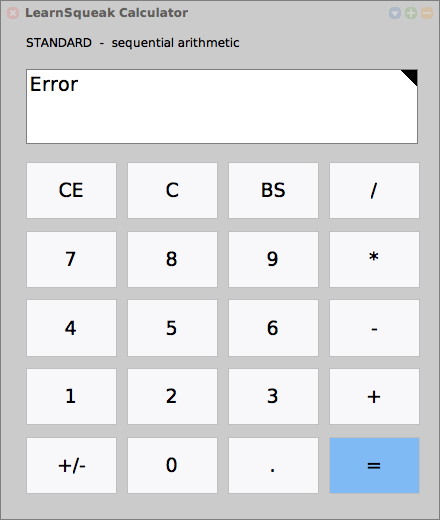
Entry is limited to 12 numeric characters, excluding the sign and decimal point; extra digits are ignored. Exact intermediate numbers are not capped. This is a teaching app, not a financial or scientific calculator. It intentionally omits percent, memory keys, parentheses, precedence, and localization.
Verify and extend safely
The model passed 90 checks in the actual Squeak 6.1 image, covering arithmetic, decimals, repeated equals, operator replacement, sign, C/CE, backspace, zero division, recovery, entry limits, fractions, rounding, and scientific output. The real UI was also clicked to verify decimal addition, repeated equals, and zero division.
Download the executable test class, file it in, then run this in a Workspace with Print it:
LearnSqueakCalculatorModelTests runThe answer should be '90 calculator checks passed'. A failed assertion raises an error naming the case, expected value, and actual value. If you change model behavior, change or add a corresponding test rather than relying only on visual clicking.
Good next experiments: change button colors; add an operation-history label; add keyboard input scoped to this window. Keep the arithmetic model independent. Close the window with its red close control. The tutorial classes stay installed until removed through the Browser; save the image to retain them, or keep the source file for another image.
Review controls and event handlingCode and media were tested/captured in Squeak 6.1 build 23976. Consult the image’s Browser for SimpleButtonMorph, PluggableTextMorph, SystemWindow and Model. Official Squeak documentation.
Put it into practice.
Try an exercise before revealing its hints and tested solution.