ABSOLUTE BEGINNER
Your first nil: notice a missing value
Spot a missing value and supply a friendly fallback in five tiny Squeak steps.
STEP 1
Meet nil
Open a Workspace from Squeak’s desktop menu: open… then workspace. Type nil, select it, right-click and choose print it (p). Some setups use middle-click.
nil is Squeak’s object for “no value here.” It is not the word in quotation marks.
nil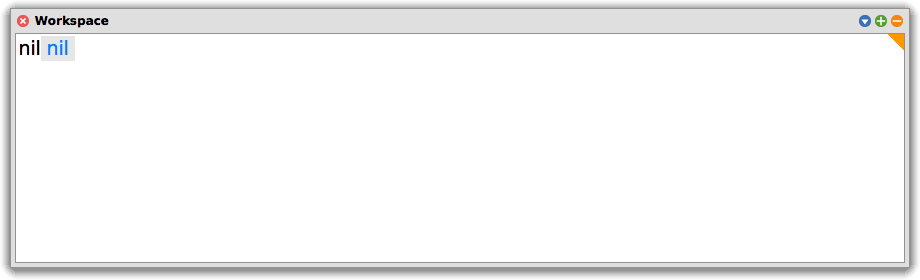
nil
STEP 2
Ask whether a value is missing
Replace ALL the old text, including its printed answer. Select this new line and Print it.
isNil asks “is this nil?” The answer is true.
nil isNil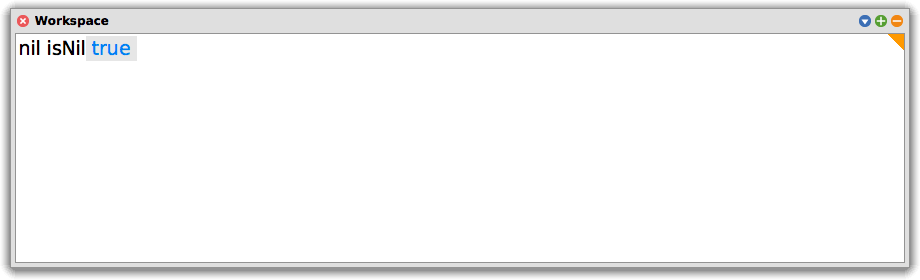
true
STEP 3
Compare with a real number
Replace all the text, select this line and Print it.
Zero is a number, not a missing value. Its answer is false.
0 isNil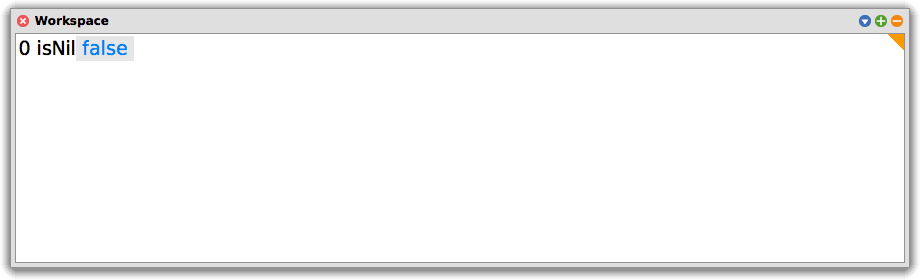
false
STEP 4
Supply a fallback
Replace all the text, select this line and Print it.
ifNil: uses the small action between square brackets only when the value is nil. Here it supplies the text Guest.
nil ifNil: [ 'Guest' ]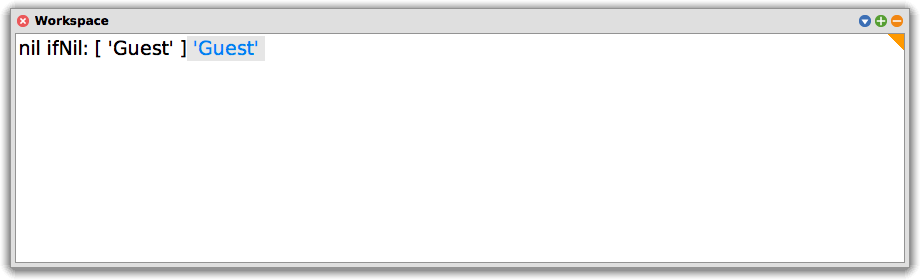
'Guest'
STEP 5
Keep a value that is present
Replace all the text, select this line and Print it.
Ada is already present, so Squeak keeps it. The fallback is not needed.
'Ada' ifNil: [ 'Guest' ]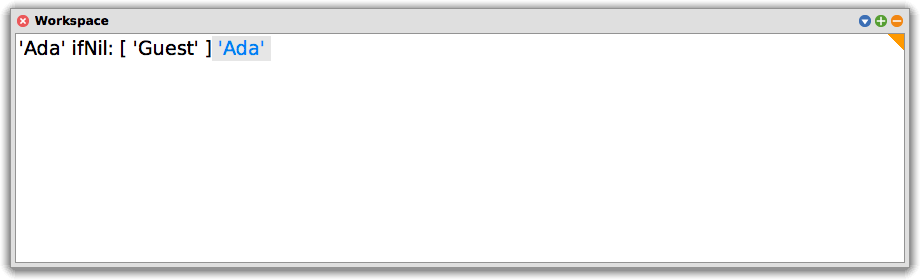
'Ada'
YOU DID IT
Missing is different from zero.
Use isNil to ask whether a value is missing. Use ifNil: to supply a fallback. An empty text is not nil either.
Try '' isNil. Expect false. The two quotes make empty text, which is still a value. Replace the old text and answer before each example.
Optional code download: open it as text and copy one example into Workspace.
Five nil examples: copy one at a time (.st)
Try more text messages · Meet true and false · Official Squeak message guide