ABSOLUTE BEGINNER
Your first Rectangle: describe an area
Make an area, measure it, check two points, and move it in five tiny steps.
STEP 1
Make a rectangle
Open Squeak. Click an empty part of its desktop, then choose open… and workspace. Type this line, select it, right-click and choose print it (p). Some setups use middle-click.
The first Point is the top-left corner; the second is the bottom-right. This Rectangle describes an area. It does not draw a box.
20@30 corner: 120@80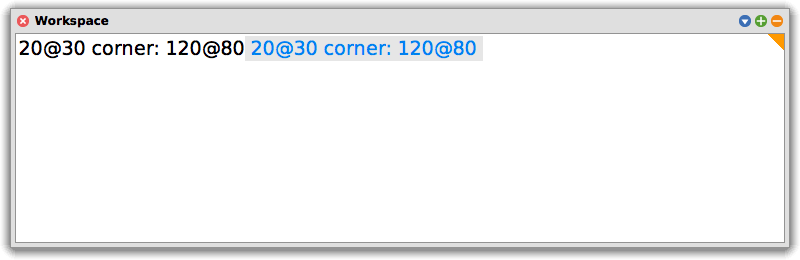
20@30 corner: 120@80
STEP 2
Ask how big it is
Replace ALL the old text, including the answer. Select the new line and choose print it (p).
extent asks for width and height. Across: 120 − 20 = 100. Down: 80 − 30 = 50.
(20@30 corner: 120@80) extent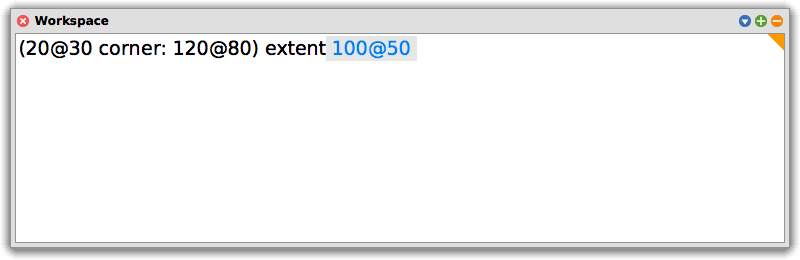
100@50
STEP 3
Check a point inside
Replace all the text again. Select both lines and choose print it (p).
containsPoint: asks whether that little address is inside. 50@50 is inside this area.
(20@30 corner: 120@80)
    containsPoint: 50@50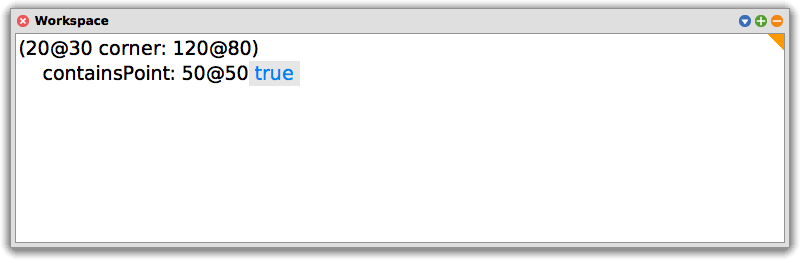
true
STEP 4
Try a point outside
Replace all the text, select both lines, and print it again.
200@100 is outside. The rectangle has not changed; only your question has changed.
(20@30 corner: 120@80)
    containsPoint: 200@100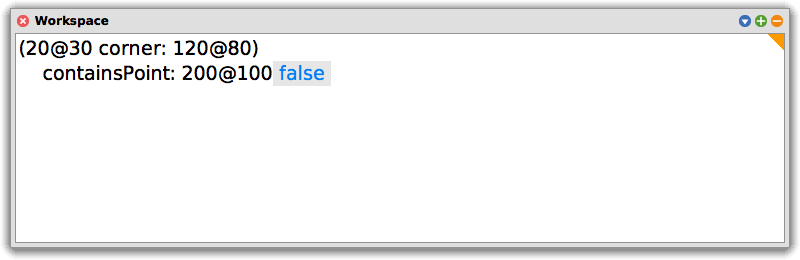
false
STEP 5
Move the area
Replace all the text, select both lines, and print it again.
translateBy: makes a moved Rectangle: 10 right and 5 down. Both corners move. The size stays 100@50.
(20@30 corner: 120@80)
    translateBy: 10@5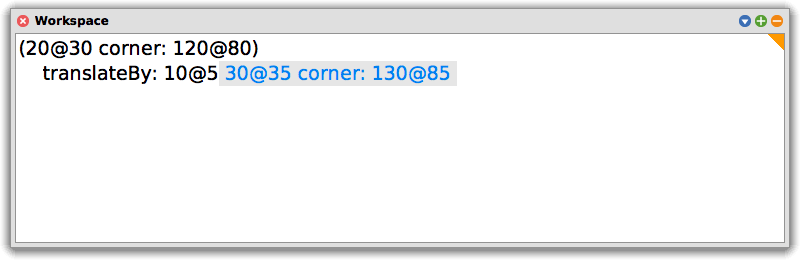
30@35 corner: 130@85
YOU DID IT
Two corners. One area.
A Rectangle can describe an area without drawing anything. extent reads its size; containsPoint: checks a location; translateBy: makes a moved copy.
Try 60@50 in step 3. Predict true before you run it. For exact edge checks later: the top and left edges count as inside; the bottom and right edges do not.
Optional code download: open it as text and copy one example into Workspace.