GET UNSTUCK WITH EVIDENCE
Troubleshooting & shortcuts
Find the cause of a failed evaluation, missing method, wrong result or stalled animation, and use Squeak’s tools to recover deliberately.
First: preserve the useful evidence
When an example does not work, keep the selected code, the first error message and the name of the receiving object. Work in a learning image and compare against one complete, unchanged example before changing several things at once.
- Read the evaluation label: Workspace expression, Browser method, or file-in source.
- Select the entire intended block, including temporary-variable declarations.
- Check whether the code was accepted or merely typed.
- Read the first relevant frame in the Debugger and inspect the receiver and arguments.
- Fix one cause, rerun a small case, then add a regression test.
The debugging workshop follows this process with a deliberately broken application and a real native Debugger.
Code appears, but nothing happens
Typed text is not automatically executed. In a Workspace, select the expression and choose Do it for effects, Print it for an inserted answer, or Inspect it for an object inspector. In a Browser, Accept compiles the method; it does not call that method.
A period separates statements. Temporary variables belong at the beginning of the selected block between vertical bars. Selecting only the last line can leave its variables outside the compilation unit. Remove a previous Print it answer before rerunning the same text.
3 + 4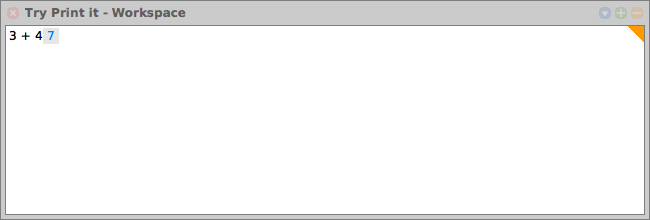
If a shortcut seems ineffective, click the intended text pane first, then use its context-menu command. On this Linux setup, Ctrl+P was physically verified with 3 + 4 → 7. Modifier mappings elsewhere depend on the virtual machine and preferences.
A Browser edit has not taken effect
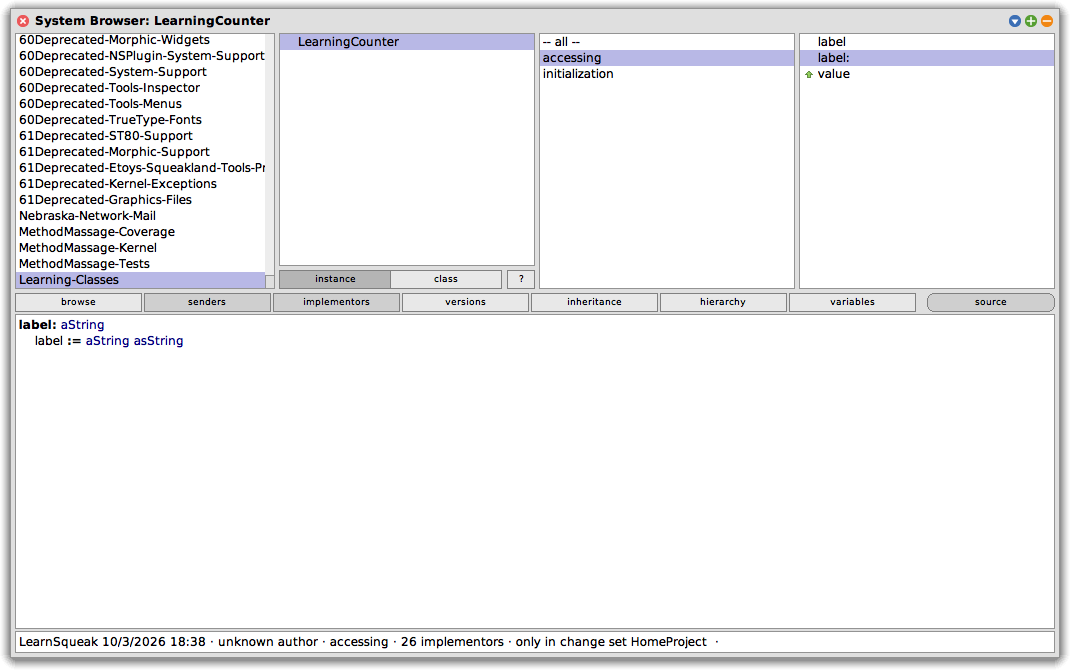
Check the class, side, protocol and selector. An instance method belongs on the instance side of the class whose objects will receive it. A class-side method receives the class object itself. Accept the method using the text menu; fix any compiler error before testing it.
Only one method goes into a Browser method pane at a time. Its first line is the selector and argument names, not a header such as ClassName>>selector. Full .st file-outs contain chunk delimiters and belong in File List → fileIn.
Adding an initialize method changes what happens for newly created instances. It does not rerun initialization on existing objects. Create a fresh instance when following an initialization checkpoint. Existing instances retain their current state.
MessageNotUnderstood: find the receiver first
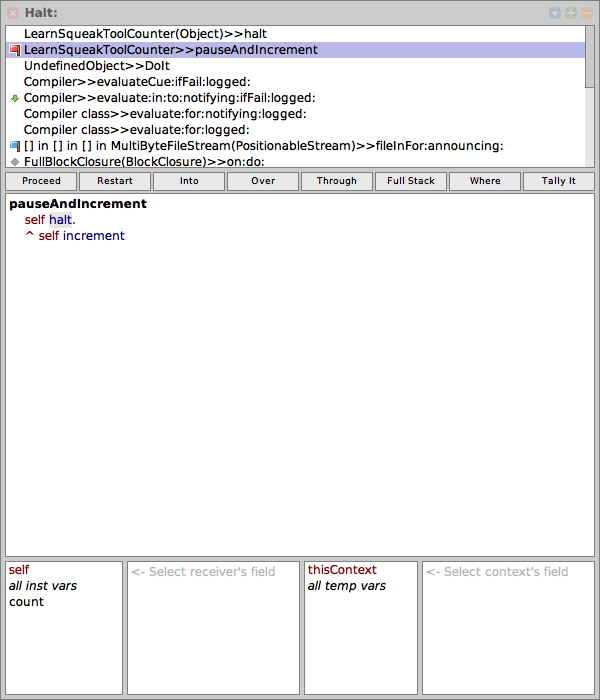
A does-not-understand error means the receiver cannot handle the selector it was sent. Read both pieces: a misspelled selector, an unexpected nil, an Array instead of one element, or the wrong class/instance side can produce different causes with the same general error.
- Select your application’s frame in the Debugger, not only a low-level dispatch frame.
- Inspect self and the argument or temporary involved in the failing send.
- Check spelling, capitalization and every colon in the selector.
- Browse the receiver’s class to see the messages it actually understands.
- Correct the cause and rerun a small example. Do not add a generic doesNotUnderstand: method to hide the error.
Unknown variables and unexpected nil
An unknown-name prompt is a compiler question, not a request to invent a global variable. Cancel it and check for a spelling mistake, missing temporary declaration or source file that was not loaded. Tutorial class names are case-sensitive. A local variable declared in one evaluation does not carry into another.
nil is a real object. It often means a variable has not been initialized, a lookup did not find a value, or an earlier operation returned no result. Inspect the value where it first becomes nil. A later exception is often a symptom rather than the original cause.
For downloaded applications, install the setup or source before running the launcher. For an individual recipe, copy the complete block. Keep the lesson’s order when it intentionally adds methods cumulatively.
The answer is wrong, but no exception appears
Smalltalk sends unary messages first, binary messages second, and keyword messages last. Binary messages have equal precedence and are evaluated left to right. Multiplication does not automatically outrank addition.
{3 + 4 * 2. 3 + (4 * 2)}#(14 11)Use parentheses to express the order you mean. Also distinguish assignment := from equality =, and a period (next expression) from a semicolon (another message to the same receiver).
Exact division can return a Fraction. That is expected, not a floating-point failure:
(1 / 3) + (1 / 6)(1/2)When logic is wrong, write down the expected result for a small input before changing the implementation. A test should capture that behavior.
Invalid input and recoverable errors
Validate input near the application boundary. A predictable user mistake should lead to a clear message without corrupting model state. Catch the narrow error you expect; catching every Error around a whole application can conceal programming defects.
[10 / 0] on: ZeroDivide do: [:error | 'Cannot divide by zero']'Cannot divide by zero'Cleanup belongs in ensure: when a resource must be released whether the protected block succeeds or fails. Exception unwinding matters: do not infer cleanup timing solely from where a handler is written.
| events |
events := OrderedCollection new.
[[events add: 'start'. Error signal: 'demonstration']
    ensure: [events add: 'cleanup']]
    on: Error do: [:error | 'recovered'].
events add: 'continued'.
events asArray#('start' 'cleanup' 'continued')For file streams, close them in ensure:. For save operations, update the saved-state marker only after the write has succeeded. The Notepad lesson demonstrates cancellation and failure behavior in a complete application.
An animation or loop makes the image unresponsive
First distinguish a busy image from an application that is simply waiting for input. Bring any open dialog forward and try the application’s Pause or Stop control. A tight loop without a delay or event boundary can starve the UI.
Squeak has a user-interrupt key. In this image’s EventSensor source, the default is the command modifier plus period. On macOS that normally means Cmd+period; on Linux/Windows the physical key depends on VM mapping, often Alt. Do not assume Ctrl+period works merely because Ctrl+D works in an editor: editor remapping and interrupt detection occur at different stages.
The command-period mapping and a synthetic EventSensor interrupt were verified in Squeak 6.1; a physical runaway-loop interrupt was not exercised. Check your image’s keyboard preferences and documentation before relying on a particular physical key. If an interrupt opens a Debugger, inspect the looping process, then abandon that computation using the available debugger control.
Do not test recovery by deliberately starting an unbounded loop in an image containing valuable work. Prefer bounded iterations while learning, short stepping methods for Morphic animations, and the application’s own stop/close cleanup. Force-quitting is a last resort because unsaved image changes can be lost.
A download will not load, or a file action fails
- Wrong kind of .st file: a Workspace block and a chunk-format source file share an extension. Use the evaluation instructions beside the download.
- Missing class: file in prerequisites before the launcher. Read the first compiler error instead of continuing past it.
- Wrong image version: selectors and widgets vary. Core examples here target Squeak 6.1 build 23976; Pen Studio guides retain their Squeak 6.0 notes.
- Wrong path: a relative file path uses Squeak’s current/default directory, not your browser’s Downloads folder. Use a known tutorial folder and an explicit path when the app asks.
- Write denied or malformed data: keep the live document or task list intact and show the error. Do not clear the modified state after a failed save.
- File saved, class missing later: saving a document does not export its application’s classes. Keep the source file separately.
Shortcut reference with context
These are the default command-key bindings read from SmalltalkEditor and TextEditor in the tested image. “Command modifier” is an image/VM concept: the physical key can be Ctrl, Alt or Cmd according to platform and preferences. Use the context menu as the portable route.
| Command | Modifier + key | Meaning |
|---|---|---|
| Do it | D | Evaluate for its effect |
| Print it | P | Evaluate and insert printString output |
| Inspect it | I | Evaluate and inspect the result |
| Accept / save | S | Accept the current editor contents; meaning depends on its model |
| Browse it | B | Browse the selected class or expression |
| Undo | Z | Undo an editor change |
| Debug it | Shift+D | Evaluate the selection under the debugger |
| Explore it | Shift+I | Explore the selected expression’s result |
Accept is not universally disk Save. In the native text widget used by our Notepad, Ctrl/Cmd-S accepts text into the model. Its toolbar Save writes the file. In a Browser, Accept compiles a method. Saving the image is a separate World-menu action.
The key maps were inspected in SmalltalkEditor class>>initializeCmdKeyShortcuts, initializeShiftCmdKeyShortcuts, and inherited TextEditor mappings. Their named actions were verified in the image. Host-level shortcuts can intercept a key before Squeak receives it.
Make a useful bug report
Include the Squeak version, operating system, the exact complete expression or downloaded source revision, the steps you took, expected versus actual behavior, and the first error message. A screenshot of the relevant Debugger frame helps, but copyable text is useful too.
Remove personal document contents and unrelated paths before sharing. Keep the smallest example that still reproduces the issue. State whether it happens in a fresh learning image.