ABSOLUTE BEGINNER
Your first Symbol: give a name to an idea
Recognize a Symbol, turn it into text and compare names in five small Squeak steps.
STEP 1
Write a name
Open a Workspace from Squeak’s desktop menu: open… then workspace. Type this line, select it, right-click and choose print it (p). Some setups use middle-click.
The # makes a Symbol: a name you can pass around in your program. It does not run a command.
#ready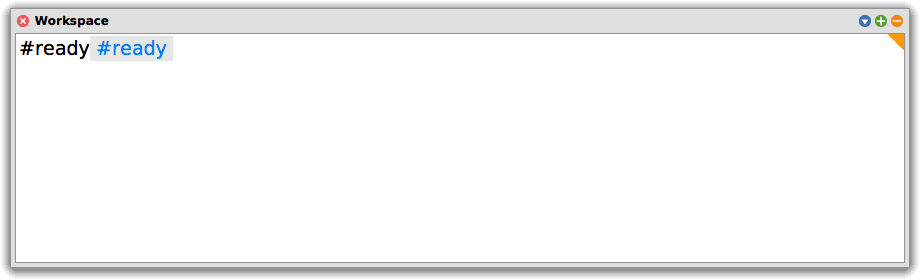
#ready
STEP 2
Turn the name into text
Replace ALL the old text, including its printed answer. Select this new line and Print it.
asString gives ordinary text. Notice the quotes instead of # in the answer.
#ready asString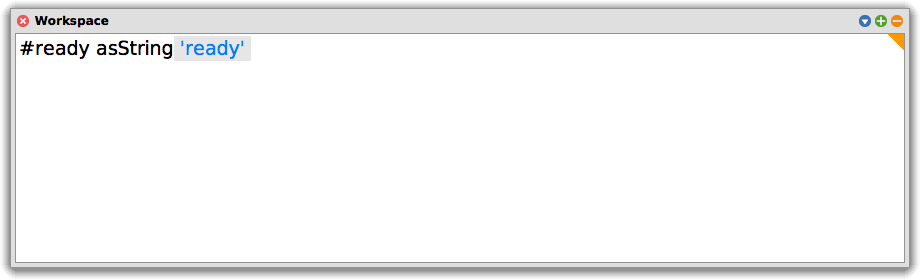
'ready'
STEP 3
Turn text into a name
Replace all the text again, select this line and Print it.
asSymbol turns the text into a Symbol. You can go in either direction.
'ready' asSymbol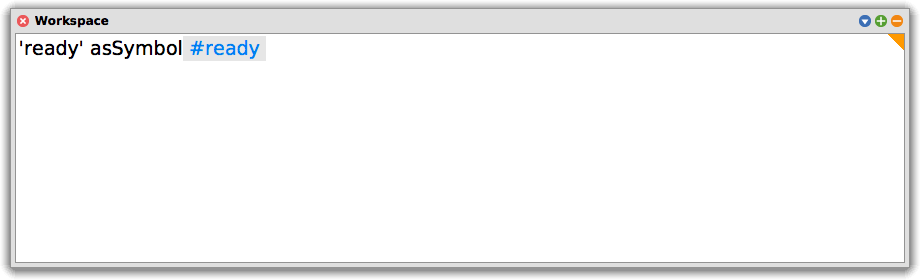
#ready
STEP 4
Compare different names
Replace all the text, select this line and Print it.
The = asks whether these names are equal. They are different, so the answer is false.
#ready = #done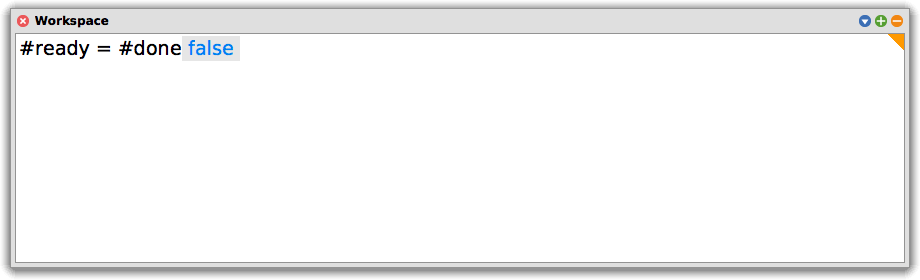
false
STEP 5
Find the same name again
Replace all the text, select this line and Print it.
The comma joins two pieces of text. asSymbol finds the name ready again. Here == asks whether both sides are the very same object, and the answer is true.
#ready == ('rea', 'dy') asSymbol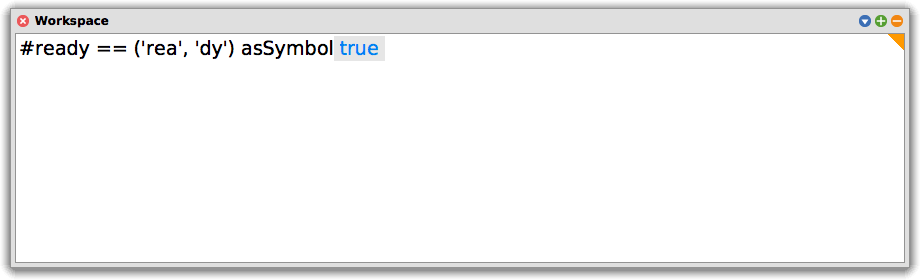
true
YOU DID IT
A name you can use.
A Symbol is useful for a fixed name such as ready or done. Ordinary text is still the right choice for a sentence you want to edit. Use = for a general value comparison; == specifically asks about the same object.
Try #waiting asString and then 'waiting' asSymbol. Replace the old result each time. Do not try to edit a Symbol’s characters.
Optional code download: open it as text and copy one example into Workspace.
Five Symbol examples: copy one at a time (.st)
Pair a name with a value · Try ordinary text · Official Squeak documentation