Model a traffic-light illustration, make guarded transitions visible, and control native Morphic playback one logical tick at a time.
8 construction stagesTested source & checkpointsNative screenshots & demos
Before you start
Build Signal Lab: an explicit state model, a native signal panel and transition graph, queued crossing requests, configurable timing, run/pause/reset controls, a bounded transition trace and one-cycle playback. Every stage is a real Squeak application you can inspect and change.
Eight cumulative checkpoint files let you build forward or start in a fresh Squeak image at any checkpoint. The highlighted methods explain the new behavior; each complete download also contains the window, view and supporting methods. File in the chosen checkpoint, read its methods, then run the exact Workspace block. This lesson runs in native Squeak 6.1; there is no embedded browser version of this application.
Squeak 6.1, 64-bit image build 23976; Morphic and SUnit are bundled; no extra package or network data is required
Basic messages, symbols, blocks, collections, instance variables, the System Browser and Workspace Do it / Inspect it
Allow about 45–60 minutes to work through the checkpoints and exercises
Use a copy of your learning image. Close the previous Signal Lab window before installing another checkpoint.
Chunk-format source files contain class declarations and method chunks. File List → choose the .st file → fileIn; do not paste the complete download into a Workspace.
Progress forward through checkpoints, or use a fresh image when returning to an earlier checkpoint. Filing in an older checkpoint does not remove methods added by a later one.
The complete source does not open a window automatically. Evaluate LSSignalApp open in a Workspace after file-in.
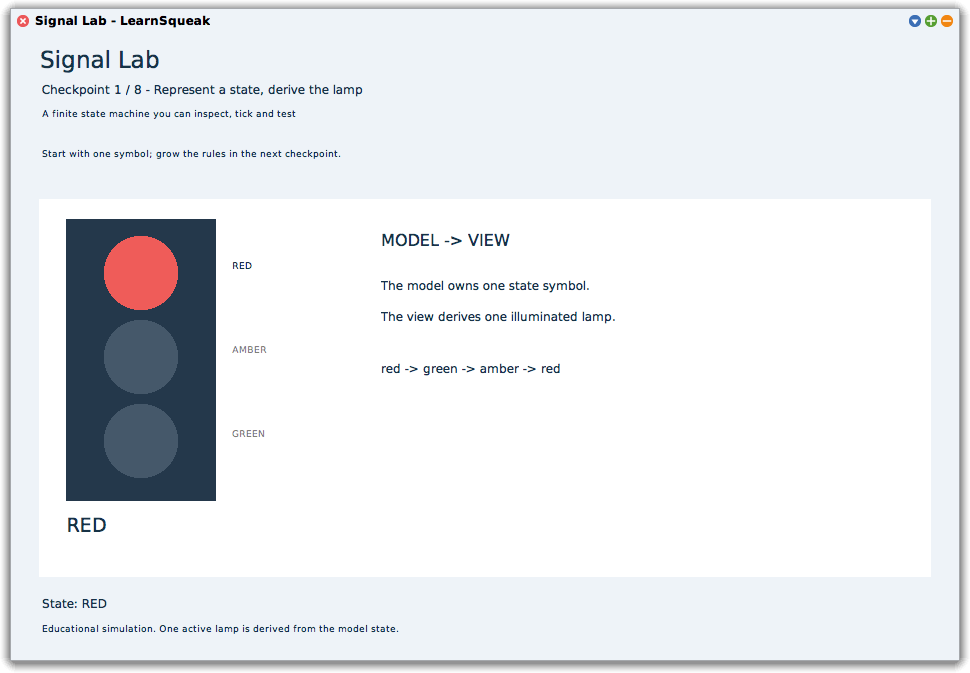
A finite state machine has a finite set of states, an initial state, and rules that choose the next state. Start with three symbols: #red, #green and #amber. Symbols give the model stable names without making the picture itself the source of truth. LSSignalModel begins in #red. The signal is an educational illustration of a state machine, not a design for operating real traffic.
Keep three responsibilities separate. LSSignalModel owns state and counters. LSSignalPanel, a Morph subclass, reads the model and draws the lamps. LSSignalApp owns the window and controls. Its Morphic view asks activeLamp; it does not store three independent Boolean lamp flags that could disagree. This gives us a useful invariant: exactly one of the three lamps is active. Later, the crossing state can deliberately share the red lamp without erasing the distinction between states.
File in the checkpoint to install the complete classes, window and drawing scaffold. Study initialize and reset: initialization chooses configuration, while reset restores transient state. The view's drawing loop compares each lamp symbol with model activeLamp, choosing a bright color for the match. App and view have no transition logic yet. Open an Inspector on the returned app, follow its model instance variable, and compare the symbol with the red picture.
reset
 state := #red. elapsed := 0. ticks := 0. transitions := 0. cycles := 0. requested := false. history := OrderedCollection new
LSSignalModel >> activeLamp · instance side
activeLamp
 ^ state
Where to run this
File List → select state-machines-01.st → fileIn. Then open a System Browser on each named class, instance side. The methods below are already installed by this checkpoint; accept them there if you are typing along.
Workspace → select the entire block below → Do it. To keep the returned app for Inspector experiments, use Inspect it on the same whole block. Close the previous Signal Lab window first.
Workspace · run after installing this checkpoint
| app |
app := LSSignalApp open.
app
Watch for: Do not file in a chunk-format .st file by pasting all of it into a Workspace. Use File List and fileIn; only the launcher block is a Workspace expression.
Try it: Inspect app model and evaluate activeLamp. Why is a single symbol less ambiguous than three independently mutable lamp flags?
Expected result
A native Signal Lab window with one red lamp and a model whose state is #red. No animation runs.
Native Squeak 6.1 window after executing the exact Workspace block above. A native Signal Lab window with one red lamp and a model whose state is #red. No animation runs.
02 · Make transitions explicit
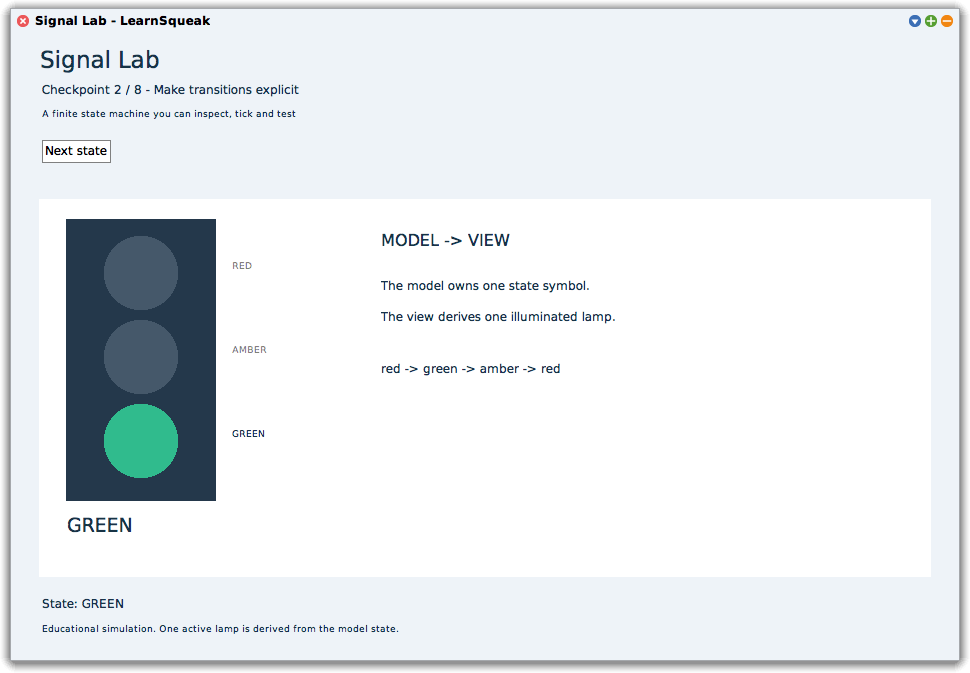
The transition function is now explicit: red maps to green, green maps to amber, and amber maps to red. A Dictionary makes the rules visible in one place. nextState is a query; calling it does not change the model. advance performs the command: choose the next state, reset the elapsed counter and count the transition. Reaching red counts a completed cycle.
The Next state button sends advance to the app. The app tells the model to advance, then asks the view to redraw. This message path is the core model/view separation: a button initiates a command, the model changes, and the panel draws the new state. Neither the button nor the canvas needs to know the transition table.
Use the Workspace block to make the first transition and inspect green. Click Next state twice more to visit amber and return to red. A deliberate manual transition does not consume a logical tick; it jumps directly along the graph. Keeping that operation separate from tick will let us inspect the machine without pretending that time elapsed. The status bar will expose the distinction when counters arrive.
File List → select state-machines-02.st → fileIn. Then open a System Browser on each named class, instance side. The methods below are already installed by this checkpoint; accept them there if you are typing along.
Workspace → select the entire block below → Do it. To keep the returned app for Inspector experiments, use Inspect it on the same whole block. Close the previous Signal Lab window first.
Workspace · run after installing this checkpoint
| app |
app := LSSignalApp open.
app advance.
app
Watch for: Next state is a manual edge traversal. It deliberately skips the remaining duration and does not count a tick.
Try it: Ask the model for nextState twice without advancing. Confirm that the visible state stays unchanged.
Expected result
Green is illuminated after one explicit transition. Two more Next state clicks return to red.
Native Squeak 6.1 window after executing the exact Workspace block above. Green is illuminated after one explicit transition. Two more Next state clicks return to red.
03 · Turn time into discrete ticks
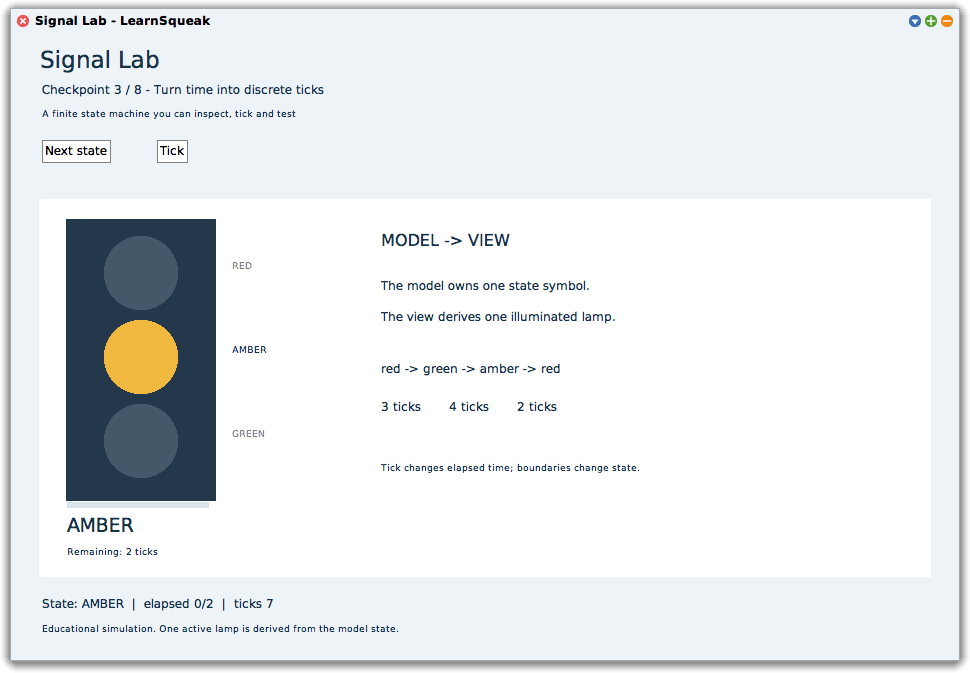
A tick is one unit of simulated time. It is not a second. The model counts a tick, advances elapsed time inside the current state, and transitions when elapsed reaches that state's duration. Red lasts three ticks, green four and amber two. The state seen after ticks 1 through 9 is red, red, green, green, green, green, amber, amber, red. A boundary tick enters the next state with elapsed zero.
The order matters. Incrementing elapsed before the comparison and using >= makes a duration of one leave on the first tick. advance resets elapsed once, so the new state's first tick is never accidentally consumed at the old state's boundary. remaining is duration minus elapsed, and stays positive in every observable state. The small progress strip represents elapsed divided by duration; it returns to empty on a transition.
Tick advances time once. Next state still bypasses time. This is useful for teaching and inspection, but it means transition count and tick count answer different questions. The example reaches amber after seven ticks. Compare it with seven Next state clicks: that takes seven edges while leaving ticks at zero. All timing tests call the model directly and therefore run deterministically without waiting for a clock.
File List → select state-machines-03.st → fileIn. Then open a System Browser on each named class, instance side. The methods below are already installed by this checkpoint; accept them there if you are typing along.
Workspace → select the entire block below → Do it. To keep the returned app for Inspector experiments, use Inspect it on the same whole block. Close the previous Signal Lab window first.
Native Squeak 6.1 window after executing the exact Workspace block above. Amber is active; elapsed is 0/2 and ticks is 7. The remaining counter is 2.
04 · Show the transition graph and trace
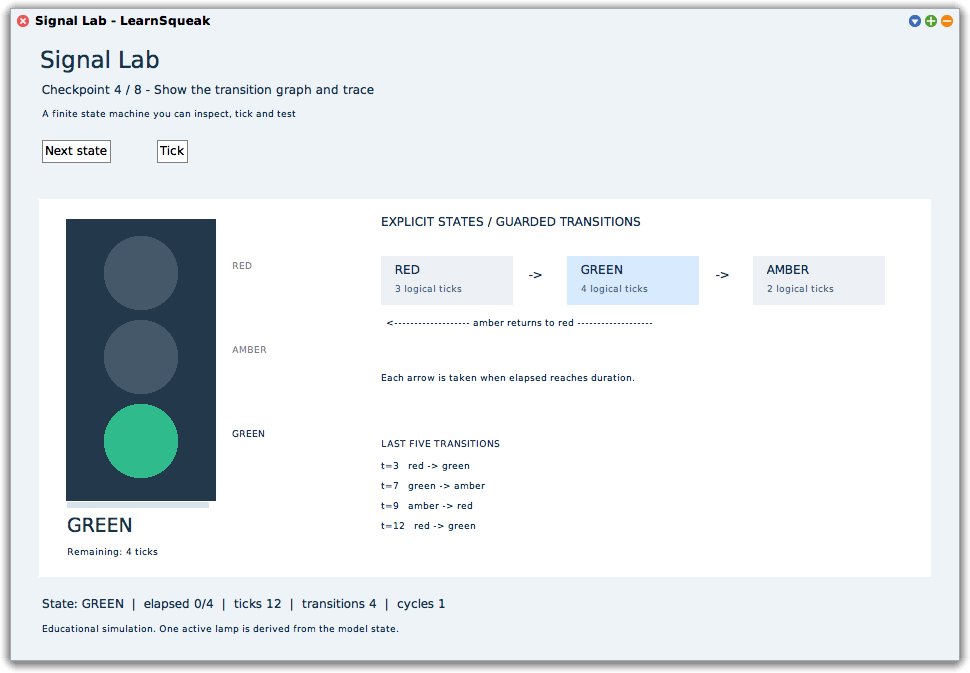
Expose the machine's structure alongside its output. The panel now draws each state, the normal arrows, and the durations. The current state is highlighted independently of lamp color. This is especially useful once two states share the same lamp output. The graph is a read-only view of the model; drawing a node never advances the machine.
The model records a transition only when it crosses an edge. advance saves the previous state before assigning the new one, then writes a trace entry containing the logical tick and both endpoints. It keeps the newest five entries so a continuously running app cannot grow an unbounded log. transitions retains the full count, even when old entries leave the visible history. cycles counts returns from amber to red.
The history query returns a collection containing copies of the strings. Copying just the collection would still expose mutable strings: an Inspector could change the first character of a stored event. The defensive copy keeps observation from changing the simulation. After twelve ticks, the trace should show edges at 3, 7, 9 and 12. These entries are a compact audit trail you can compare against a failing test.
LSSignalModel >> advance · instance side
advance
 | previous |
 previous := state. state := self nextState. elapsed := 0. transitions := transitions + 1.
 state = #red ifTrue: [cycles := cycles + 1].
 history add: ('t=', ticks printString, '   ', previous asString, ' -> ', state asString).
 history size > 5 ifTrue: [history removeFirst]
LSSignalModel >> history · instance side
history
 ^ history collect: [:line | line copy]
LSSignalPanel >> drawNode:on:at: · instance side
drawNode: symbol on: canvas at: point
 | active shade |
 active := app model state = symbol. shade := Color fromString: (active ifTrue: ['#D8EAFD'] ifFalse: ['#EDF1F5']).
 canvas fillRectangle: ((self position + point) extent: 132@49) color: shade.
 self text: symbol asString asUppercase on: canvas at: point + (14@7) size: 14 color: (Color fromString: '#17334B').
 self text: ((app model durationFor: symbol) printString, ' logical ticks') on: canvas at: point + (14@28) size: 10 color: (Color fromString: '#536B82')
Where to run this
File List → select state-machines-04.st → fileIn. Then open a System Browser on each named class, instance side. The methods below are already installed by this checkpoint; accept them there if you are typing along.
Workspace → select the entire block below → Do it. To keep the returned app for Inspector experiments, use Inspect it on the same whole block. Close the previous Signal Lab window first.
Native Squeak 6.1 window after executing the exact Workspace block above. Green is active at tick 12 with four transitions, one completed cycle and trace timestamps 3, 7, 9 and 12.
05 · Schedule, pause and reset safely
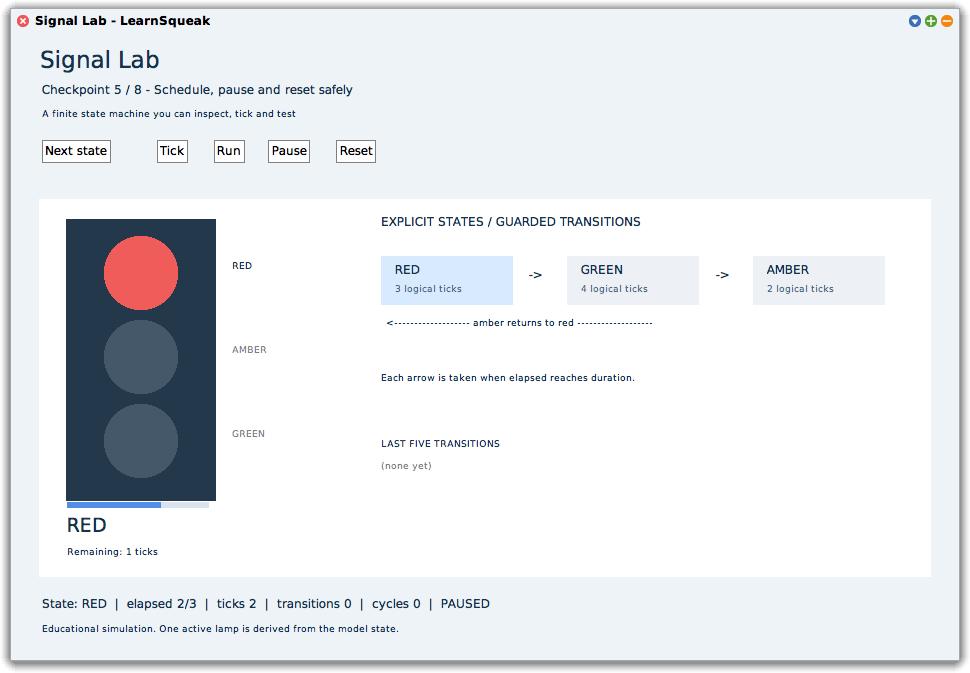
Use Morphic's existing stepping scheduler to run the machine. run registers the app once and records the World that registered it. stepTime requests a callback interval; step consumes one model tick only while running is true. Avoid a tight whileTrue: loop: it would monopolize the UI process and make Pause difficult to use.
Stopping has two parts. Set running to false so an already queued callback becomes harmless, and unregister the app from the scheduler. Remembering scheduledWorld matters because a closing window can remove the app from the world before cleanup asks self world. windowIsClosing stops activity before forgetting the window. These methods belong in the first animated checkpoint, not as optional cleanup later.
Pause preserves state. Reset pauses and clears progress, requests and trace. Tick and Next state pause first, so a manual action cannot race ongoing playback. Repeated Run while running returns immediately; repeated Pause or Reset remains safe. The sample block calls step directly twice to show a deterministic paused state. For live playback, click Run: Morphic itself sends future callbacks. Its requested interval is approximate, so this simulation intentionally makes no real-time timing guarantee.
File List → select state-machines-05.st → fileIn. Then open a System Browser on each named class, instance side. The methods below are already installed by this checkpoint; accept them there if you are typing along.
Workspace → select the entire block below → Do it. To keep the returned app for Inspector experiments, use Inspect it on the same whole block. Close the previous Signal Lab window first.
Watch for: The sample invokes step directly for a reproducible image. Run uses Morphic callbacks; the model is still advanced one logical tick per callback.
Try it: Click Run twice, then Pause twice. After pausing, send app step from an Inspector and confirm ticks stays fixed.
Expected result
Red is paused at elapsed 2/3, ticks 2, with no scheduler registration. Run resumes from that position.
Native Squeak 6.1 window after executing the exact Workspace block above. Red is paused at elapsed 2/3, ticks 2, with no scheduler registration. Run resumes from that position.
06 · Queue an event and guard a transition
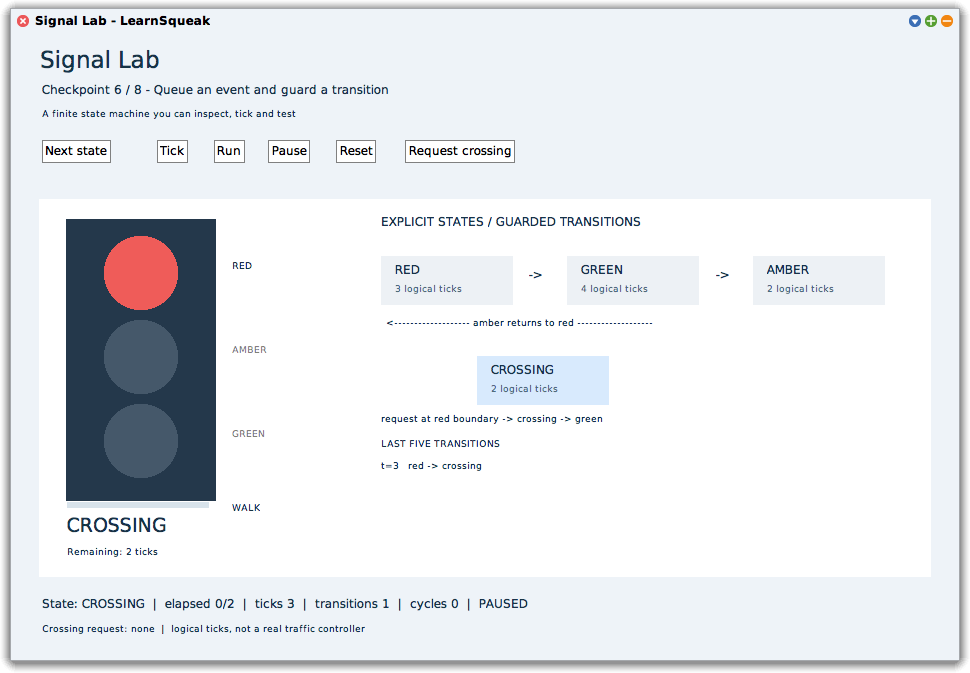
Add an input event and a guarded edge. Request crossing sets a pending Boolean; it does not immediately interrupt the current state. At the end of red, nextState checks both the current state and the pending request. A true guard chooses #crossing; otherwise red still goes directly to green. Crossing lasts two ticks, then goes to green. It displays a red lamp plus WALK, showing that a state is richer than its output color.
Consume the pending request when entering crossing. Repeated requests while one is pending return false, and requests during crossing are ignored. This bounded, one-slot queue makes repeated button presses predictable. A request during green or amber waits through the next red period. Reset clears it. The diagram's branch text names the guard, and the footer shows whether the event is queued.
The transition table remains easy to read because only the exceptional guarded edge is a conditional. Ordinary edges stay in the Dictionary. Try a request while green: the view should show QUEUED while the machine still follows green to amber to red. Only after red's remaining ticks does WALK appear. This is a small lesson in event consumption and guards, not a claim that these phases satisfy any traffic standard.
advance
 | previous |
 previous := state. state := self nextState. elapsed := 0. transitions := transitions + 1.
 state = #crossing ifTrue: [requested := false].
 state = #red ifTrue: [cycles := cycles + 1].
 history add: ('t=', ticks printString, '   ', previous asString, ' -> ', state asString).
 history size > 5 ifTrue: [history removeFirst]
LSSignalModel >> activeLamp · instance side
activeLamp
 ^ state = #crossing ifTrue: [#red] ifFalse: [state]
Where to run this
File List → select state-machines-06.st → fileIn. Then open a System Browser on each named class, instance side. The methods below are already installed by this checkpoint; accept them there if you are typing along.
Workspace → select the entire block below → Do it. To keep the returned app for Inspector experiments, use Inspect it on the same whole block. Close the previous Signal Lab window first.
Native Squeak 6.1 window after executing the exact Workspace block above. CROSSING is active at tick 3. Red stays illuminated, WALK appears, and the consumed request is no longer queued.
07 · Validate timing and change playback speed
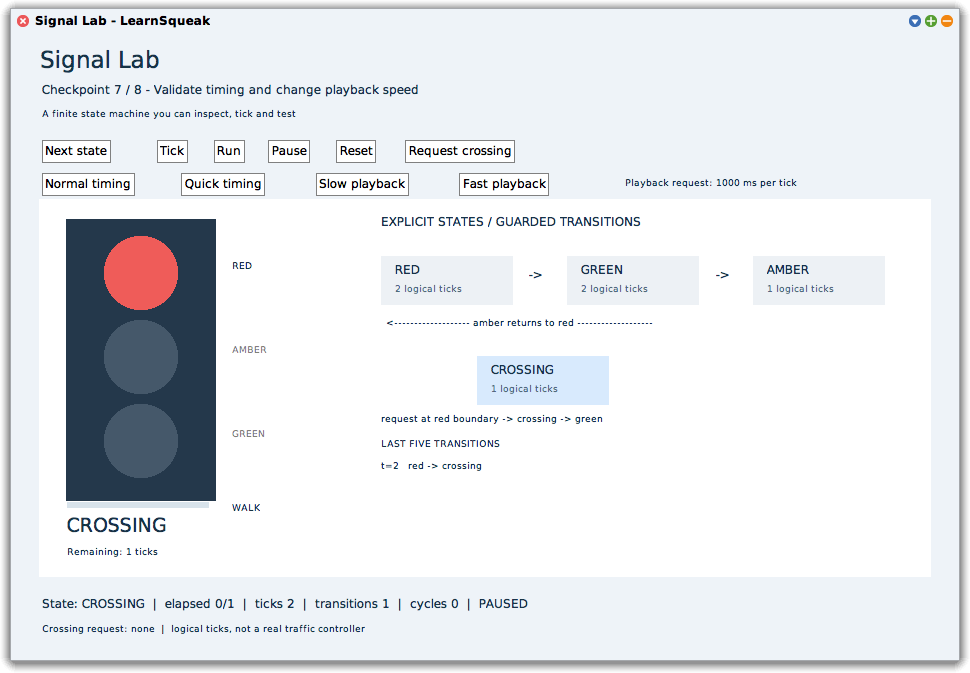
Distinguish simulation configuration from playback speed. Normal timing uses durations 3/4/2/2; Quick timing uses 2/2/1/1 for red/green/amber/crossing. Choosing a timing preset pauses and resets the model with the new configuration. Slow playback and Fast playback change the requested callback interval to 1000 or 250 milliseconds without changing state, elapsed ticks, pending input or configured durations.
configureDurations: validates the entire proposal before assigning it. It requires a Dictionary with exactly the four state keys and integer durations from 1 through 20. Wrong keys, missing keys, extra keys, fractions and nonpositive values return false without changing existing progress. Once valid, it copies the Dictionary and resets. This transactional pattern prevents a half-applied configuration from corrupting the machine.
The app coordinates scheduler changes around valid presets. The model has no World or window dependency, so it is also usable from tests. If you edit model configuration through an Inspector while the app is running, pause it first and refresh afterward. Use the public app controls for ordinary interaction. The sample intentionally combines quick logical durations with slow playback to make their independent meanings visible.
LSSignalModel >> configureDurations: · instance side
File List → select state-machines-07.st → fileIn. Then open a System Browser on each named class, instance side. The methods below are already installed by this checkpoint; accept them there if you are typing along.
Workspace → select the entire block below → Do it. To keep the returned app for Inspector experiments, use Inspect it on the same whole block. Close the previous Signal Lab window first.
Native Squeak 6.1 window after executing the exact Workspace block above. CROSSING is active at tick 2 with a one-tick duration. The playback label reads 1000 ms per tick and the app is paused.
08 · Stop after a cycle and verify lifecycle
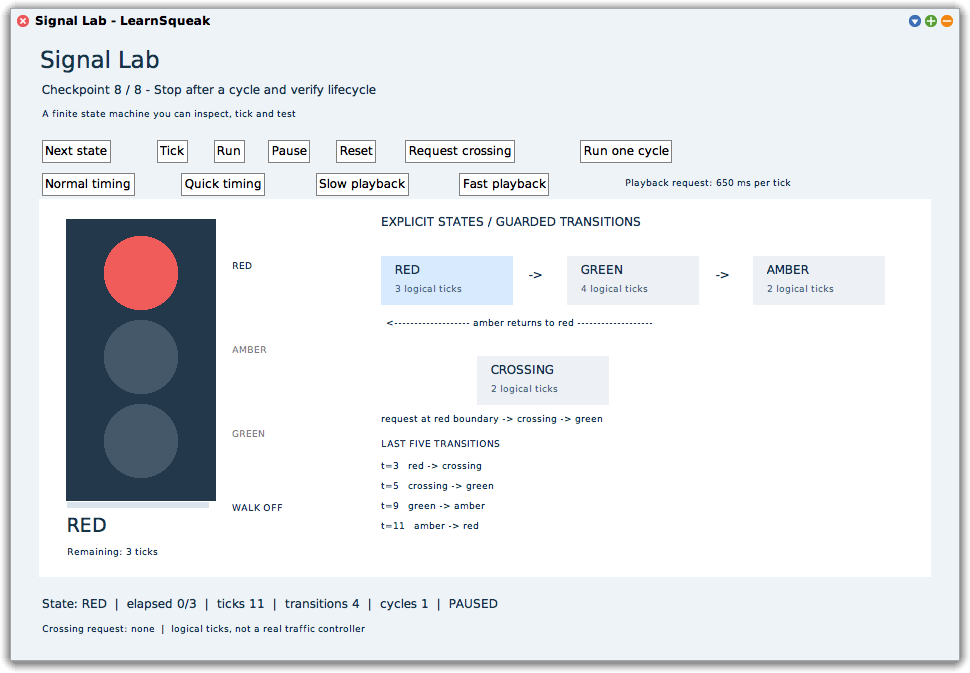
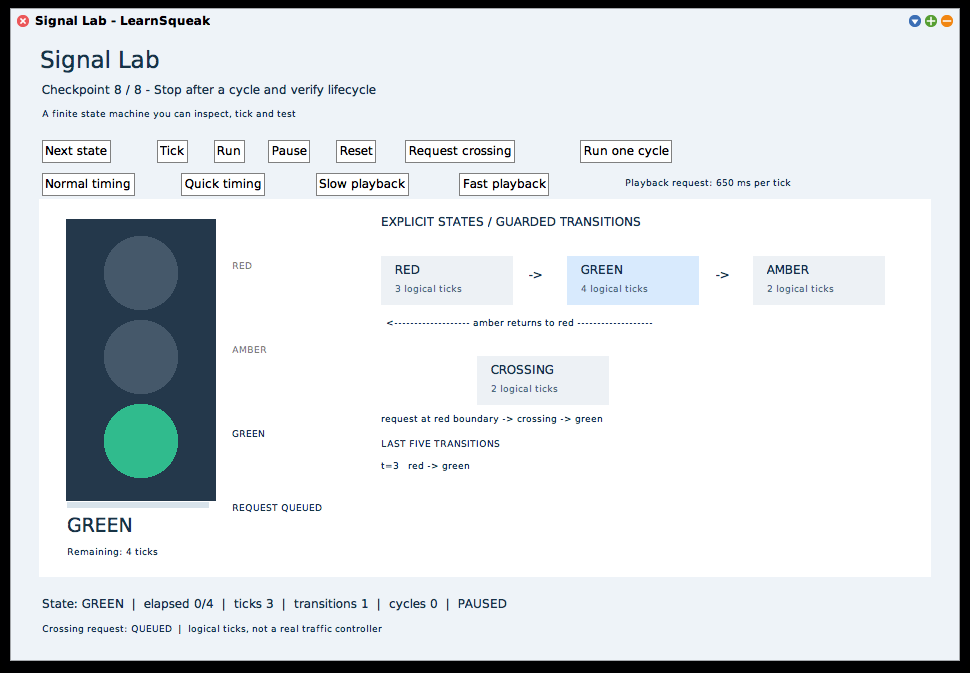
Give continuous playback a bounded goal: Run one cycle stops at the next return to red from amber. The app stores a target of model cycles + 1 and compares it after every tick. From a fresh reset, a normal cycle takes nine ticks, or eleven when a crossing request is queued. From halfway through a cycle, it completes the remainder rather than restarting.
Repeated Run one cycle while already running leaves the original target intact. The regular Run button also leaves an active run alone; Pause then Run starts unrestricted playback. stopActivity clears the target as well as unregistering the scheduler. Once the target is reached, further step messages are harmless. This is a useful general pattern for a simulation that should stop on a model condition instead of after a guessed number of milliseconds.
Now test the boundaries between responsibilities. A closed window must leave no scheduler registration; reopening the same app must create a new window in a paused state while preserving the model. Two open calls must reuse one window. The downloadable SUnit suite checks the transition sequence, timing limits, event guards, copied queries, repeated controls, actual button events, automatic scheduling and close/reopen behavior. Read a test before changing a rule, then rerun the suite to make the intended contract explicit.
File List → select state-machines-08.st → fileIn. Then open a System Browser on each named class, instance side. The methods below are already installed by this checkpoint; accept them there if you are typing along.
Workspace → select the entire block below → Do it. To keep the returned app for Inspector experiments, use Inspect it on the same whole block. Close the previous Signal Lab window first.
Watch for: Run one cycle finishes the current cycle at its next return to red. It does not guarantee a complete red phase if started midway through a cycle.
Try it: Run one cycle, close the window during playback, reopen the same app, and confirm it is paused. The test suite automates the same lifecycle.
Expected result
Red is paused at tick 11, four transitions and one cycle. Trace includes red -> crossing -> green -> amber -> red.
Native Squeak 6.1 window after executing the exact Workspace block above. Red is paused at tick 11, four transitions and one cycle. Trace includes red -> crossing -> green -> amber -> red.
Watch the workflow
All eight screenshots and every animation frame were captured from the real Squeak 6.1 window with window imageForm and PNGReadWriter. The GIF is an edited sequence of native frames: a deterministic script dispatches actual Morphic mouse events to buttons and calls the same step callback used by the scheduler. Its display delays are chosen for readability; it is not a real-time screen recording. Automatic scheduler dispatch is separately tested in SUnit.
NATIVE SQUEAK CAPTURE
Scripted native frames: start playback, pause, queue a crossing request during green, inspect one Tick, resume to the next red boundary, then run through the guarded crossing and reset. Real button events drive the controls; direct step callbacks keep captured logical ticks deterministic.
Practice with tested solutions
1. Predict ticks until green without changing state
Add ticksUntilGreen to LSSignalModel. Return zero when already green. Otherwise calculate the logical ticks until the next green state, respecting the current remaining time and an already queued crossing request. Do not advance or mutate the model. Assume no new input arrives during the prediction.
Hint
Crossing contributes only its own remaining ticks. Amber must also pass through a full red period. A queued request adds a crossing duration from red or amber.
Show a tested solution
System Browser → LSSignalModel → instance side → exercises. Accept this method after filing in the final application.
Workspace · Print it after installing the solution
Check the solution
| model |
model := LSSignalModel new.
{model ticksUntilGreen.
 model requestCrossing.
 model ticksUntilGreen}
Print it returns #(3 true 5). The five-test exercise suite also compares predictions with independent forward simulation across 36 state/request combinations.
The estimate reads the same duration configuration as the transition engine. It stays correct when red or crossing durations change.
2. Change just the green duration transactionally
Add greenDuration: to LSSignalModel. Reuse the existing validator to change only green, preserving the other durations. Return false without modifying progress for invalid values. A valid value should reset transient progress, matching configureDurations:.
Hint
Get a copy from durations, change that proposal, then delegate the full transaction to configureDurations:.
Show a tested solution
System Browser → LSSignalModel → instance side → exercises. Accept this method after filing in the final application.
Workspace · Print it after installing the solution
Check the solution
| model accepted rejected |
model := LSSignalModel new.
accepted := model greenDuration: 8.
model tick.
rejected := model greenDuration: 0.
{accepted. rejected. model ticks. model durationFor: #green}
Print it returns #(true false 1 8). Boundary values 1 and 20 are accepted; 0, negative values, 21, fractions, text and nil are rejected.
Copy-then-validate avoids changing the live Dictionary before you know the complete proposal is valid. The app should be paused before configuring its model through an Inspector.
When something looks wrong
The whole file produces syntax errors in a Workspace
Use File List → fileIn for complete .st downloads. Paste only the short Workspace blocks into a Workspace. Method headers belong on the stated class in the Browser.
A request does not immediately show WALK
That is the guard working: the request waits until the current or next red period ends. Requests during crossing are ignored. Check the QUEUED footer and step through the boundary.
The window stays still after opening
Opening is paused by design. Click Tick for one logical tick or Run for Morphic scheduling. A direct model mutation from an Inspector may also need app refresh.
Playback is slower than its displayed millisecond request
Morphic shares the UI process and cannot promise real-time intervals. The model consumes one logical tick per delivered callback. Timing presets change logical durations; playback controls change the interval request.
An earlier checkpoint behaves like a later one
File-in replaces and adds methods; it does not remove newer methods. Reopen a clean baseline image for an independent earlier checkpoint, or continue forward.
How do I run the tests?
File in state-machines-final.st and state-machines-tests.st, then Print it: LSSignalTest suite run. For exercises, also file in both solution files and state-machines-exercise-tests.st; Print it: LSSignalExerciseTest suite run.
Verification, cleanup and next steps
Built and executed with Squeak 6.1 image build 23976 and the bundled 64-bit Linux VM. Model, panel and controller are separate native Smalltalk objects; no JavaScript recreation was used for screenshots or animation.
41 application tests and 5 exercise tests pass in native Squeak 6.1. All eight cumulative checkpoint files were loaded independently from the clean baseline image; every displayed method snippet was compiled and each exact Workspace block was executed before capture.
The application suite verifies ordinary and guarded transition sequences, precise logical tick boundaries, one active lamp, atomic validation, defensive copies, bounded history, reset, repeated actions, actual button events, live Morphic callback dispatch, one-cycle stopping, and window close/reopen cleanup.
41 application SUnit tests: 41 passes, zero failures, zero errors
5 exercise SUnit tests: 5 passes, zero failures, zero errors; prediction checked against forward simulation across 36 combinations
8 independent checkpoint file-ins, highlighted-method compilation and exact launcher execution
Native GIF script verifies pause makes a late callback harmless, requests are consumed, one-cycle playback stops, and reset restores tick zero
Pause or close Signal Lab when finished. Closing unregisters it from the original World. Keep your .st files separately so the application can be reconstructed in a clean image. To remove the tutorial classes, close its windows first, then remove the LearnSqueak-StateMachines category in the Browser.
Squeak 6.1 bundled source: Morphic stepping and SystemWindow lifecycle — The tested image supplies Morph>>startStepping/stopStepping, World scheduling, SystemWindow close notifications and PNGReadWriter.
Complete runnable source and SUnit tests — Included above and in the kit; tests are the executable contract for this tutorial.