INPUTS, ACTIONS, AND LIVE OBJECTS
Build a form.
Make it respond.
Buttons, text input, a checkbox, a list, and a slider inside a real Squeak window.
In Morphic, a control is an object. It receives an event, sends a message to a model, and displays the result. This tutorial builds a small greeting form with five native controls and explains each connection.
Run in the SqueakJS playground
The separate playground loads the real Smalltalk image on demand. This lesson keeps its native setup instructions; browser compatibility notes appear beside each demo.
Start with a button
This first example stands alone. Open Tools → Workspace, paste the whole block, select it, and choose do it. Click the green button. A Transcript opens and receives a line each time.
| button |
button := SimpleButtonMorph new.
button label: 'Say hello';
 target: [Transcript open; show: 'Hello from a button'; cr];
 actionSelector: #value;
 extent: 150@40;
 position: 100@100;
 openInWorld.
button
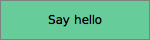
target: identifies the receiver. actionSelector: names the message to send. Here the receiver is a block, so #value runs it. A selector is a Symbol, not a method call: the button sends it later. Keep event handlers short; a long synchronous loop can freeze the interface.
Remove the button using its halo’s red delete handle. Do not confuse the button’s target with its owner: the owner contains it visually, while the target receives its action.
Install the form model
The remaining examples share LearnSqueakFormDemo, a subclass of Model. It stores the name, checkbox state, selected list index, slider value, and output. Copy the complete setup below into a Workspace and Do it once. Then run the short opener.
Use a learning image. Check that the class name does not belong to your existing work. Re-running setup replaces this tutorial class’s methods. Squeak may ask for author initials when compiling for the first time.
Show complete runnable setup
Model subclass: #LearnSqueakFormDemo
 instanceVariableNames: 'name loud choice level result inputMorph sliderMorph'
 classVariableNames: ''
 poolDictionaries: ''
 category: 'LearnSqueak-Forms'.
(Smalltalk at: #LearnSqueakFormDemo) compile: 'initialize
 super initialize.
 self resetState'.
(Smalltalk at: #LearnSqueakFormDemo) compile: 'nameText
 ^ name'.
(Smalltalk at: #LearnSqueakFormDemo) compile: 'acceptName: aText
 name := aText asString withBlanksTrimmed.
 self changed: #nameText.
 ^ true'.
(Smalltalk at: #LearnSqueakFormDemo) compile: 'loud
 ^ loud'.
(Smalltalk at: #LearnSqueakFormDemo) compile: 'loudLabel
 ^ ''UPPERCASE greeting'' '.
(Smalltalk at: #LearnSqueakFormDemo) compile: 'toggleLoud
 loud := loud not.
 self changed: #loud'.
(Smalltalk at: #LearnSqueakFormDemo) compile: 'choices
 ^ #(''Hello'' ''Welcome'' ''Good morning'')'.
(Smalltalk at: #LearnSqueakFormDemo) compile: 'choice
 ^ choice'.
(Smalltalk at: #LearnSqueakFormDemo) compile: 'choice: anIndex
 choice := anIndex.
 self changed: #choice'.
(Smalltalk at: #LearnSqueakFormDemo) compile: 'level: aNumber
 level := aNumber rounded.
 result := ''Slider value: '', level printString.
 self changed: #result'.
(Smalltalk at: #LearnSqueakFormDemo) compile: 'result
 ^ result'.
(Smalltalk at: #LearnSqueakFormDemo) compile: 'greet
 | greeting |
 name isEmpty ifTrue: [result := ''Please enter a name.'' . self changed: #result. ^ self].
 greeting := (self choices at: (choice max: 1)), '', '', name, ''.''.
 result := loud ifTrue: [greeting asUppercase] ifFalse: [greeting].
 self changed: #result'.
(Smalltalk at: #LearnSqueakFormDemo) compile: 'open
 | window label input output button check list slider reset |
window := SystemWindow new.
window setLabel: ''LearnSqueak - Form controls''.
window model: self.
label := StringMorph contents: ''Name (press Enter to accept):''.
window addMorph: label frame: (0.04@0.03 corner: 0.96@0.10).
input := PluggableTextMorph on: self text: #nameText accept: #acceptName:.
input acceptOnCR: true; wrapFlag: false.
self inputMorph: input.
window addMorph: input frame: (0.04@0.11 corner: 0.96@0.23).
output := PluggableTextMorph on: self text: #result accept: nil.
output readOnly: true.
window addMorph: output frame: (0.04@0.73 corner: 0.96@0.95).
button := SimpleButtonMorph new.
button label: ''Greet''; target: self; actionSelector: #greet.
window addMorph: button frame: (0.66@0.55 corner: 0.79@0.67).
check := PluggableCheckBoxMorph on: self
    getState: #loud action: #toggleLoud label: #loudLabel.
check installButton.
window addMorph: check frame: (0.04@0.26 corner: 0.96@0.35).
list := PluggableListMorph on: self
    list: #choices selected: #choice changeSelected: #choice:.
window addMorph: list frame: (0.04@0.38 corner: 0.60@0.66).
slider := SimpleSliderMorph new.
slider target: self; actionSelector: #level:;
    minVal: 0; maxVal: 100; adjustToValue: 50.
self sliderMorph: slider.
window addMorph: slider frame: (0.66@0.40 corner: 0.94@0.50).
reset := SimpleButtonMorph new.
reset label: ''Reset''; target: self; actionSelector: #reset.
window addMorph: reset frame: (0.82@0.55 corner: 0.96@0.67).
window openInWorld; extent: 650@420; position: 300@150.
 ^ window'.
(Smalltalk at: #LearnSqueakFormDemo) compile: 'resetState
 name := ''Ada''. loud := false. choice := 1. level := 50.
 result := ''Change the controls, then click Greet.'' '.
(Smalltalk at: #LearnSqueakFormDemo) compile: 'inputMorph: aMorph
 inputMorph := aMorph'.
(Smalltalk at: #LearnSqueakFormDemo) compile: 'sliderMorph: aMorph
 sliderMorph := aMorph'.
(Smalltalk at: #LearnSqueakFormDemo) compile: 'reset
 self resetState.
 inputMorph ifNotNil: [inputMorph setText: name].
 sliderMorph ifNotNil: [sliderMorph adjustToValue: level].
 self changed: #nameText; changed: #loud;
     changed: #choice; changed: #result'.
LearnSqueakFormDemo new open
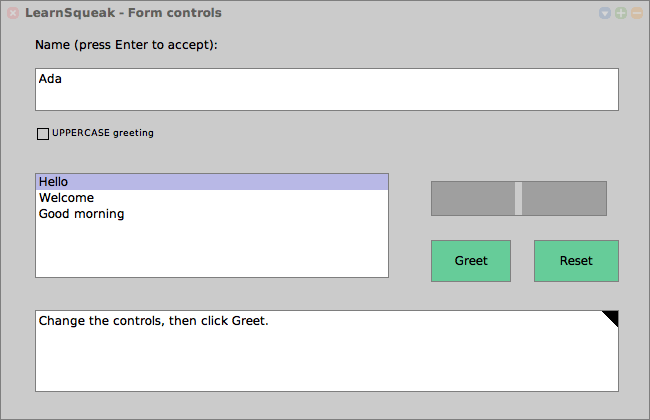
Enter a name and press Enter to accept it before clicking Greet. Pick a greeting, optionally enable uppercase, and click Greet. Drag the slider’s narrow thumb to report a number. These web controls only play a recording; run the code in Squeak to use the form.
CONTAINER → CONTROLS → EVENTS → VALIDATION
Build the form in nine small stages.
Run the complete model setup above once. We reuse that installed model while constructing its window a control at a time. The short visible blocks explain the new lines; each checkpoint also provides a complete runnable version.
- Open Tools → Workspace.
- Copy one complete stage, select all of it, and choose do it, usually Ctrl+D / Cmd+D.
- Compare the result with its native screenshot. Close that window before running the next stage.
Every stage creates a fresh window. Temporary variables from one evaluation do not survive into another. Do not run a short excerpt by itself or paste it below an earlier complete stage. Stages 1–2 are independent of the model; stages 3–9 require the setup. The examples use native Squeak controls, not HTML form elements.
BUILD THE FORM STEP BY STEP
Create the form container
A SystemWindow contains the form. Open it before applying its final extent, because opening can apply an initial size. Nothing will receive text or clicks until we add controls.
| window model label input output button check list slider reset |
window := SystemWindow new.
window setLabel: 'LearnSqueak - Form controls'.
window openInWorld; extent: 650@420; position: 300@150.
window
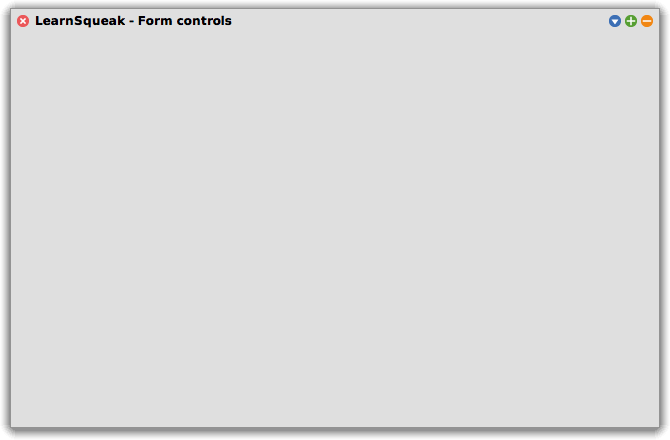
The 650@420 extent is width and height in pixels. The 300@150 position is relative to Squeak’s world. The title bar and close control come from SystemWindow; the blank interior is the area we will lay out.
BUILD THE FORM STEP BY STEP
Add a visible field label
The field label is a lightweight StringMorph. Create it, then make the window its visual owner using a relative frame.
label := StringMorph contents: 'Name (press Enter to accept):'.
window addMorph: label
    frame: (0.04@0.03 corner: 0.96@0.10).
Show the complete runnable stage 2
| window model label input output button check list slider reset |
window := SystemWindow new.
window setLabel: 'LearnSqueak - Form controls'.
label := StringMorph contents: 'Name (press Enter to accept):'.
window addMorph: label frame: (0.04@0.03 corner: 0.96@0.10).
window openInWorld; extent: 650@420; position: 300@150.
window
The rectangle uses fractions of the content area. Left 0.04 and right 0.96 leave margins; top 0.03 and bottom 0.10 reserve a short row. A label is not an input field and has no acceptance callback. Adding a Morph is separate from creating one.
BUILD THE FORM STEP BY STEP
Add the editable name field
Create a model, attach it to the window, and connect the text editor to a getter and acceptance selector. Enter accepts the current buffer; clicking somewhere else is not our form’s submit action.
model := LearnSqueakFormDemo new.
window model: model.
input := PluggableTextMorph on: model
    text: #nameText accept: #acceptName:.
input acceptOnCR: true; wrapFlag: false.
model inputMorph: input.
window addMorph: input
    frame: (0.04@0.11 corner: 0.96@0.23).
Show the complete runnable stage 3
| window model label input output button check list slider reset |
window := SystemWindow new.
window setLabel: 'LearnSqueak - Form controls'.
model := LearnSqueakFormDemo new.
window model: model.
label := StringMorph contents: 'Name (press Enter to accept):'.
window addMorph: label frame: (0.04@0.03 corner: 0.96@0.10).
input := PluggableTextMorph on: model text: #nameText accept: #acceptName:.
input acceptOnCR: true; wrapFlag: false.
model inputMorph: input.
window addMorph: input frame: (0.04@0.11 corner: 0.96@0.23).
window openInWorld; extent: 650@420; position: 300@150.
window
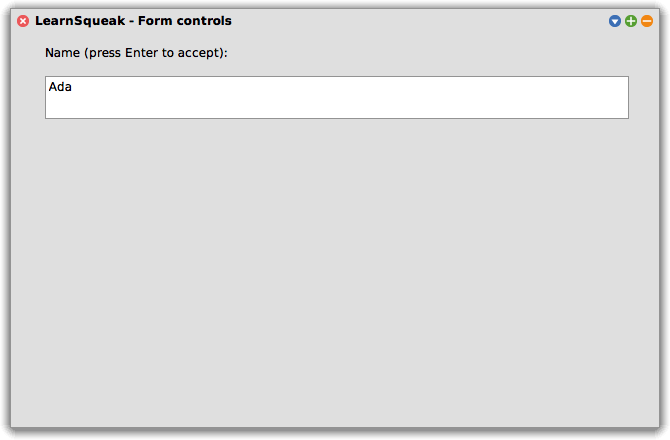
#nameText asks the model for the stored name. #acceptName: receives the edited Text when accepted. Its colon means one argument. The setter converts Text to String, trims surrounding spaces, and returns true to accept the change:
acceptName: aText
    name := aText asString withBlanksTrimmed.
    self changed: #nameText.
    ^ true
The model keeps inputMorph only so Reset can deliberately discard an unaccepted draft later. It is not needed for ordinary typing. The editor buffer and accepted model value are different states; this distinction is the source of many form bugs.
BUILD THE FORM STEP BY STEP
Add a read-only result pane
Use another PluggableTextMorph for output. It reads #result, has no acceptance selector, and is read-only. At this stage the complete snippet starts with the instructional message; the capture shows a test after accepting Grace and invoking the model’s greeting.
output := PluggableTextMorph on: model
    text: #result accept: nil.
output readOnly: true.
window addMorph: output
    frame: (0.04@0.73 corner: 0.96@0.95).
Show the complete runnable stage 4
| window model label input output button check list slider reset |
window := SystemWindow new.
window setLabel: 'LearnSqueak - Form controls'.
model := LearnSqueakFormDemo new.
window model: model.
label := StringMorph contents: 'Name (press Enter to accept):'.
window addMorph: label frame: (0.04@0.03 corner: 0.96@0.10).
input := PluggableTextMorph on: model text: #nameText accept: #acceptName:.
input acceptOnCR: true; wrapFlag: false.
model inputMorph: input.
window addMorph: input frame: (0.04@0.11 corner: 0.96@0.23).
output := PluggableTextMorph on: model text: #result accept: nil.
output readOnly: true.
window addMorph: output frame: (0.04@0.73 corner: 0.96@0.95).
window openInWorld; extent: 650@420; position: 300@150.
window
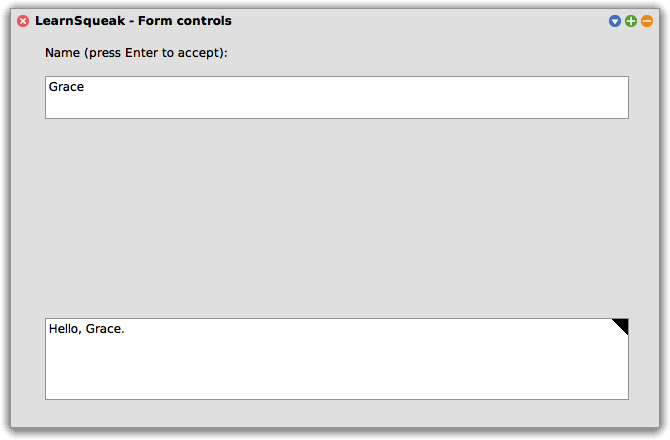
A model change alone does not necessarily update a view. The model announces self changed: #result after changing its output. The bound pane then asks for the new result. We add a visible action for this next.
BUILD THE FORM STEP BY STEP
Connect the Greet button
A button needs a label, a receiver, and a selector. It already knows how to process mouse press and release, so we do not write low-level mouse-event code.
button := SimpleButtonMorph new.
button label: 'Greet';
    target: model;
    actionSelector: #greet.
window addMorph: button
    frame: (0.66@0.55 corner: 0.79@0.67).
Show the complete runnable stage 5
| window model label input output button check list slider reset |
window := SystemWindow new.
window setLabel: 'LearnSqueak - Form controls'.
model := LearnSqueakFormDemo new.
window model: model.
label := StringMorph contents: 'Name (press Enter to accept):'.
window addMorph: label frame: (0.04@0.03 corner: 0.96@0.10).
input := PluggableTextMorph on: model text: #nameText accept: #acceptName:.
input acceptOnCR: true; wrapFlag: false.
model inputMorph: input.
window addMorph: input frame: (0.04@0.11 corner: 0.96@0.23).
output := PluggableTextMorph on: model text: #result accept: nil.
output readOnly: true.
window addMorph: output frame: (0.04@0.73 corner: 0.96@0.95).
button := SimpleButtonMorph new.
button label: 'Greet'; target: model; actionSelector: #greet.
window addMorph: button frame: (0.66@0.55 corner: 0.79@0.67).
window openInWorld; extent: 650@420; position: 300@150.
window
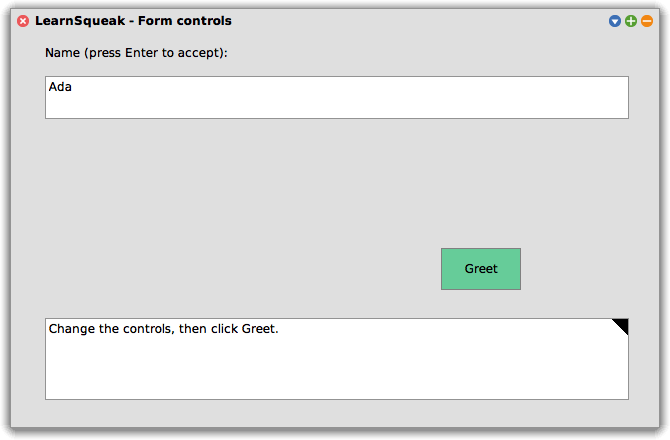
Type Grace, press Enter, then click Greet. You should see Hello, Grace. The selector #greet has no colon because the action needs no argument. A click reads the already accepted name; it does not implicitly accept pending edits.
greet
    | greeting |
    name isEmpty ifTrue: [
        result := 'Please enter a name.'.
        self changed: #result.
        ^ self].
    greeting := (self choices at: (choice max: 1)), ', ', name, '.'.
    result := loud ifTrue: [greeting asUppercase] ifFalse: [greeting].
self changed: #result- The button sends
greetto its target. - The model validates the accepted name.
- It builds the result using its current greeting choice and uppercase flag.
changed: #resulttells the output view to refresh.
The model already has default values for the checkbox and list, even though those controls have not been added yet. Repeated Greet clicks with unchanged state produce the same output.
BUILD THE FORM STEP BY STEP
Add the checkbox state
A checkbox reads a Boolean and sends a toggle action. In this Squeak image, the pluggable wrapper needs installButton to create its inner checkbox.
check := PluggableCheckBoxMorph on: model
    getState: #loud action: #toggleLoud label: #loudLabel.
check installButton.
window addMorph: check
frame: (0.04@0.26 corner: 0.96@0.35).toggleLoud
loud := loud not.
self changed: #loudShow the complete runnable stage 6
| window model label input output button check list slider reset |
window := SystemWindow new.
window setLabel: 'LearnSqueak - Form controls'.
model := LearnSqueakFormDemo new.
window model: model.
label := StringMorph contents: 'Name (press Enter to accept):'.
window addMorph: label frame: (0.04@0.03 corner: 0.96@0.10).
input := PluggableTextMorph on: model text: #nameText accept: #acceptName:.
input acceptOnCR: true; wrapFlag: false.
model inputMorph: input.
window addMorph: input frame: (0.04@0.11 corner: 0.96@0.23).
output := PluggableTextMorph on: model text: #result accept: nil.
output readOnly: true.
window addMorph: output frame: (0.04@0.73 corner: 0.96@0.95).
button := SimpleButtonMorph new.
button label: 'Greet'; target: model; actionSelector: #greet.
window addMorph: button frame: (0.66@0.55 corner: 0.79@0.67).
check := PluggableCheckBoxMorph on: model
    getState: #loud action: #toggleLoud label: #loudLabel.
check installButton.
window addMorph: check frame: (0.04@0.26 corner: 0.96@0.35).
window openInWorld; extent: 650@420; position: 300@150.
window
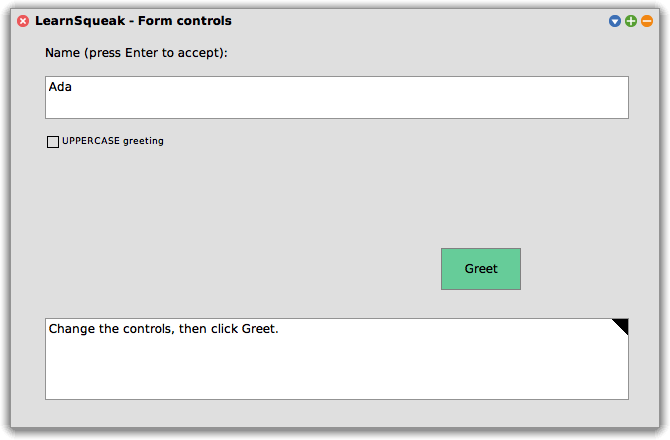
Tick UPPERCASE greeting, then click Greet again. The checkbox changes the flag; Greet decides when to rebuild the output. The label comes from loudLabel, and loud supplies its current state. Never treat a drawn checkmark as your application’s source of truth. This checkbox refreshes from the model during its stepping cycle, so an external reset may appear after a brief refresh.
BUILD THE FORM STEP BY STEP
Add the selectable greeting list
The list gets its items from one selector and reports a selected index through another. A fresh model starts at index 1, Hello.
list := PluggableListMorph on: model
    list: #choices selected: #choice changeSelected: #choice:.
window addMorph: list
frame: (0.04@0.38 corner: 0.60@0.66).choices
^ #('Hello' 'Welcome' 'Good morning')choice: anIndex
choice := anIndex.
self changed: #choiceShow the complete runnable stage 7
| window model label input output button check list slider reset |
window := SystemWindow new.
window setLabel: 'LearnSqueak - Form controls'.
model := LearnSqueakFormDemo new.
window model: model.
label := StringMorph contents: 'Name (press Enter to accept):'.
window addMorph: label frame: (0.04@0.03 corner: 0.96@0.10).
input := PluggableTextMorph on: model text: #nameText accept: #acceptName:.
input acceptOnCR: true; wrapFlag: false.
model inputMorph: input.
window addMorph: input frame: (0.04@0.11 corner: 0.96@0.23).
output := PluggableTextMorph on: model text: #result accept: nil.
output readOnly: true.
window addMorph: output frame: (0.04@0.73 corner: 0.96@0.95).
button := SimpleButtonMorph new.
button label: 'Greet'; target: model; actionSelector: #greet.
window addMorph: button frame: (0.66@0.55 corner: 0.79@0.67).
check := PluggableCheckBoxMorph on: model
    getState: #loud action: #toggleLoud label: #loudLabel.
check installButton.
window addMorph: check frame: (0.04@0.26 corner: 0.96@0.35).
list := PluggableListMorph on: model
    list: #choices selected: #choice changeSelected: #choice:.
window addMorph: list frame: (0.04@0.38 corner: 0.60@0.66).
window openInWorld; extent: 650@420; position: 300@150.
window
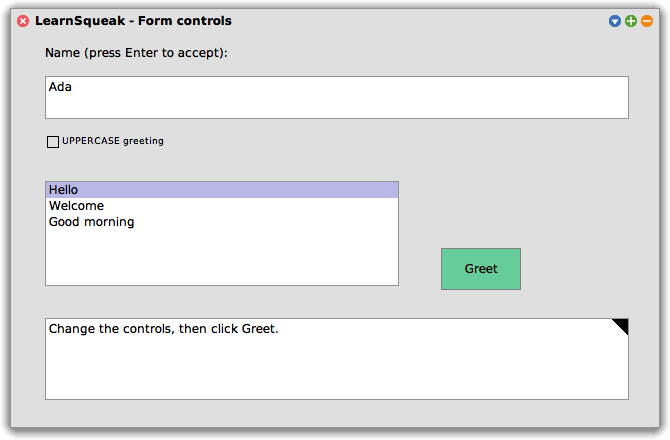
Choose Welcome, then click Greet. With Grace accepted and uppercase enabled, the output becomes WELCOME, GRACE. Smalltalk collection indices are one-based. Zero means no selection; the greeting uses at least index 1 as its fallback. #choice: receives an index, not the displayed string.
BUILD THE FORM STEP BY STEP
Add the numeric slider
The slider sends one numeric argument whenever its thumb moves. It maps the internal 0–1 position onto the configured 0–100 range.
slider := SimpleSliderMorph new.
slider target: model; actionSelector: #level:;
    minVal: 0; maxVal: 100; adjustToValue: 50.
model sliderMorph: slider.
window addMorph: slider
frame: (0.66@0.40 corner: 0.94@0.50).level: aNumber
level := aNumber rounded.
result := 'Slider value: ', level printString.
self changed: #resultShow the complete runnable stage 8
| window model label input output button check list slider reset |
window := SystemWindow new.
window setLabel: 'LearnSqueak - Form controls'.
model := LearnSqueakFormDemo new.
window model: model.
label := StringMorph contents: 'Name (press Enter to accept):'.
window addMorph: label frame: (0.04@0.03 corner: 0.96@0.10).
input := PluggableTextMorph on: model text: #nameText accept: #acceptName:.
input acceptOnCR: true; wrapFlag: false.
model inputMorph: input.
window addMorph: input frame: (0.04@0.11 corner: 0.96@0.23).
output := PluggableTextMorph on: model text: #result accept: nil.
output readOnly: true.
window addMorph: output frame: (0.04@0.73 corner: 0.96@0.95).
button := SimpleButtonMorph new.
button label: 'Greet'; target: model; actionSelector: #greet.
window addMorph: button frame: (0.66@0.55 corner: 0.79@0.67).
check := PluggableCheckBoxMorph on: model
    getState: #loud action: #toggleLoud label: #loudLabel.
check installButton.
window addMorph: check frame: (0.04@0.26 corner: 0.96@0.35).
list := PluggableListMorph on: model
    list: #choices selected: #choice changeSelected: #choice:.
window addMorph: list frame: (0.04@0.38 corner: 0.60@0.66).
slider := SimpleSliderMorph new.
slider target: model; actionSelector: #level:;
    minVal: 0; maxVal: 100; adjustToValue: 50.
model sliderMorph: slider.
window addMorph: slider frame: (0.66@0.40 corner: 0.94@0.50).
window openInWorld; extent: 650@420; position: 300@150.
window
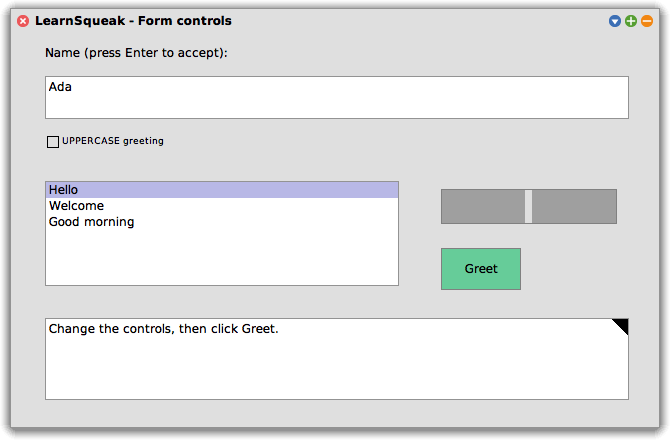
Drag the narrow thumb. Unlike the checkbox/list, the slider immediately changes the output text. adjustToValue: positions the thumb using 0–100 units without sending the action; setValue: uses 0–1 and sends the callback. The model retains the slider reference to restore 50 during Reset. Do not confuse these scales.
BUILD THE FORM STEP BY STEP
Add Reset and finish the form
A second action button restores the complete form, including an unaccepted text draft. This is intentionally a discard action, not a submit action.
reset := SimpleButtonMorph new.
reset label: 'Reset'; target: model; actionSelector: #reset.
window addMorph: reset
frame: (0.82@0.55 corner: 0.96@0.67).reset
self resetState.
inputMorph ifNotNil: [inputMorph setText: name].
sliderMorph ifNotNil: [sliderMorph adjustToValue: level].
self changed: #nameText; changed: #loud;
changed: #choice; changed: #resultresetState
name := 'Ada'. loud := false. choice := 1. level := 50.
result := 'Change the controls, then click Greet.'Show the complete runnable stage 9
| window model label input output button check list slider reset |
window := SystemWindow new.
window setLabel: 'LearnSqueak - Form controls'.
model := LearnSqueakFormDemo new.
window model: model.
label := StringMorph contents: 'Name (press Enter to accept):'.
window addMorph: label frame: (0.04@0.03 corner: 0.96@0.10).
input := PluggableTextMorph on: model text: #nameText accept: #acceptName:.
input acceptOnCR: true; wrapFlag: false.
model inputMorph: input.
window addMorph: input frame: (0.04@0.11 corner: 0.96@0.23).
output := PluggableTextMorph on: model text: #result accept: nil.
output readOnly: true.
window addMorph: output frame: (0.04@0.73 corner: 0.96@0.95).
button := SimpleButtonMorph new.
button label: 'Greet'; target: model; actionSelector: #greet.
window addMorph: button frame: (0.66@0.55 corner: 0.79@0.67).
check := PluggableCheckBoxMorph on: model
    getState: #loud action: #toggleLoud label: #loudLabel.
check installButton.
window addMorph: check frame: (0.04@0.26 corner: 0.96@0.35).
list := PluggableListMorph on: model
    list: #choices selected: #choice changeSelected: #choice:.
window addMorph: list frame: (0.04@0.38 corner: 0.60@0.66).
slider := SimpleSliderMorph new.
slider target: model; actionSelector: #level:;
    minVal: 0; maxVal: 100; adjustToValue: 50.
model sliderMorph: slider.
window addMorph: slider frame: (0.66@0.40 corner: 0.94@0.50).
reset := SimpleButtonMorph new.
reset label: 'Reset'; target: model; actionSelector: #reset.
window addMorph: reset frame: (0.82@0.55 corner: 0.96@0.67).
window openInWorld; extent: 650@420; position: 300@150.
window
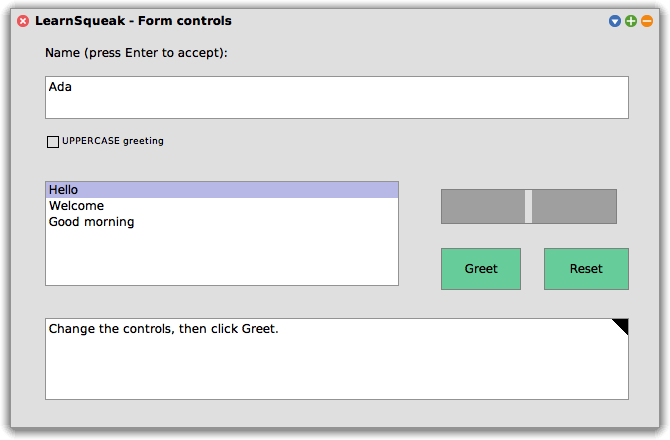
setText: replaces the editor buffer and clears its unaccepted-edit flag. Without that explicit step, the view could retain a draft while the model had already reset. The list/output use change notifications; the plain slider needs an explicit thumb update. Press Reset twice: the state remains the same.
All frames are fractions of the window’s content area, so controls move together on resize. The 0.03 gap between Greet’s right edge and Reset’s left edge keeps them separate. This simple layout has no sophisticated minimum-size policy; keep it large enough for legible labels. More elaborate tools may benefit from a dedicated view class and ToolBuilder.
Exercise validation, repeated actions, and reset
Use the finished form, or simply run LearnSqueakFormDemo new open after setup. Try these cases in order:
- Type Grace but do not press Enter. Greet still uses the previously accepted name.
- Press Enter, select Welcome, enable uppercase, and click Greet twice. Both results should be WELCOME, GRACE.
- Drag the slider and check that a numeric value appears immediately.
- Delete the name, press Enter, then click Greet. A blank or spaces-only accepted name produces Please enter a name.
- Type an unaccepted draft and press Reset. The draft is discarded; Ada, Hello, unchecked uppercase, slider50, and the original prompt return.
- Click Greet again: Hello, Ada. Reset twice to verify repeatability.
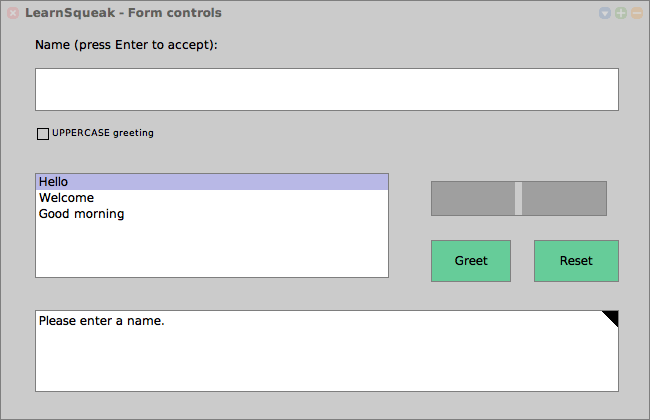
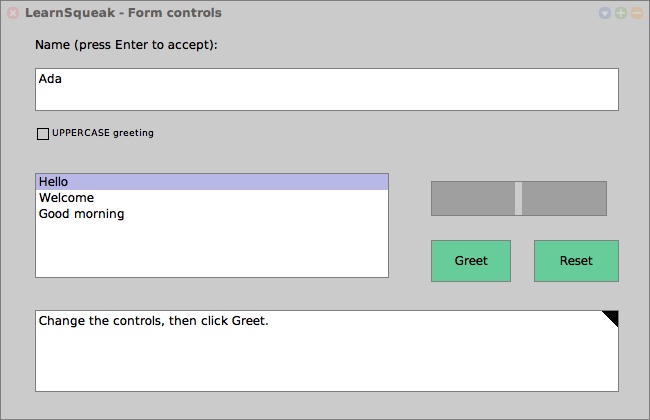
The automated version exercises the real text acceptance and slider callbacks as well as model actions, and always closes its test window. After setup, run the whole block with Print it. It answers '14 form event checks passed'; a failure names the broken behavior.
Show the complete form event checks
| window model input slider check count |
count := 0.
check := [:condition :message |
    condition ifFalse: [self error: message].
    count := count + 1].
window := LearnSqueakFormDemo new open.
model := window model.
input := window submorphs detect: [:m |
    (m isKindOf: PluggableTextMorph) and: [m getTextSelector = #nameText]].
slider := window submorphs detect: [:m | m isKindOf: SimpleSliderMorph].
[
input setText: 'Grace'; hasUnacceptedEdits: true.
check value: (model nameText = 'Ada') value: 'Buffer accepted too early'.
input accept.
check value: (model nameText = 'Grace') value: 'Accept failed'.
model toggleLoud; choice: 2; greet.
check value: (model result = 'WELCOME, GRACE.') value: 'Greeting failed'.
model greet.
check value: (model result = 'WELCOME, GRACE.') value: 'Repeat failed'.
slider setValue: 0.87.
check value: (model result = 'Slider value: 87') value: 'Slider callback failed'.
input setText: '   '; hasUnacceptedEdits: true; accept.
model greet.
check value: (model result = 'Please enter a name.') value: 'Blank validation failed'.
input setText: 'Unaccepted draft'; hasUnacceptedEdits: true.
model reset.
check value: (model nameText = 'Ada') value: 'Reset name failed'.
check value: (input text asString = 'Ada') value: 'Draft not discarded'.
check value: input hasUnacceptedEdits not value: 'Dirty editor after reset'.
check value: model loud not value: 'Reset checkbox failed'.
check value: (model choice = 1) value: 'Reset selection failed'.
check value: (slider getNumericValue rounded = 50) value: 'Reset slider failed'.
model greet.
check value: (model result = 'Hello, Ada.') value: 'Greeting after reset failed'.
model reset; reset.
check value: (model result = 'Change the controls, then click Greet.') value: 'Repeated reset failed'.
] ensure: [window delete].
count printString, ' form event checks passed'
The test uses setText: plus an explicit dirty flag to prepare an editor buffer, then calls its real acceptance method. The GIF near the top records actual mouse and keyboard input instead.
Text input has an acceptance step
PluggableTextMorph connects an editor to a getter and setter. Its editor buffer can differ from the model until accepted. This form uses Enter to accept, so it behaves like a one-line input even though the underlying widget is a text editor.
input := PluggableTextMorph on: self
    text: #nameText accept: #acceptName:.
input acceptOnCR: true; wrapFlag: false.acceptName: aText
name := aText asString withBlanksTrimmed.
self changed: #nameText.
^ trueThe setter receives a Text, converts it to a String, trims surrounding blanks, and returns true to accept the edit. Returning false would reject it. changed: tells dependent views that the named value changed. The greeting action checks for an empty name and shows a helpful message instead of constructing a blank greeting.
The snippets in this and the next sections are excerpts from the installed methods, not independent Workspace programs. Their self means the form model. Browse LearnSqueakFormDemo to edit them.
Checkboxes and list selection
A checkbox asks for a Boolean state and sends an action when clicked. In this image the pluggable wrapper needs installButton to create its inner checkbox.
check := PluggableCheckBoxMorph on: self
    getState: #loud action: #toggleLoud label: #loudLabel.
check installButton.toggleLoud
loud := loud not.
self changed: #loudThe label is supplied by the loudLabel getter. Keep state in the model rather than reading a drawn checkmark. For a list, provide its items, current selection, and a selection setter:
list := PluggableListMorph on: self
list: #choices selected: #choice changeSelected: #choice:.choice: anIndex
choice := anIndex.
self changed: #choiceSelections are one-based indices; zero means no selection. The model starts with index 1. Its greeting code uses at least 1 so clearing a selection falls back to Hello. The choices getter returns three strings. A list sends a new index; a checkbox sends a no-argument toggle action. Match each callback’s number of arguments to its selector.
Slider values and output updates
A slider maps its position onto a numeric range. The action selector ends in a colon because it receives one value. Drag the thin thumb, rather than dragging the window’s empty background.
slider := SimpleSliderMorph new.
slider target: self; actionSelector: #level:;
minVal: 0; maxVal: 100; adjustToValue: level.level: aNumber
level := aNumber rounded.
result := 'Slider value: ', level printString.
self changed: #result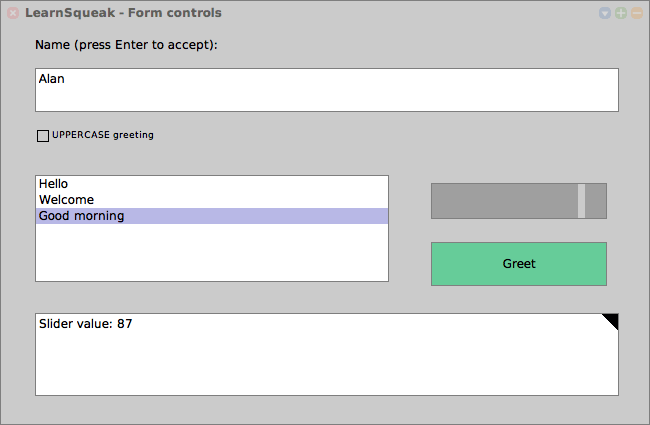
adjustToValue: sets the initial thumb position in the 0–100 scale. setValue: uses the slider’s normalized 0–1 scale and invokes the target. Do not interchange the two. The output is another PluggableTextMorph bound to #result, with readOnly: true and no accept selector.
Containment, layout, and event flow
SystemWindow owns the controls. Each frame uses fractions of its content area: 0 is the left/top edge and 1 is the right/bottom edge. These relative rectangles keep controls arranged when the window changes size.
window addMorph: input
    frame: (0.04@0.11 corner: 0.96@0.23).
window addMorph: button
    frame: (0.66@0.55 corner: 0.79@0.67).
window openInWorld; extent: 650@420; position: 300@150.
The event flow is click Greet → send greet to the model → update result → announce changed: #result → redraw output. The model does not need mouse coordinates. Use raw mouse events only when building a custom Morph; native buttons already handle press/release behavior.
button := SimpleButtonMorph new
    label: 'Greet'; target: self; actionSelector: #greet; yourself.
Set the extent after opening: SystemWindow applies an initial size while opening. Avoid shrinking this example so far that labels become unusable. For production applications, consider ToolBuilder for more declarative layouts and keyboard navigation.
Test behavior without clicking
After setup, this independent model check answers 'WELCOME, GRACE.' with Print it. Testing model messages separately makes UI problems easier to isolate.
| model |
model := LearnSqueakFormDemo new.
model acceptName: 'Grace'; toggleLoud; choice: 2; greet.
model result
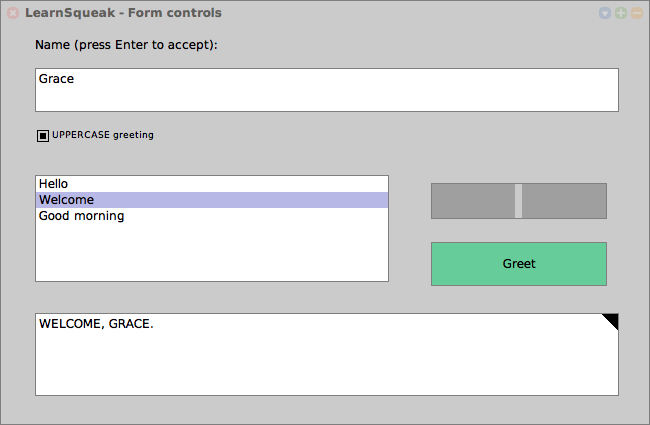
Common pitfalls: forgetting Enter leaves the previous accepted name; omitting the colon from #choice: gives the callback the wrong arity; mutating a model value without changed: can leave a stale view; evaluating these method excerpts in a Workspace gives self the wrong receiver.
Close the window with its red close control. Keep the tutorial class for practice, or remove only LearnSqueakFormDemo through the Browser when finished. Save an image to keep live state; export source to share code.
All setup and opener code ran in Squeak 6.1 build 23976. Widget contracts were checked in the image’s Browser. See official Squeak documentation and the development tools tutorial.
Put it into practice.
Try an exercise before revealing its hints and tested solution.