ABSOLUTE BEGINNER
Your First Text Trim in Squeak
Remove extra spaces from both ends of a string in five tiny Workspace steps.
STEP 1
Print a string
In Workspace, select the line and choose Print it. The quotation marks let you see that the spaces are inside the text.
' tea '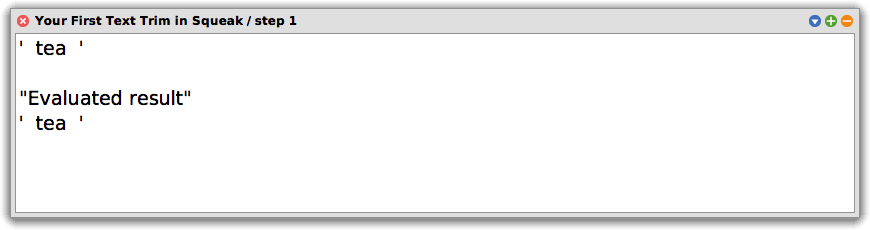
You see tea with two spaces before and after it.
STEP 2
Ask Squeak to trim it
Select the expression and Print it. The message asks for the text without whitespace at its edges.
' tea ' withBlanksTrimmed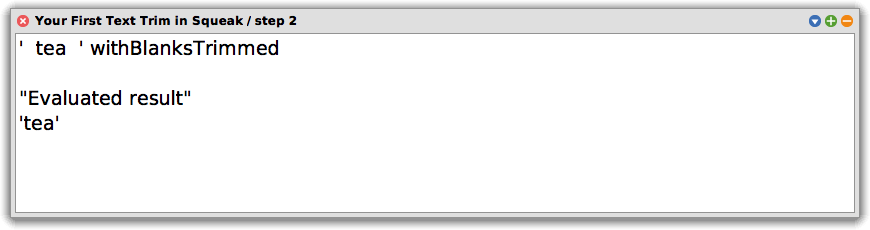
The result is tea with no spaces at either end.
STEP 3
Keep spaces between words
Try two words. Trimming only works at the edges.
' green tea ' withBlanksTrimmed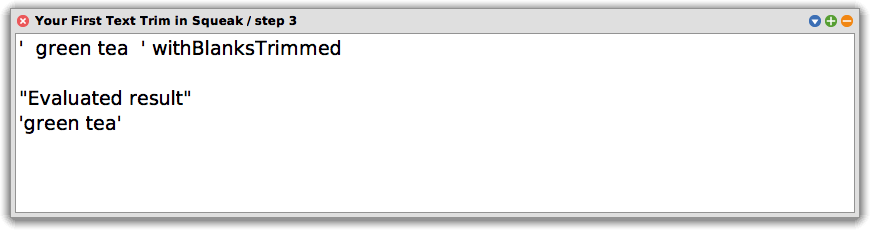
The middle space stays.
STEP 4
Check text that is already neat
There is nothing to remove from this example.
'tea' withBlanksTrimmed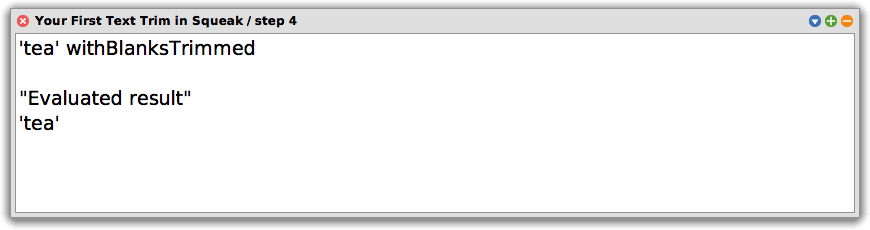
The printed result still reads tea.
STEP 5
Trim a line of spaces
If the text is nothing but spaces, removing them leaves empty text.
' ' withBlanksTrimmed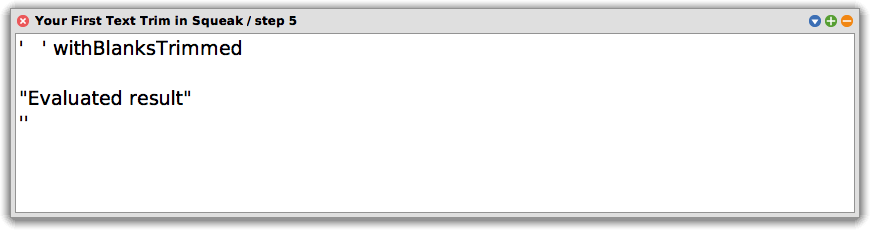
Two neighboring quotes show the empty string.
YOU DID IT
A small step. A real result.
withBlanksTrimmed removes whitespace from both ends without changing the original.
Optional code download: open it as text and copy one example into Workspace.