The separate playground loads the real Smalltalk image on demand. This lesson keeps its native setup instructions; browser compatibility notes appear beside each demo.
Before you start
This practical lesson builds a real Squeak application shell in eight visible checkpoints. You will combine LayoutFrame fractions with pixel offsets, nest TableLayout inside a region, choose a useful minimum size, and reflow the main pane when the sidebar is hidden. The source uses Squeak 6.1 build 23976 and is self-contained.
Download LearnSqueakLayouts.st, then use Squeak File List to select it and choose fileIn. Class definitions are file-in code, not a Workspace expression.
Open a Workspace and Do it on: LSLayoutWindow open. The returned object is a native SystemWindow.
Each numbered checkpoint also includes the definitions and opens its stage automatically. Close your previous demo window before loading another checkpoint; no image restart is required.
The method snippets below belong in the Browser on LSLayoutWindow’s instance side. The run note for every stage also provides an exact Workspace opener.
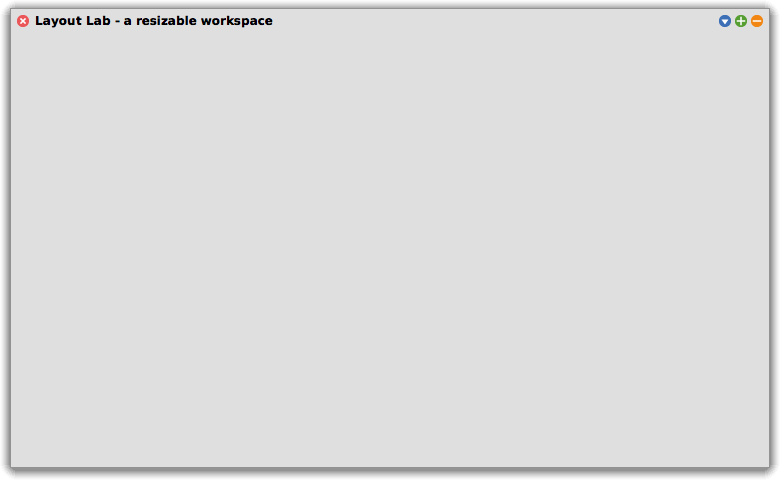
A SystemWindow supplies a title bar, close button and resize handles. Its content layout is proportional by default. The subclass keeps references to the four regions so later commands can change their frames. initialize runs once for each new object; super initialize creates the native window furniture. The example disables pane splitters because these particular regions have deliberate fixed boundaries.
Where to run this
Browser: LSLayoutWindow, instance side. This is the initialize method already installed by the checkpoint; select that method to inspect or edit it. To reproduce this stage, file in layouts-stage-01.st using File List → fileIn. It opens the checkpoint automatically. With the final source already filed in, evaluate LSLayoutWindow openStage: 1 in a Workspace with Do it.
Construction code · follow the run instructions above
Native Squeak 6.1 rendering of the executed checkpoint. Captured from an isolated image; no browser mockup.
02 · A toolbar is a row inside a frame
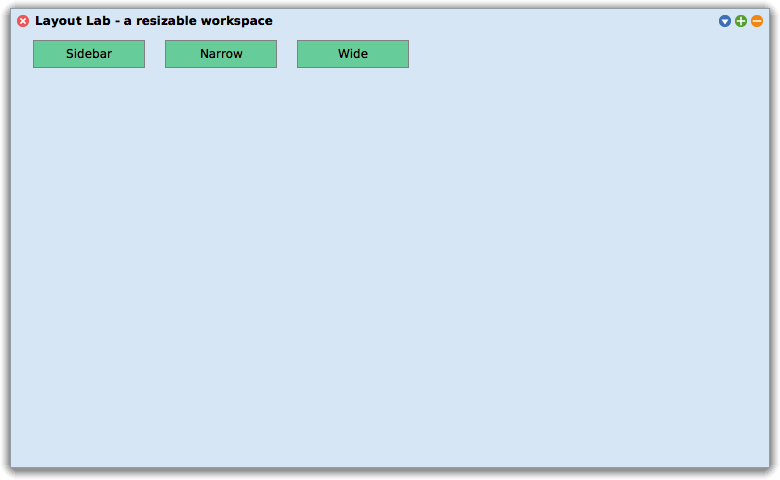
Use two layout policies at different levels. The window positions the toolbar with a LayoutFrame, and TableLayout arranges its three buttons left to right. addMorphBack: keeps their visual order. A frame with top and bottom fractions both 0 is attached to the top edge; a bottom offset of 50 gives it a fixed 50-pixel height. cellInset: 10@0 spaces columns without adding vertical gaps.
Where to run this
Browser: LSLayoutWindow, instance side. This is the buildToolbar method already installed by the checkpoint; select that method to inspect or edit it. To reproduce this stage, file in layouts-stage-02.st using File List → fileIn. It opens the checkpoint automatically. With the final source already filed in, evaluate LSLayoutWindow openStage: 2 in a Workspace with Do it.
Construction code · follow the run instructions above
Native Squeak 6.1 rendering of the executed checkpoint. Captured from an isolated image; no browser mockup.
03 · Give the sidebar a fixed width
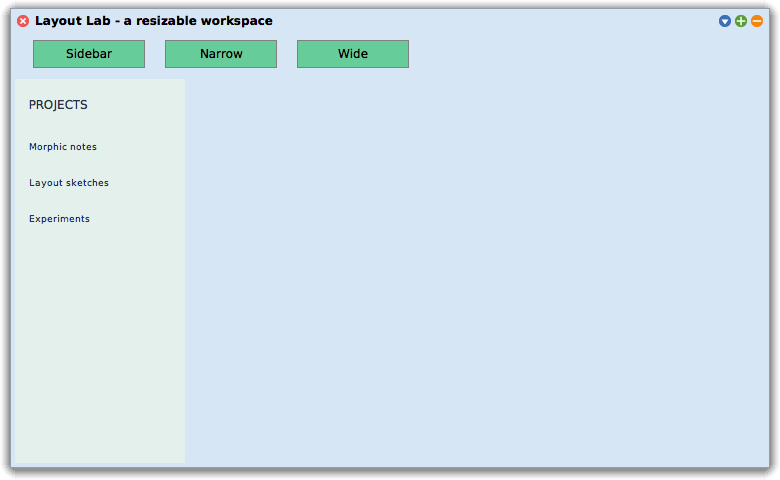
Both horizontal fractions are 0, so the sidebar follows the left edge rather than taking a percentage of the window. Its right offset supplies 170 pixels of width. Vertical fractions 0 and 1 make it stretch between the top and bottom boundaries. arrangeRegions removes the bottom reservation until the status strip exists, which lets the intermediate checkpoint fill its available height.
Where to run this
Browser: LSLayoutWindow, instance side. This is the buildSidebar method already installed by the checkpoint; select that method to inspect or edit it. To reproduce this stage, file in layouts-stage-03.st using File List → fileIn. It opens the checkpoint automatically. With the final source already filed in, evaluate LSLayoutWindow openStage: 3 in a Workspace with Do it.
Construction code · follow the run instructions above
Native Squeak 6.1 rendering of the executed checkpoint. Captured from an isolated image; no browser mockup.
04 · Let the main pane absorb the space
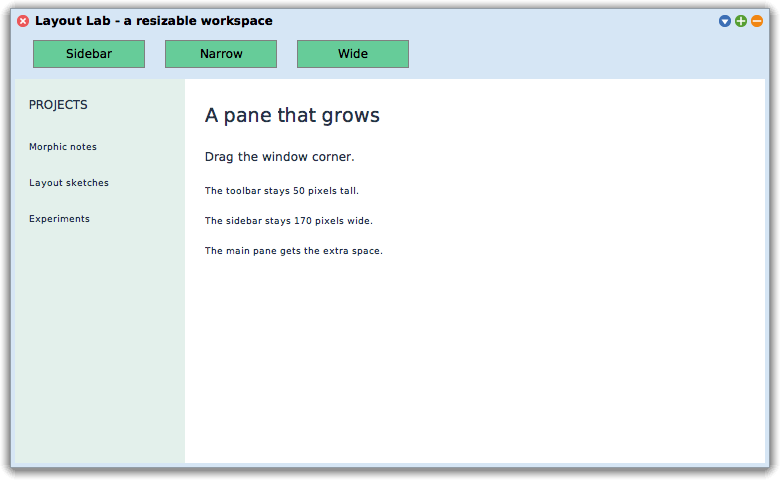
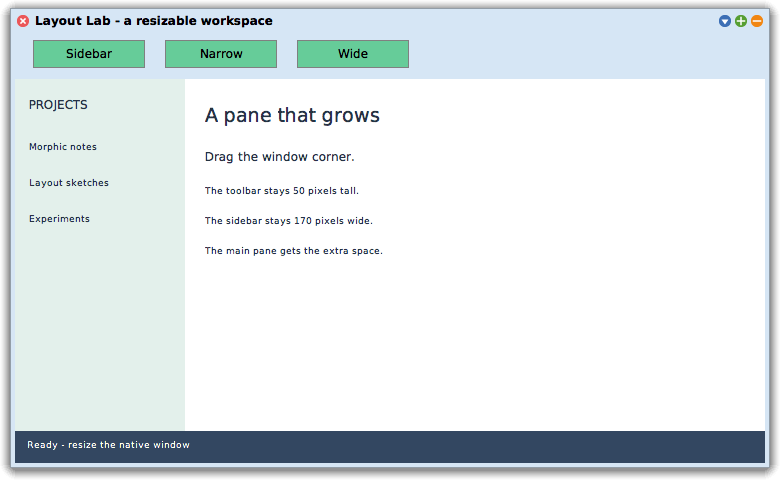
The main pane spans fractions 0@0 to 1@1. Positive left/top offsets reserve the sidebar and toolbar; the negative bottom offset reserves the status strip. The window layout recomputes the pane bounds when its extent changes. Pixel offsets are measured within the content area, so you do not manually subtract the title-bar height.
Where to run this
Browser: LSLayoutWindow, instance side. This is the buildMain method already installed by the checkpoint; select that method to inspect or edit it. To reproduce this stage, file in layouts-stage-04.st using File List → fileIn. It opens the checkpoint automatically. With the final source already filed in, evaluate LSLayoutWindow openStage: 4 in a Workspace with Do it.
Construction code · follow the run instructions above
buildMain
    mainPane := self panelColor: Color white.
    self label: 'A pane that grows' at: 20@24 in: mainPane size: 22.
    self label: 'Drag the window corner.' at: 20@70 in: mainPane size: 14.
    self label: 'The toolbar stays 50 pixels tall.' at: 20@106 in: mainPane size: 13.
    self label: 'The sidebar stays 170 pixels wide.' at: 20@136 in: mainPane size: 13.
    self label: 'The main pane gets the extra space.' at: 20@166 in: mainPane size: 13.
    self addMorph: mainPane fullFrame: (LayoutFrame fractions: (0@0 corner: 1@1) offsets: (170@50 corner: 0@(-32)))
Expected result
A white content pane beside the sidebar, with readable instructions and no overlap.
Native Squeak 6.1 rendering of the executed checkpoint. Captured from an isolated image; no browser mockup.
05 · Anchor a status strip to the bottom
A bottom strip uses top and bottom fractions of 1. Its top offset is -32 and its bottom offset is 0: thirty-two pixels upward from the bottom edge. Negative offsets are useful for space measured back from the right or bottom. This region remains visible during both vertical and horizontal resizing.
Where to run this
Browser: LSLayoutWindow, instance side. This is the buildStatus method already installed by the checkpoint; select that method to inspect or edit it. To reproduce this stage, file in layouts-stage-05.st using File List → fileIn. It opens the checkpoint automatically. With the final source already filed in, evaluate LSLayoutWindow openStage: 5 in a Workspace with Do it.
Construction code · follow the run instructions above
Native Squeak 6.1 rendering of the executed checkpoint. Captured from an isolated image; no browser mockup.
06 · Resize the actual SystemWindow
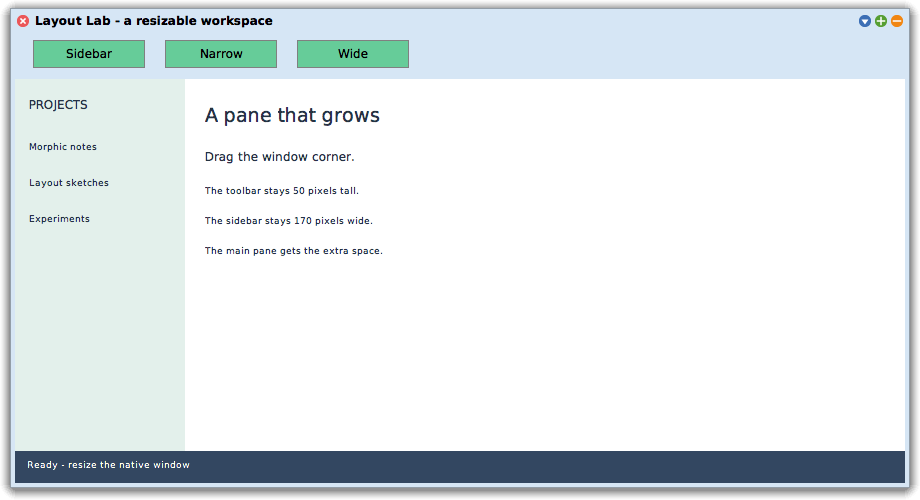
Send extent: to the window, not to its content pane. Both the Wide button and a normal native resize update the same window geometry. The region layout uses the newly available rectangle. In this checkpoint the native window is 900 × 480; notice that only the flexible middle region receives the surplus width.
Where to run this
Browser: LSLayoutWindow, instance side. This is the wide method already installed by the checkpoint; select that method to inspect or edit it. To reproduce this stage, file in layouts-stage-06.st using File List → fileIn. It opens the checkpoint automatically. With the final source already filed in, evaluate LSLayoutWindow openStage: 6 in a Workspace with Do it.
Construction code · follow the run instructions above
wide
    self extent: 900@480
Expected result
A wide application window. Toolbar remains 50 pixels tall, sidebar 170 pixels wide, status 32 pixels tall.
Native Squeak 6.1 rendering of the executed checkpoint. Captured from an isolated image; no browser mockup.
07 · Declare the smallest useful window
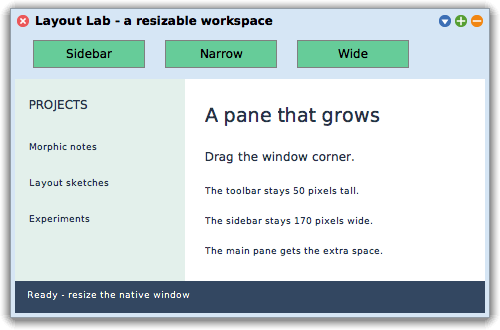
SystemWindow>>extent: already clamps the requested extent to minimumExtent in Squeak 6.1. Override only the minimum size, then reuse that existing behavior. The deliberately tiny extent: 100@100 request in this checkpoint produces 480@310. This lower limit was checked against actual text and button sizes, not chosen just to satisfy a geometry assertion.
Where to run this
Browser: LSLayoutWindow, instance side. This is the minimumExtent method already installed by the checkpoint; select that method to inspect or edit it. To reproduce this stage, file in layouts-stage-07.st using File List → fileIn. It opens the checkpoint automatically. With the final source already filed in, evaluate LSLayoutWindow openStage: 7 in a Workspace with Do it.
Construction code · follow the run instructions above
minimumExtent
    ^ 480@310
Expected result
The minimum 480 × 310 window. All controls and teaching text still fit.
Native Squeak 6.1 rendering of the executed checkpoint. Captured from an isolated image; no browser mockup.
08 · Reclaim space when a region is hidden
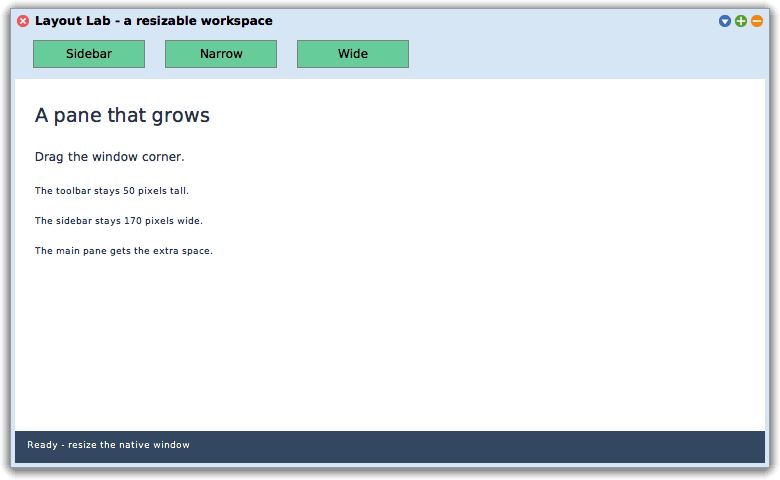
Hiding the sidebar alone would leave its reserved width empty. arrangeRegions also changes the main pane’s left offset from 170 to 0. layoutChanged invalidates the cached layout; fullBounds asks Morphic to settle it immediately. The Sidebar button sends toggleSidebar, which changes one Boolean and reapplies the frames. Repeating the command restores the original layout.
Where to run this
Browser: LSLayoutWindow, instance side. This is the arrangeRegions method already installed by the checkpoint; select that method to inspect or edit it. To reproduce this stage, file in layouts-stage-08.st using File List → fileIn. It opens the checkpoint automatically. With the final source already filed in, evaluate LSLayoutWindow openStage: 8 in a Workspace with Do it. At stage 8 click Sidebar once for the pictured view.
Construction code · follow the run instructions above
Native Squeak 6.1 rendering of the executed checkpoint after the Sidebar command. Captured from an isolated image; no browser mockup.
Watch the workflow
The demonstrations below use the real Squeak image. Each caption explains the recorded interaction. Animations stay paused until you choose Play demo.
NATIVE SQUEAK CAPTURE
Native scripted resize: forty actual Morphic renders from minimum size to wide and back. Programmatic extent: changes drive this demonstration; it is not a recording of a human dragging the corner.
NATIVE SQUEAK CAPTURE
Native scripted Sidebar commands. Hiding a pane and changing the main pane’s frame are separate operations; both execute in the real Squeak image.
Practice with tested solutions
1. Measure a custom extent
Resize to 820@520 and inspect the fixed strip heights. What receives the extra height?
Show a tested solution
Workspace, after filing in LearnSqueakLayouts.st. Select the whole block and Print it.
A table’s minimum content size can exceed its assigned frame. Keep vertical cellInset at 0, use the demonstrated 8-pixel layoutInset, and verify button height plus insets fits within 50 pixels.
The window has a gap after hiding the sidebar
Also update the main pane’s LayoutFrame. Visibility alone does not remove reserved offsets.
The window cannot become smaller
480@310 is deliberate. SystemWindow clamps extent: using the overridden minimumExtent method.
A method pasted into a Workspace gives a syntax error
Method definitions start with a selector and belong in the Browser; file in the downloadable source or evaluate the explicit Workspace opener instead.
Verification, cleanup and next steps
58 native checks passed, plus all eight fresh-image checkpoint file-ins and every published exercise evaluated in Squeak.
All eight checkpoints open and close
Containment and meeting edges at widths 480, 560, 760 and 900
Fixed toolbar/sidebar/status dimensions
Requested 100×100 extent clamps to 480×310
Sidebar hide/show restores geometry
Three published exercises return expected values
SystemWindow setBoundsWithFlex: reframe path grows and clamps to minimum
Close the tutorial windows when finished. Save the source separately from the image if you want to recreate the application in a clean image.
Squeak 6.1 shipped image APIs — Verified SystemWindow>>extent:, SystemWindow>>addMorph:fullFrame:, LayoutFrame, Morph>>layoutFrame:, TableLayout. Source inspection is included in the API evidence.