A PRACTICAL DEVELOPMENT WORKFLOW
Meet your
Squeak workbench.
Evaluate. Inspect. Browse. Debug. Save.
Learn the essential tools by working with real objects and a small tutorial class. The logging tool is called Transcript. This lesson uses Workspace, Transcript, Inspector, Explorer, System Browser, and Debugger in Squeak 6.1.
Sections 1–4 stand alone. Run the class setup before the counter, Browser, and Debugger sections. All shown code was exercised in the running image; the Debugger halt is intentional and has a cleanup step.
TRY IT IN SQUEAK
Workspace: evaluate an idea
A Workspace is a scratch area for Smalltalk expressions. Select a complete example before choosing do it, print it, inspect it, or debug it from the text menu. Do it evaluates for effects; Print it inserts the answer; Inspect it opens the returned object.
'Squeak' asUppercase
'SQUEAK'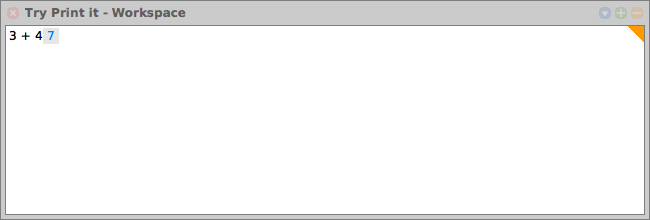
Open it with Tools → Workspace or the World menu’s Workspace item. Common shortcuts are Ctrl+D / Ctrl+P on Windows/Linux and Cmd+D / Cmd+P on macOS. Menu commands are the reliable reference when mappings differ.
TRY IT IN SQUEAK
Transcript: write explicit output
Transcript is Squeak’s logging tool. It only shows what your code writes to it; evaluating an expression does not automatically print its result there. The code opens a Transcript and writes a greeting and the number 7.
Transcript open.
Transcript show: 'Hello, Squeak!'; cr.
Transcript show: (3 + 4) printString; cr.
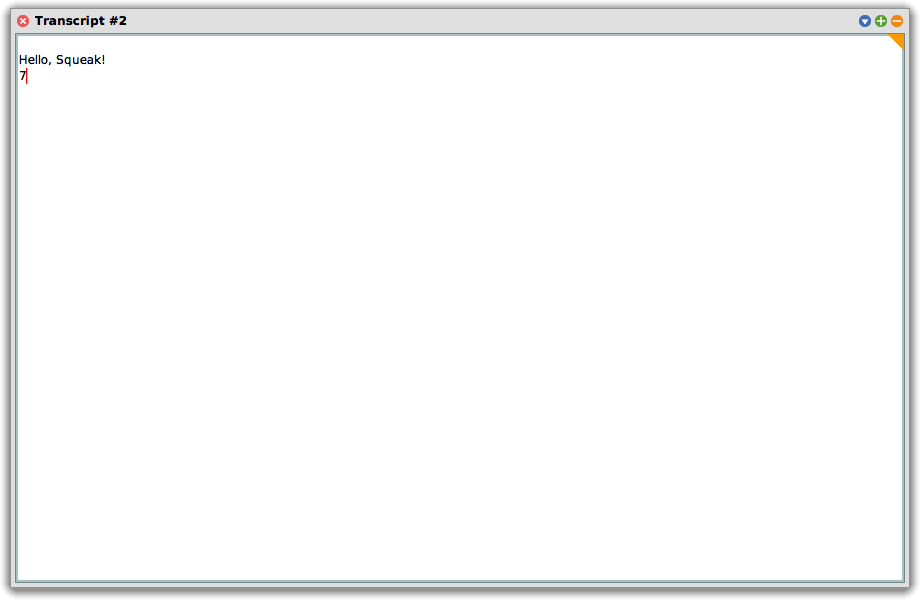
Use the World menu’s Transcript entry to open the tool without code. The semicolons send show: and cr to the same receiver. Frequent logging inside a fast loop can slow your program.
TRY IT IN SQUEAK
Inspector: examine a live object
Inspect a Point. Select x or y to see its coordinates. The lower evaluation pane runs code with self bound to the inspected object. It is a live object, so messages can change it; practice on disposable tutorial objects first.
(3@4) inspect
self x + self y
7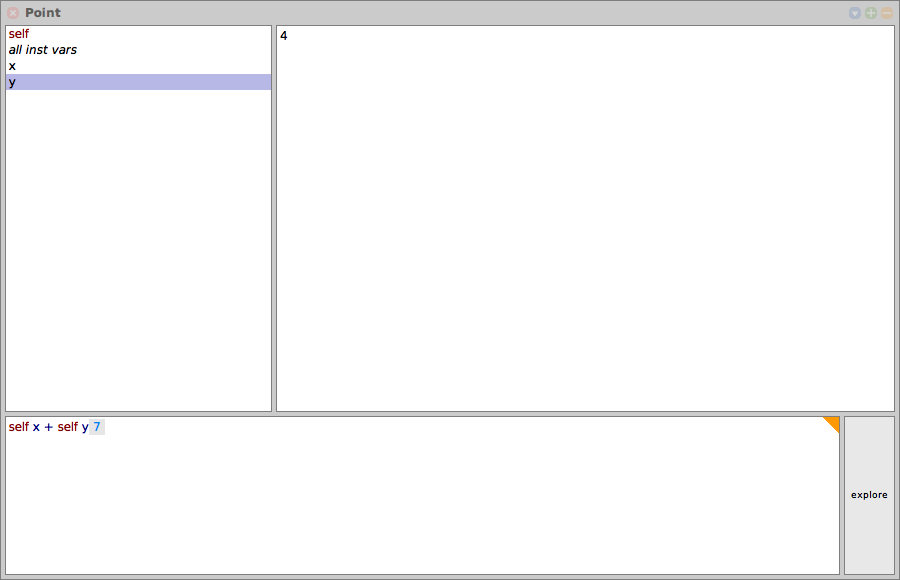
TRY IT IN SQUEAK
Explorer: follow nested references
Explorer is a tree view of objects and the objects they refer to. Expand the triangles beside the nested arrays. It is not a filesystem browser. Unlike Inspector, its evaluation pane binds self to the currently selected node, so check the selection before sending messages.
{{1. 2}. {'Morphic'. 3@4}} explore
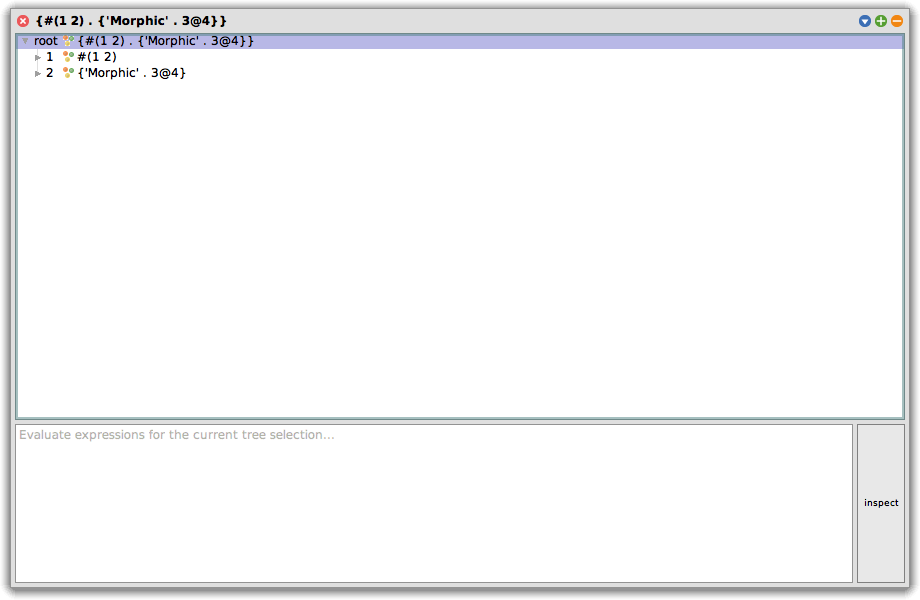
Use the inspect control to open a conventional Inspector on the selection; Inspector has an explore control for the opposite direction. Keep the distinction between the root object and selected child in mind.
TRY IT IN SQUEAK
Create a safe class to work on
The next sections share one tiny counter class. Run this setup once. It adds only LearnSqueakToolCounter and its listed methods in the LearnSqueak-Tools category. Check the Browser first: if that name already belongs to your work, choose a different name throughout this lesson. Re-running this setup replaces these tutorial methods.
Object subclass: #LearnSqueakToolCounter
    instanceVariableNames: 'count'
    classVariableNames: ''
    poolDictionaries: ''
    category: 'LearnSqueak-Tools'.
(Smalltalk at: #LearnSqueakToolCounter) compile: 'initialize
    super initialize.
    count := 0'.
(Smalltalk at: #LearnSqueakToolCounter) compile: 'increment
    count := count + 1.
    ^ count'.
(Smalltalk at: #LearnSqueakToolCounter) compile: 'value
    ^ count'.
(Smalltalk at: #LearnSqueakToolCounter) compile: 'pauseAndIncrement
    self halt.
    ^ self increment'.
Squeak may ask for your author initials the first time you compile code. Use your own. The pauseAndIncrement method deliberately includes a halt; it is only called in the Debugger exercise. Setup installs it but does not trigger it.
| counter |
counter := LearnSqueakToolCounter new.
counter increment.
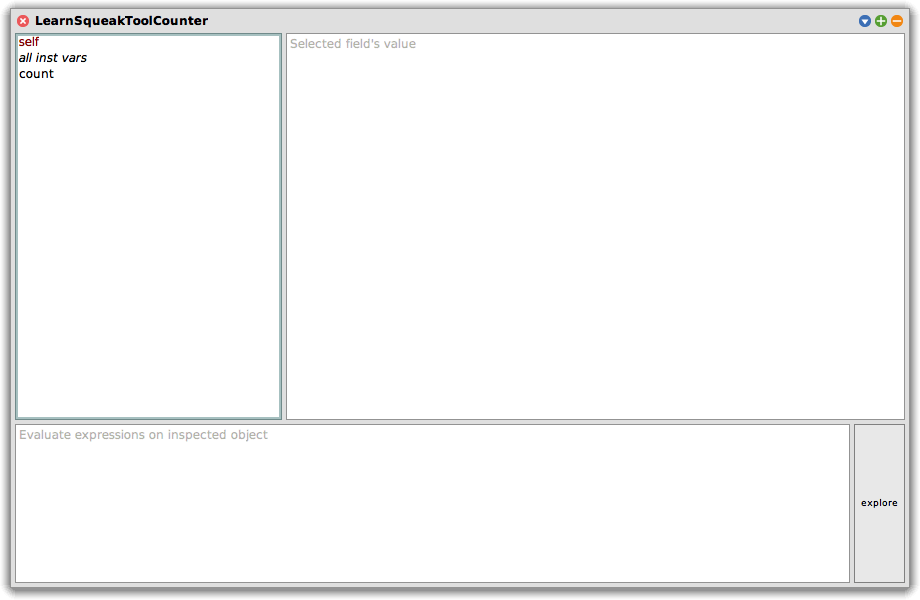
counter inspect
TRY IT IN SQUEAK
Browser: connect state to behavior
After setup, open the class with this expression. The screenshot shows Squeak 6.1’s tree-based System Browser. Navigate category → class → protocol → method; the instance/class buttons choose whether you edit instance behavior or class-side behavior.
LearnSqueakToolCounter browse
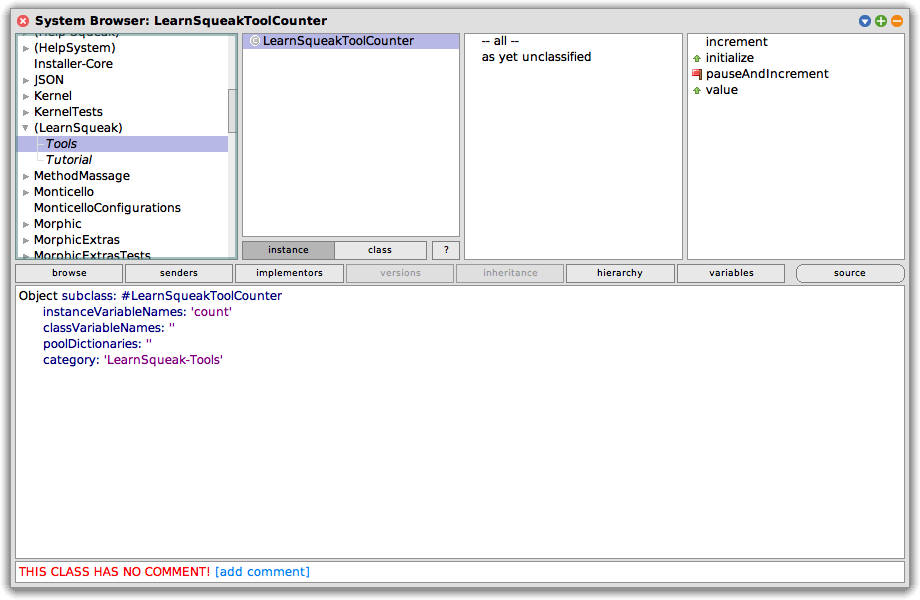
- Select LearnSqueak-Tools → LearnSqueakToolCounter.
- Keep instance selected and choose increment.
- Read its source in the lower pane. The up-arrow syntax (^) returns a value.
- For a safe editing exercise, add or change a double-quoted comment in this tutorial method and choose accept from the source-pane menu. Accept compiles into the running image immediately.
Use senders and implementors to investigate messages. A selector search is not an exact runtime call graph. Do not experiment by rewriting the system’s Object, Integer, or Debugger methods.
TRY IT IN SQUEAK
Debugger: pause, inspect, continue
Run this only after setup. It deliberately signals a Halt, so the first notification is expected. Choose Debug to open the full Debugger, then select the LearnSqueakToolCounter → pauseAndIncrement frame rather than editing Object → halt.
LearnSqueakToolCounter new pauseAndIncrement
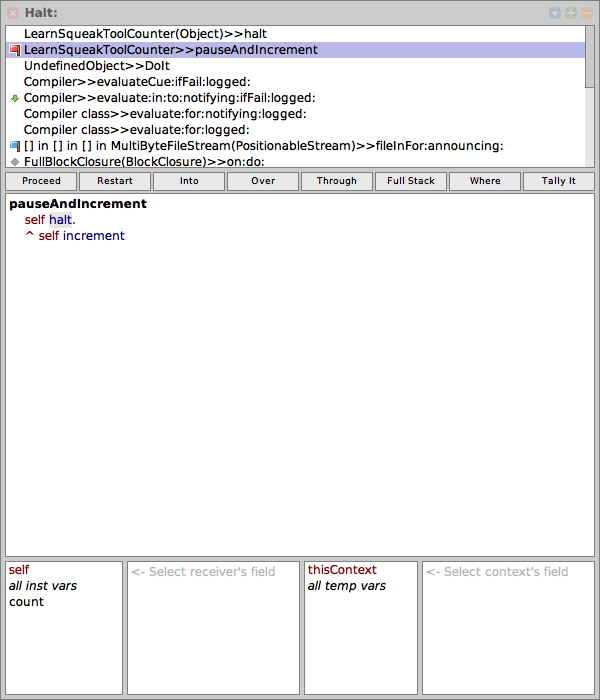
- Read the stack at the top and the selected frame’s source below it.
- Select count in the receiver pane: initially it is 0.
- Use Over to advance beyond the halt; use Into at the increment send to enter that method.
- Continue stepping through the addition and assignment. The highlighted expression moves; count becomes 1.
- Choose Proceed to finish. If you want to cancel instead, the initial notifier provides Abandon.
Restart reruns a frame and can repeat side effects. Avoid it on code that sends messages externally, writes files, or performs transactions. Here we only change a disposable counter.
Remove the deliberate breakpoint
After proceeding, run this cleanup. It replaces only the tutorial method, then verifies a fresh counter can increment without halting. Print it answers 1.
LearnSqueakToolCounter compile: 'pauseAndIncrement
    ^ self increment'.
LearnSqueakToolCounter new pauseAndIncrement
TRY IT IN SQUEAK
Save the right thing
Accepting source and saving an image are different operations. Choose a new learning-image name before experiments if you want to keep a clean original.
Accept
Compiles a class or method into the running image. It does not itself write a complete image snapshot.
Save / Save as
The World menu provides these actions for preserving the image’s current object world, including retained state and open tools. Save as lets you create a separate learning image.
File out source
A Browser’s file-out action exports selected source for transfer. Source alone is not a snapshot of all live objects.
Version packages
Package/version-control tools such as Monticello serve a different purpose from saving your whole image. Use the workflow appropriate to your project.
Keep the matching .image and .changes files together, with access to the required .sources file. The .changes file records source changes, not every live object. Do not rename only one member of the image/changes pair.
Close the tutorial tool windows when finished. Keep LearnSqueakToolCounter for later practice, or remove that tutorial class from the Browser when you no longer need it. The halt-removal step makes its normal demonstration method safe to call again.
Read further
Screenshots and GIF frames come from real Squeak tool windows. Active-window shadows can change capture dimensions; GIF frames are padded to a common size without simulating tool contents.
Put it into practice.
Try an exercise before revealing its hints and tested solution.