UPGRADE YOUR PROGRAMMING ENVIRONMENT
A classic VB6-style IDE.
Built inside Squeak.
Give our tiny BASIC language a familiar home: a classic toolbox, gray MDI workspace, Properties panel and visual form designer, all built from native Morphs.
The web page is the tutorial. Download the source and run the actual IDE in Squeak. The earlier BASIC Studio lesson and its downloads remain available.
1. Start from the real VB6 workspace
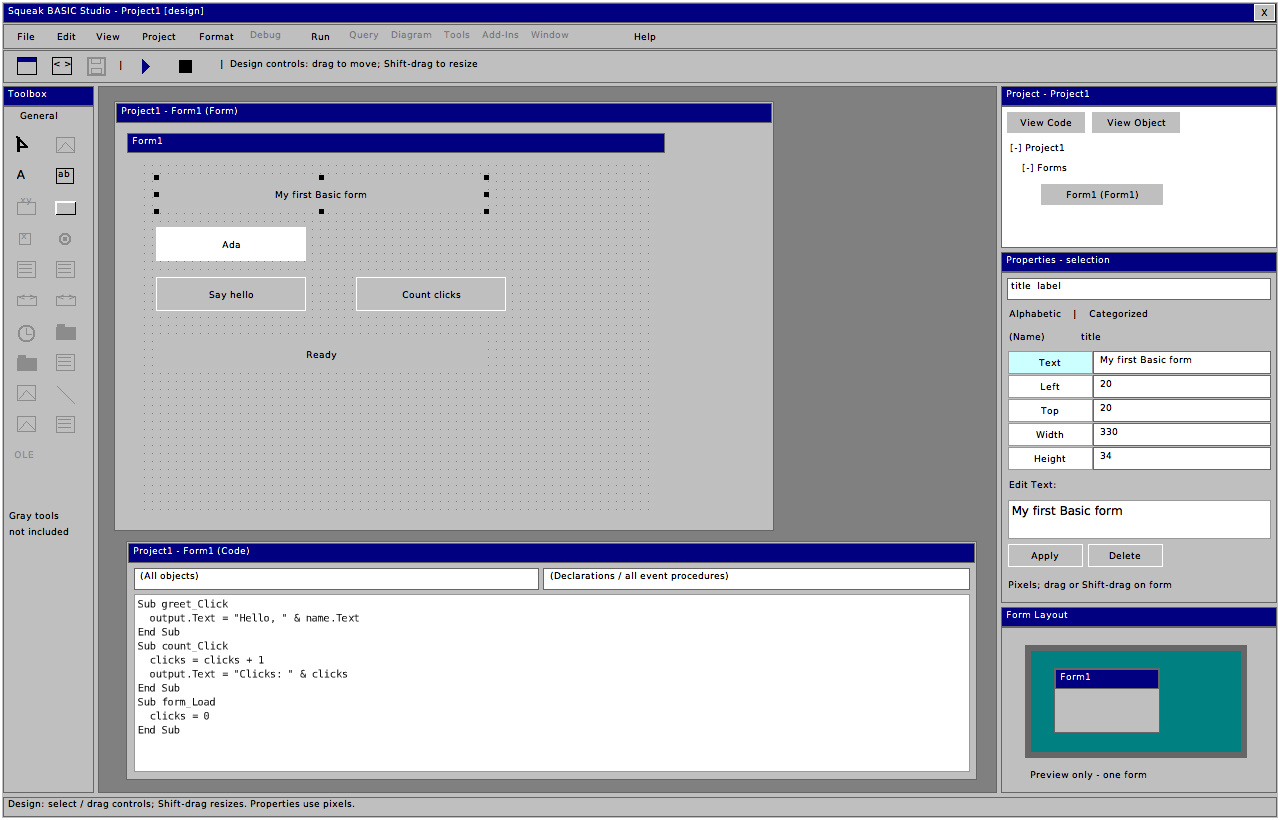
This is an upgrade to our original BASIC Studio. Instead of a modern-looking split pane, we recreate the visual vocabulary of a classic Visual Basic 6 MDI workspace: menu and Standard toolbar above, two-column Toolbox at the left, nested form windows in a gray central desktop, and Project Explorer, Properties and Form Layout at the right.
Microsoft’s archived VB6 environment overview describes those parts. Its environment customization guide also explains that the IDE can use different arrangements. Windows themes, fonts, display settings and docking choices change the appearance. Our target is a recognizable classic gray-and-navy configuration, not a claim that every VB6 installation had identical pixels.
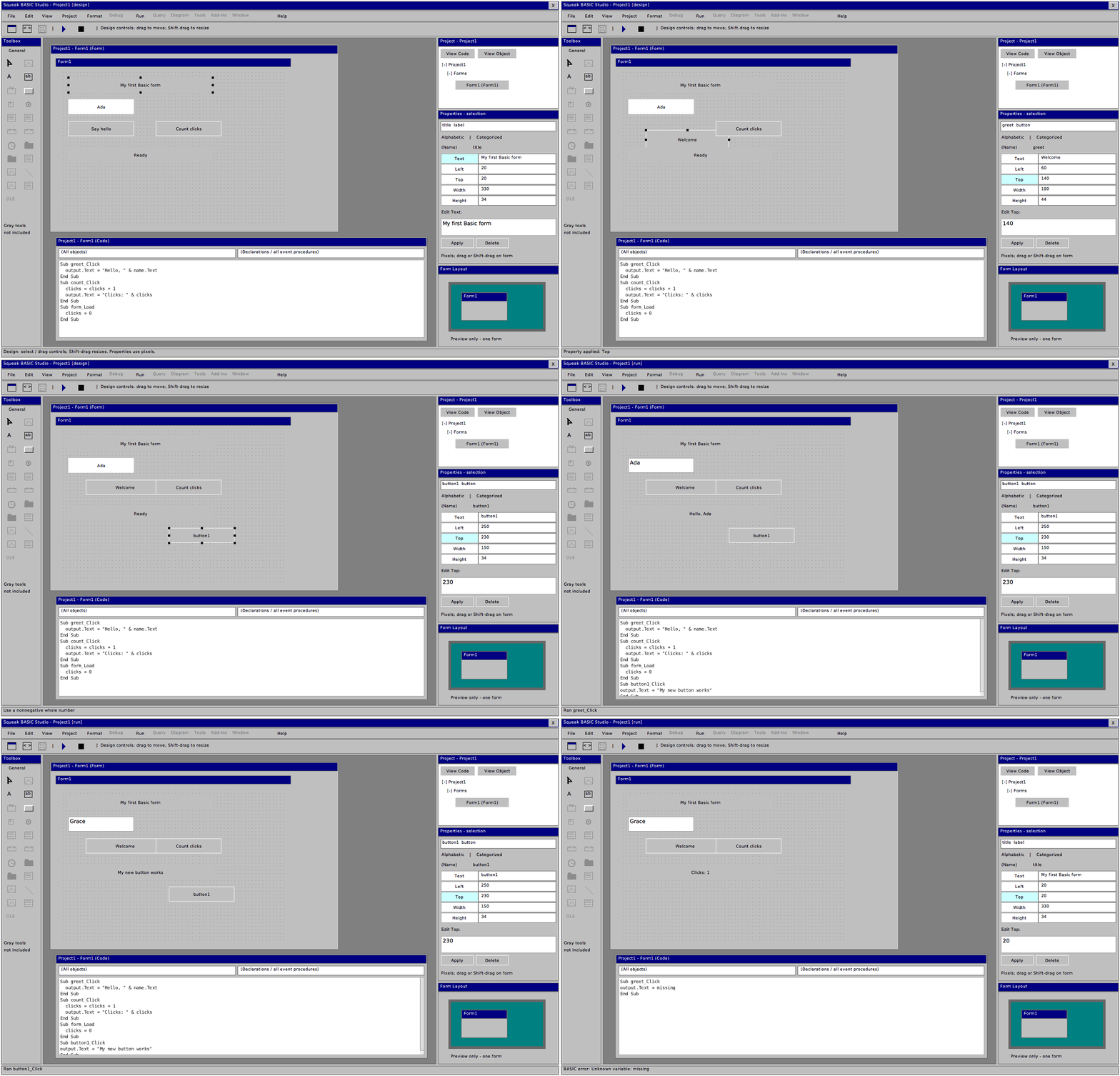
We inspected historical VB6 IDE screenshots and a toolbox reference. The icons and chrome here are drawn by our own Squeak code; the screenshots below show our running project, not copied Microsoft artwork.
This is still our teaching language inside Squeak. It is not Microsoft Visual Basic, does not run arbitrary VB6 projects, and does not implement the VB6 runtime or Windows ActiveX controls.
2. Install the classic studio
Use a spare Squeak 6.1, 64-bit learning image. Download SqueakClassicStudio.st, select it in Squeak’s File List and choose fileIn. This is a class-and-method package: do not paste the entire file into a Workspace expression.
The download is self-contained. It includes the previous LSBControl, LSBBasic and LSBStudio, plus LSB6Studio, LSB6Grid, LSB6Glyph and LSB6ControlView. Check these names before installation. Filing in again replaces methods under those names; use a learning image rather than overwriting unrelated work.
LSB6Studio openThe new window has a fixed 1280 × 820 extent. Use a display with enough room; this native IDE does not automatically reflow like the tutorial page. The older LSBStudio open still opens the original layout. Close a previous studio before opening another.
3. Walk around the upgraded IDE
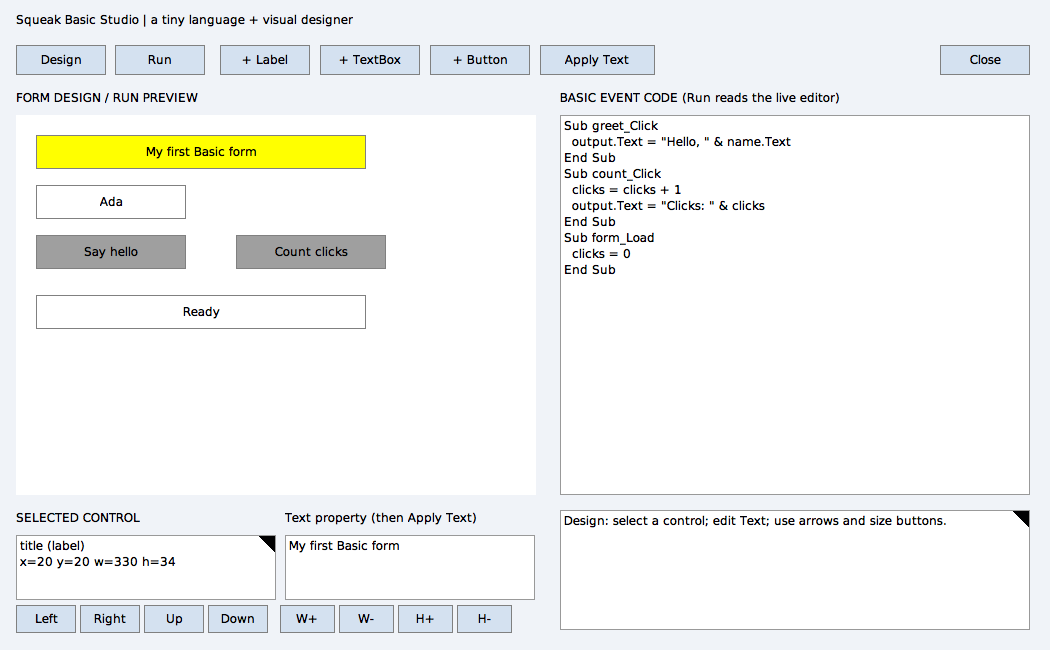
- Menu and Standard-style toolbar: Form and Code icons select their panes; the blue triangle starts the form, and the black square returns to Design.
- Toolbox: the two-column arrangement uses original glyphs. Pointer selects Design; A adds a Label; ab adds a TextBox; the raised rectangle adds a Button. Gray tools are disabled.
- MDI workspace: the gray desktop holds a nested Form1 designer and a separate Form1 code pane. These panes have fixed geometry rather than general docking.
- Project Explorer: the tree describes the one current form. View Code and View Object switch the relevant pane to the front; it is not a multi-project manager.
- Properties: select a control and edit Text, Left, Top, Width or Height. The name is read-only.
- Form Layout: the small monitor/form diagram preserves a familiar visual cue. It is explicitly a preview, not an interactive placement control.
The code header boxes show the all-object/all-procedure view. They are display labels, not working object/event dropdowns. The Alphabetic/Categorized captions likewise do not implement sorting modes. This distinction is intentional: a familiar-looking panel must not pretend to offer behavior we have not built.
4. Keep the language separate from its shell
A visual redesign should not silently change the language. The control models hold names, text and geometry. The BASIC evaluator parses a deliberately narrow event language. The new studio shell maps those same ideas into the classic IDE layout. A button in the toolbox creates a control model; a button on the running form invokes a BASIC event. Those are different responsibilities.
We subclass the original controller rather than making another parser. LSB6Studio inherits the model collection, source buffer and event interpreter. Its new responsibilities are layout, selection, property rows and form-view synchronization. LSB6Grid paints the dotted surface; LSB6Glyph draws enabled/disabled toolbar and toolbox symbols; LSB6ControlView translates designer mouse gestures into model edits.
Start by filing in the complete source, then use the System Browser to inspect the LearnSqueak-ClassicStudio category. Read LSB6Studio>>open beside the screenshot: each panel’s bounds is a rectangle in the 1280 × 820 coordinate system. The source download includes the entire layout method, not only the excerpts below.
gray
^ Color r: 0.75 g: 0.75 b: 0.75navy
^ Color r: 0 g: 0 b: 0.5Those two methods make the theme a deliberate choice. They do not define the BASIC language. Changing them changes the shell, not expression precedence, assignments or event names.
5. Draw classic chrome with Morphic
Native Morphs provide the rectangles, text and event targets. A title strip is a navy panel with white text. The form’s sparse grid is painted by its own Morph, so the dots really belong to the designer rather than being a screenshot pasted behind it.
title: text at: point width: width in: owner
 | bar |
 bar := self panel: (point extent: width@20) color: self navy in: owner.
 (self label: text at: point + (5@2) in: bar) color: Color white.
^ bardrawOn: aCanvas
super drawOn: aCanvas.
8 to: self width - 1 by: 8 do: [:x | 8 to: self height - 1 by: 8 do: [:y |
aCanvas fillRectangle: ((self position + (x@y)) extent: 1@1) color: (Color gray: 0.48)]].Inspect LSB6Glyph>>drawOn: in the downloadable source to see the icon construction: small rectangles, lines, polygons and text. No Microsoft icon files are distributed. The disabled state changes the drawing and ignores mouse actions. The real menu entries contain only implemented commands; Save, Debug and unsupported toolbox tools remain disabled.
mouseDown: event
enabled ifTrue: [super mouseDown: event]mouseUp: event
enabled ifTrue: [super mouseUp: event]6. Connect the form designer and Properties
In Design, clicking a control selects its model. Drag the body to move it; hold Shift at mouse-down and drag to resize. The black squares indicate selection but are not separate resize targets. Geometry is clamped to the 520 × 360 form surface.
mouseDown: event
 studio selectControl: model.
 dragOrigin := event position. modelOrigin := model x @ model y.
 sizing := event shiftPressed.
sizing ifTrue: [modelOrigin := model width @ model height].mouseMove: event
| delta |
dragOrigin ifNil: [^ self].
delta := event position - dragOrigin.
sizing ifTrue: [studio sizeControl: model to: modelOrigin + delta]
ifFalse: [studio placeControl: model at: modelOrigin + delta].mouseUp: event
dragOrigin := nil. studio refreshNotice that mouse-down remembers both the pointer origin and the original model coordinates. Each movement computes a delta from that baseline. A subtle but important rule: selection updates the inspector without deleting the actively dragged view. Replacing that Morph mid-drag would break event routing.
selectControl: control
 selected := control. self refreshInspector
The Properties grid is another way to edit the same model. Click Text, Left, Top, Width or Height, edit the buffer below the grid and click Apply. Geometry uses integer pixels, not VB6 twips. Invalid geometry reports an error rather than evaluating host code. Delete removes the selected control only in Design.
applyProperty
 | text number |
 running ifTrue: [^ self]. selected ifNil: [^ self].
 text := propertyEditor text asString.
 [propertyKey = 'Text' ifTrue: [selected text: text] ifFalse: [
 (text isEmpty or: [(text allSatisfy: [:c | c isDigit]) not]) ifTrue: [self error: 'Use a nonnegative whole number'].
 number := text asNumber.
 propertyKey = 'Left' ifTrue: [self placeControl: selected at: number @ selected y].
 propertyKey = 'Top' ifTrue: [self placeControl: selected at: selected x @ number].
 propertyKey = 'Width' ifTrue: [self sizeControl: selected to: number @ selected height].
 propertyKey = 'Height' ifTrue: [self sizeControl: selected to: selected width @ number]].
 status := 'Property applied: ', propertyKey] on: Error do: [:e | status := e messageText]. self refresh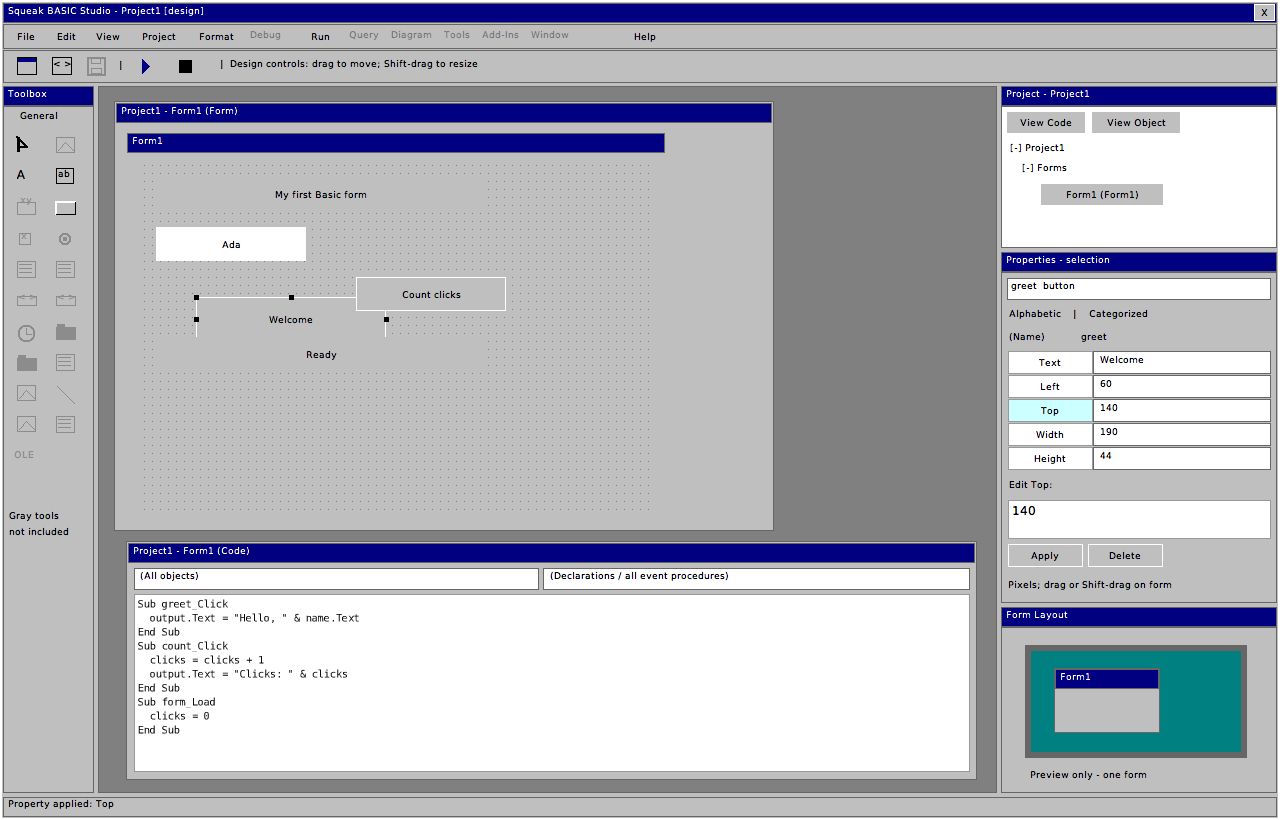
7. Edit a real event program
The code pane is a real editable, monospaced Morphic text editor. Run reads its current text buffer; you do not need a separate Accept command. This remains the previous tutorial’s deliberately small language: case-insensitive names, integer and string expressions, variables, control.Text, arithmetic, concatenation and line-based Sub/End Sub handlers.
Sub greet_Click
  output.Text = "Hello, " & name.Text
End Sub
Sub count_Click
  clicks = clicks + 1
  output.Text = "Clicks: " & clicks
End Sub
Sub form_Load
  clicks = 0
End Sub
Run parses the handlers and creates a fresh variable environment. The inherited interpreter dispatches a native button click to its named handler, then redraws the form. It does not pass BASIC source to the Smalltalk compiler. The classic shell only adds the appropriate design/run status.
run
super run. captionLabel ifNotNil: [captionLabel submorphs first contents: (running ifTrue: ['Squeak BASIC Studio - Project1 [run]'] ifFalse: ['Squeak BASIC Studio - Project1 [design]'])]design
running := false. status := 'Design: select / drag controls; Shift-drag resizes. Properties use pixels.'. self refresh. captionLabel ifNotNil: [captionLabel submorphs first contents: 'Squeak BASIC Studio - Project1 [design]']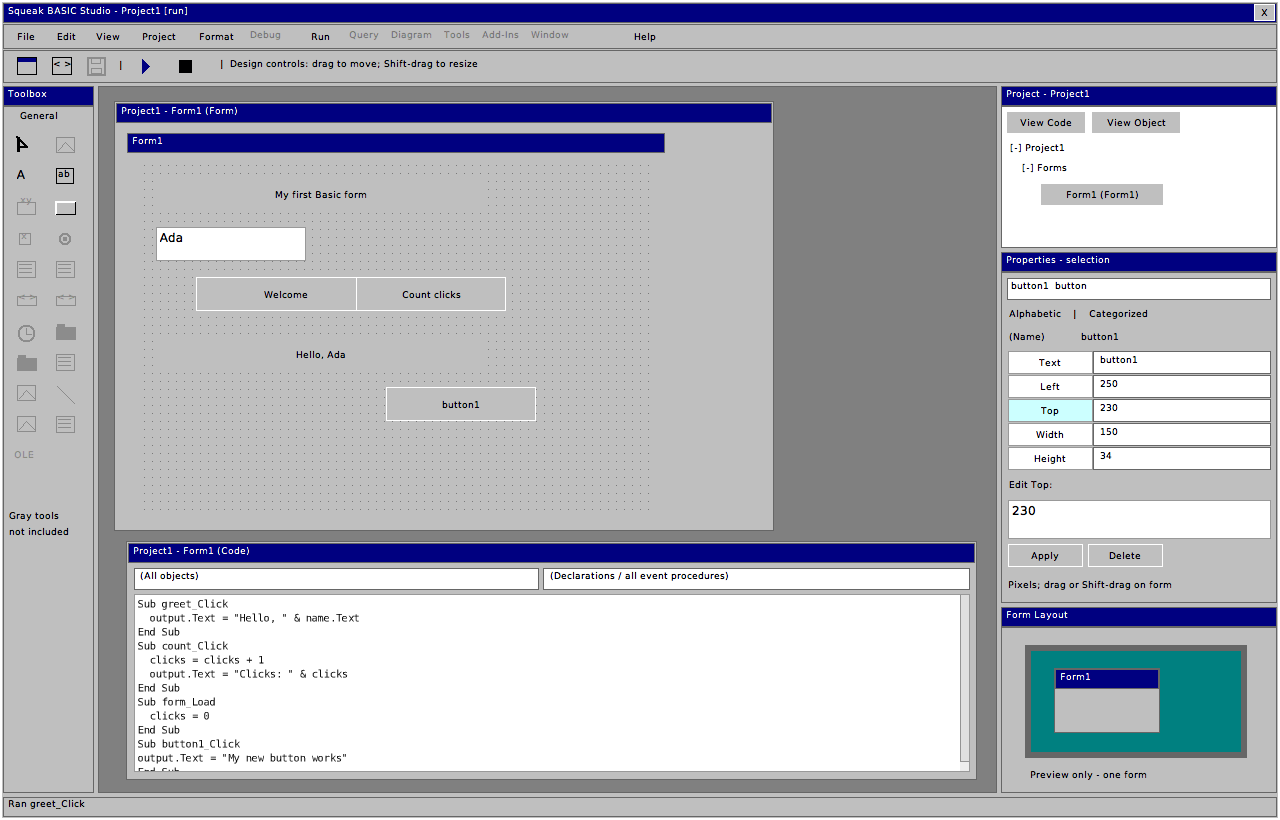
8. Build and run your own form
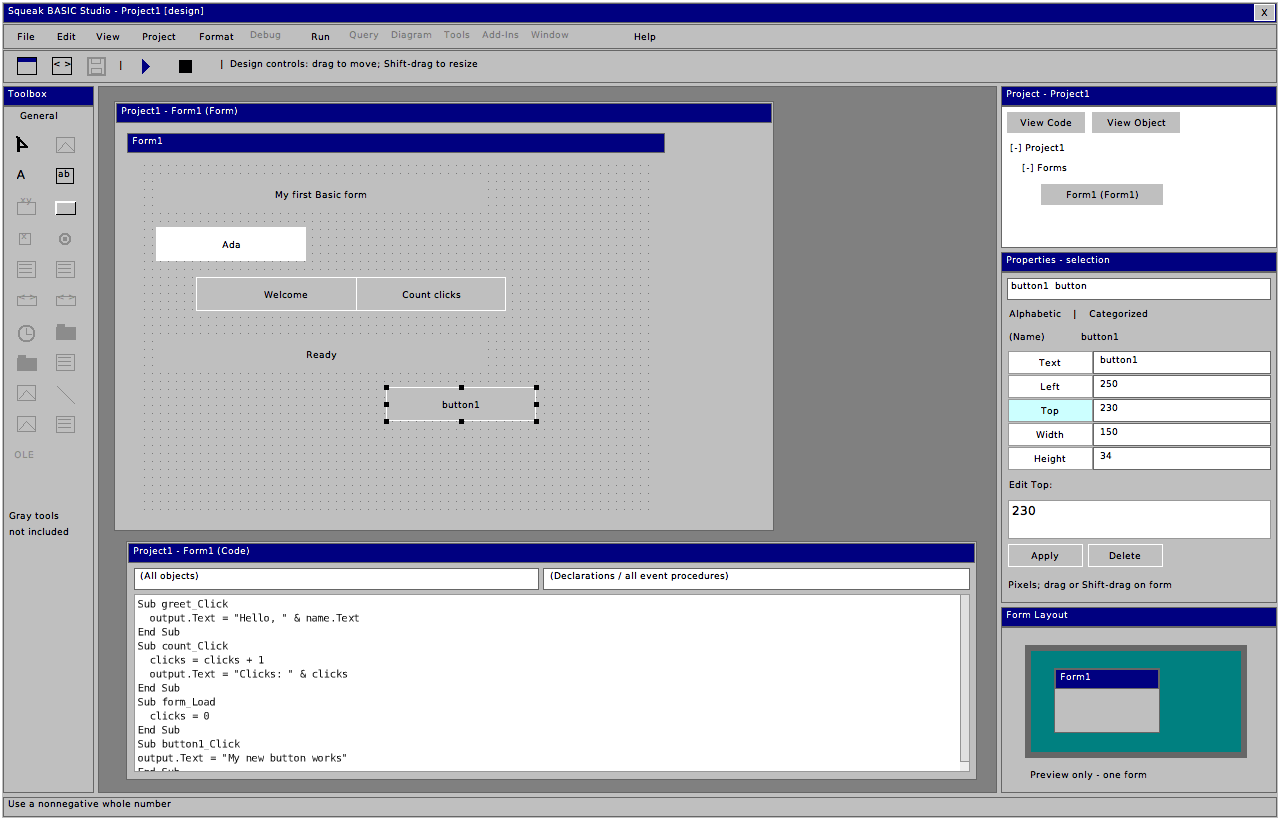
- Open the studio and select the greeting button. Choose Text in Properties, type Greet me in the buffer and click Apply.
- Drag the button a little to the right. Shift-drag its body to make it wider. Alternatively select Left or Width in Properties and apply a whole-number pixel value.
- Click the CommandButton toolbox glyph. The first new button is button1. Read its name in Properties and apply the Text Show message.
- Keep the existing program and append the handler below in the code editor.
- Click the blue Run triangle. Click the new button and read the changed output label. The black Stop square returns to Design.
Sub button1_Click
  output.Text = "My new button works"
End Sub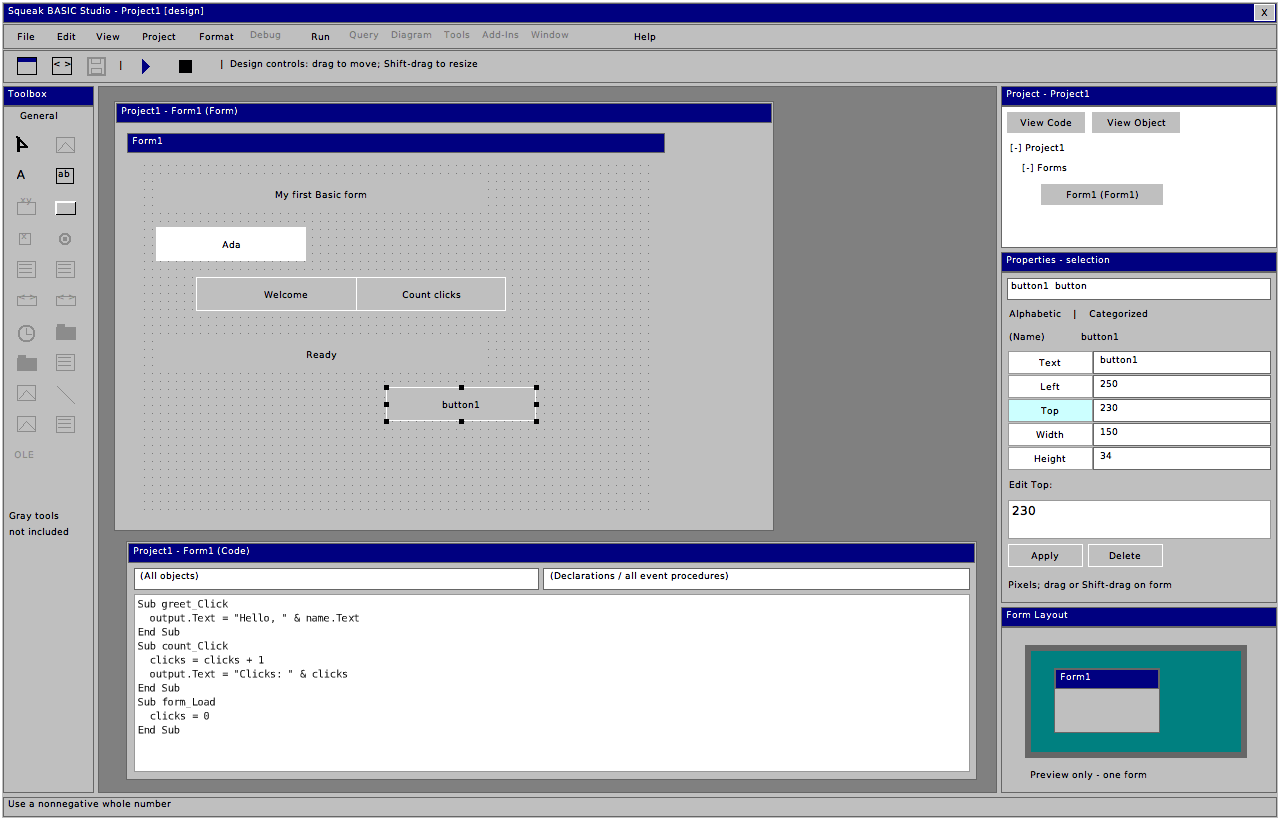
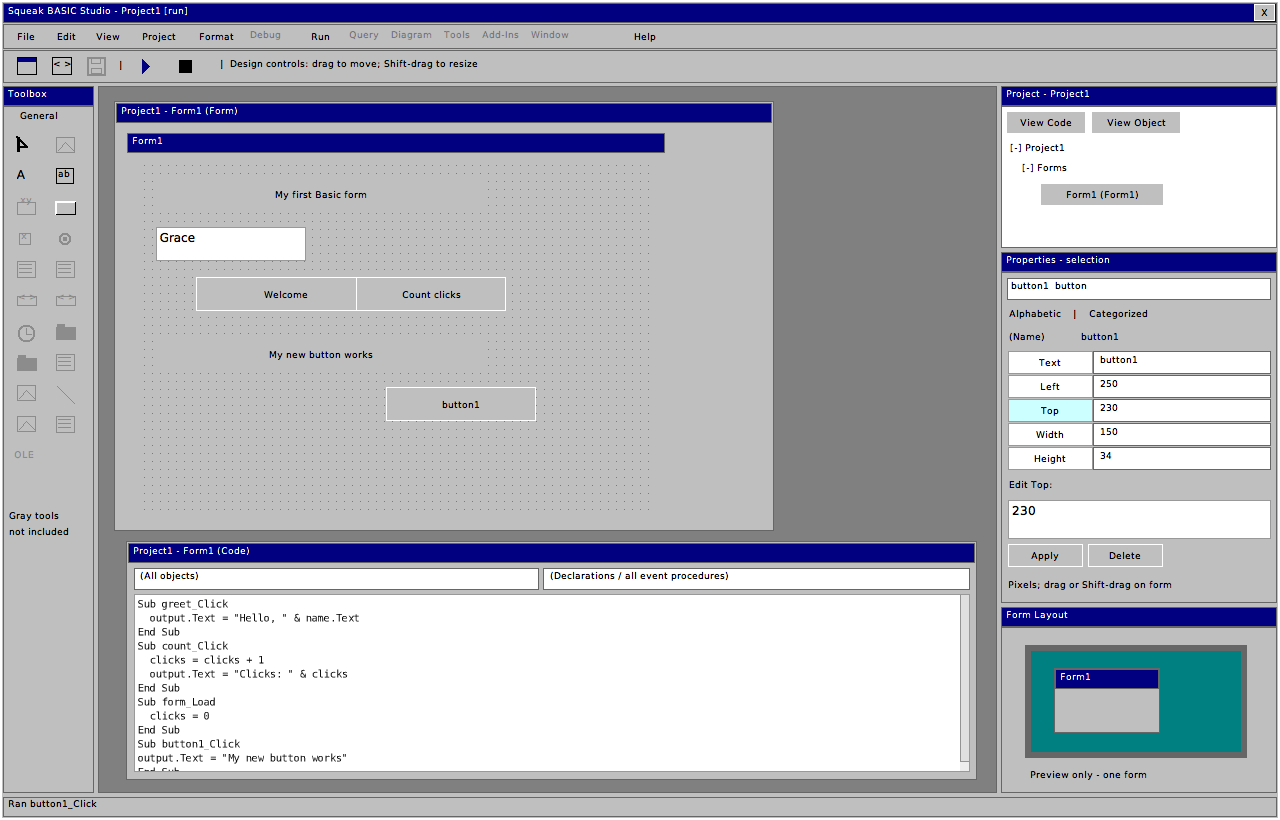
Try the original textbox too: while running, enter Grace and press Return to accept the text, then click the greeting button. Text entry uses Return-to-accept, not continuous binding. Count clicks updates state; pressing Run again resets language variables but retains the current form’s text and geometry.
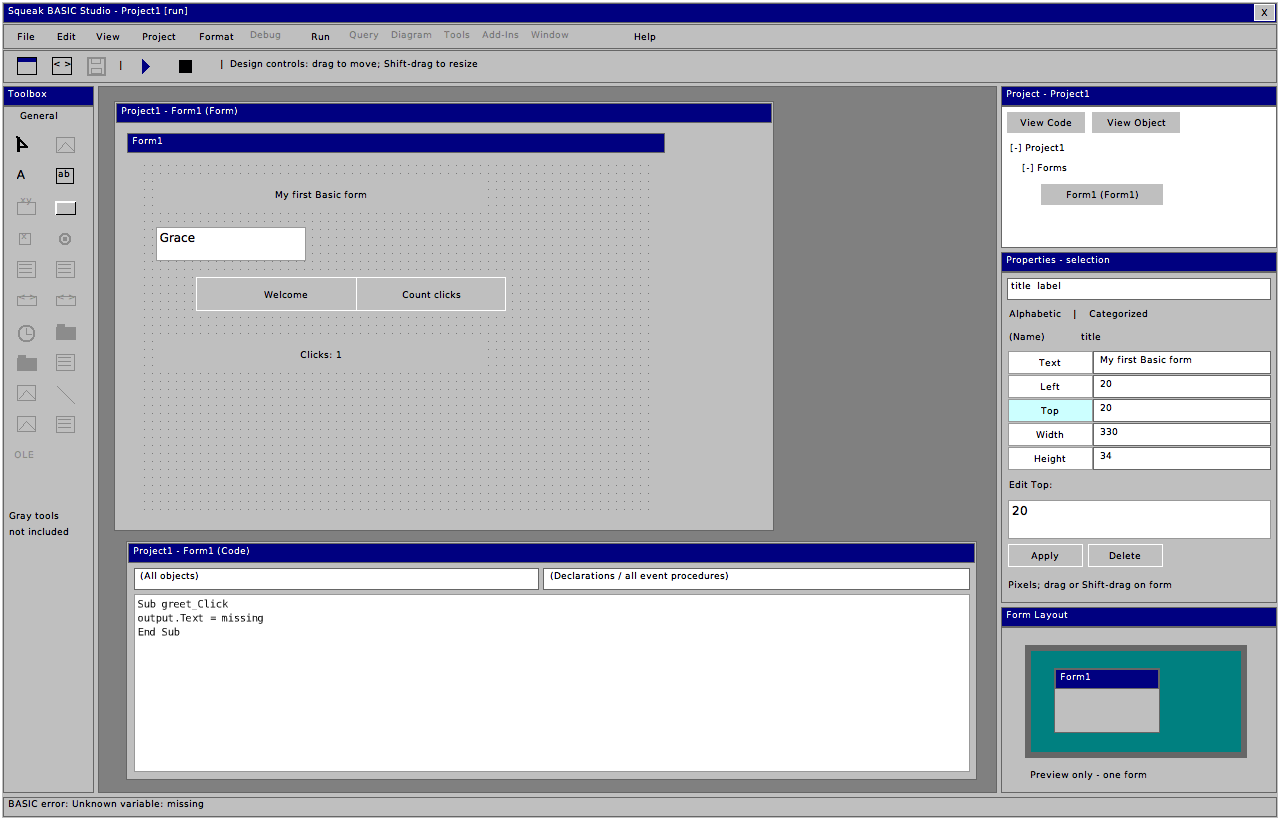
Deleting a control does not automatically delete its handler. Keep the model names and source in sync. If a handler is missing or malformed, the status line reports the error. Fix the code and Run again; earlier assignments are not rolled back automatically.
9. Test the upgrade
Download and file in SqueakClassicStudioTests.st after the main package. Run both test classes in Test Runner, or evaluate:
LSBBasicStudioTests suite runLSB6StudioTests suite runThe verified native run passed 15 SUnit tests: 11 inherited language/studio regression tests and four new tests for drag/resize callbacks, properties and validation, new-button events/deletion, and view/error recovery. A separate capture harness passed 23 checkpoints, including bounds, live property buffer, accepted textbox input, state reset and actual native button callbacks.
The gesture tests construct real Squeak MouseEvent objects and invoke mouseDown/mouseMove/mouseUp on the native views. They are programmatic event tests, not a physical-pointer end-to-end test. The seven PNGs are genuine native Morph imageForm captures, not HTML drawings. All execution and capture took place on the assistant’s own VM.
10. What to extend next
This upgrade aims for the recognizable arrangement and visual feel of classic VB6, not exact pixel identity or equivalent functionality. The title, fonts, original glyphs and some frame details differ. There is one form, a fixed-size workspace, three supported control kinds and the earlier teaching-language grammar.
There is no VB6 runtime, COM/ActiveX, native executable compiler, debugger, project save/load, multi-form project, true docking, general child-window resizing, undo or automatic event stub generation. Code is plain monospaced text rather than a full VB syntax-coloring editor. The layout preview and code headers are display-only; unsupported tools are gray. No SqueakJS compatibility is claimed.
Keep the downloaded source to recreate the tool. Saving a learning image can preserve objects, but the disabled Save icon does not write a project file. This interpreter is not a hardened sandbox for untrusted programs.
Next, try one narrow feature at a time: a checked property type, an undo command, a serialized form model, or another interpreter construct. Add a regression test before making its icon appear enabled. The useful lesson is not only how to copy a familiar layout: it is how a visual language tool stays connected to real, inspectable objects.
Original BASIC Studio and interpreter walkthrough · Build a Smalltalk-like interpreter · Native Squeak forms · Squeak development tools