New upgrade: Build the classic VB6-style workspace while keeping this original version and its downloads.
BUILD YOUR OWN PROGRAMMING ENVIRONMENT
A tiny BASIC.
A visual studio.
Create a language, code editor and forms designer together inside Squeak. Place controls, write Click handlers and run the result.
Everything shown is a native Squeak project. The web page explains it; it does not run the IDE. This is inspired by the Visual Basic workflow, not an implementation of Microsoft Visual Basic.
1. Build the language and the tool together
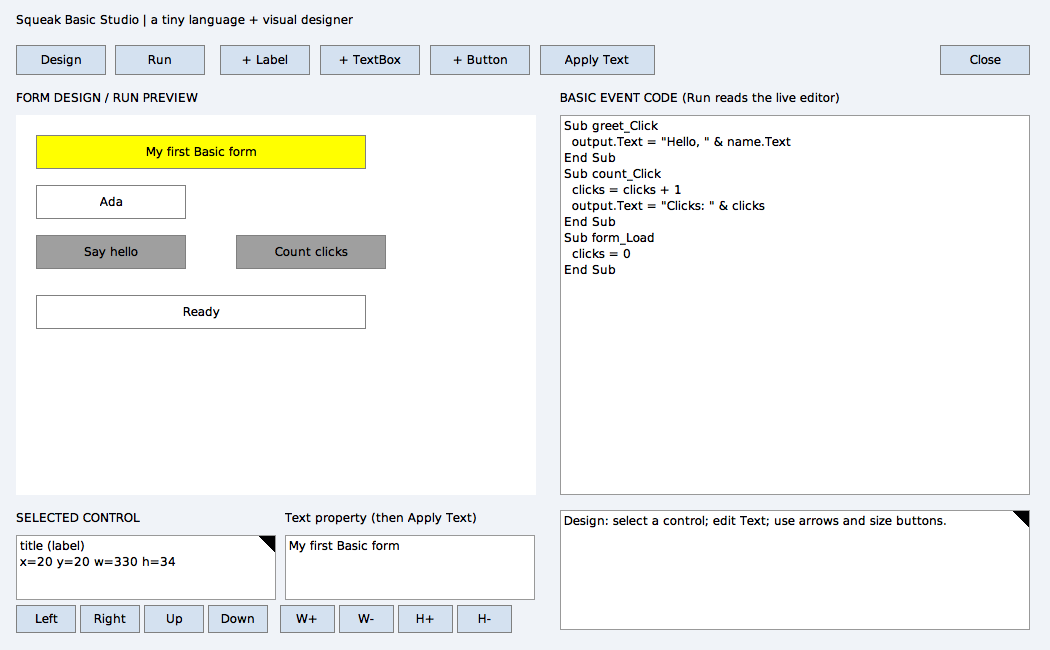
A forms designer lets you place controls, change their properties and attach behavior to events. That familiar Visual Basic-style workflow is the inspiration here. We build our own small version using Squeak Morphic, not Windows Forms or .NET.
There are three different programs in this project: the Smalltalk implementation of the IDE, the BASIC-like text typed into its editor, and the form model the designer changes. Keeping them separate makes the system understandable.
- LSBControl stores a control’s name, kind, text and rectangle.
- LSBBasic reads event handlers and evaluates expressions.
- LSBStudio turns the model into Morphs and connects editor, toolbox and events.
The complete project is a teaching language, not a Visual Basic clone. It does not run existing VB programs and is not a security sandbox for untrusted code.
2. Install in a learning image
Use Squeak 6.1, 64-bit. Download the source, open the native File List, select the .st file and choose fileIn. A .st file contains class definitions and method chunks; do not paste the whole file as one Workspace expression.
Download SqueakBasicStudio.st · Download tests
Use a spare learning image. The package adds LSBControl, LSBBasic and LSBStudio; filing it in again replaces their methods. Check for conflicting names first.
LSBStudio openThe left side is the form. The right side is your event program. The toolbox and property controls are part of the IDE, not controls in the application you are designing. Close the previous studio before opening another.
3. Make a control a model object
A control is not initially a button Morph. It is data: its name, kind, displayed text and position/size. The designer edits this data, and the runtime reads the same objects. This is why changing a property can update the form without rewriting the interpreter.
initialize
super initialize. text := ''. x := 20. y := 20. width := 150. height := 34addKind: kind name: name text: text at: point
| control |
control := LSBControl new kind: kind; name: name; text: text; x: point x; y: point y; yourself.
kind = #label ifTrue: [control width: 330].
controls add: control. ^ controlThe factory makes a model object and adds it to an ordered collection. Names are how the event program finds controls; coordinates and dimensions belong to the designer.
4. Define the little language
Here is a complete event program for the initial form. Paste it in the studio’s BASIC event code editor, not a Squeak Workspace.
Sub greet_Click
  output.Text = "Hello, " & name.Text
End Sub
Sub count_Click
  clicks = clicks + 1
  output.Text = "Clicks: " & clicks
End Sub
Sub form_Load
  clicks = 0
End Sub
Names and handler keywords are case-insensitive. Each assignment occupies one line. Integers, quoted strings, variables and control.Text references are expressions. Parentheses and unary minus work; multiplication/division bind more tightly than addition/subtraction/concatenation. The & operator concatenates text. Division uses Squeak numbers, so a nonintegral result can be an exact fraction rather than a VB floating-point value.
A line beginning with an apostrophe is a comment. There are no loops, conditions, function calls, arrays, classes, string escapes or arbitrary host-object access. Keep text within a single pair of quotes. This small grammar is intentionally inspectable.
load: aString
 | current lines clean name |
 handlers := Dictionary new. current := nil.
 lines := aString lines.
 lines do: [:line |
  clean := line withBlanksTrimmed.
  (clean isEmpty or: [clean first = $']) ifFalse: [
   (clean asLowercase beginsWith: 'sub ')
    ifTrue: [
     current ifNotNil: [self error: 'Nested Sub is not supported'].
     name := (clean copyFrom: 5 to: clean size) withBlanksTrimmed asLowercase.
     (name isEmpty or: [handlers includesKey: name]) ifTrue: [self error: 'Empty or duplicate handler'].
     current := OrderedCollection new. handlers at: name put: current]
    ifFalse: [clean asLowercase = 'end sub'
     ifTrue: [current ifNil: [self error: 'End Sub without Sub']. current := nil]
     ifFalse: [current ifNil: [self error: 'Statements must be inside Sub']. current add: clean]]]].
 current ifNotNil: [self error: 'Missing End Sub']
The loader collects each Sub body under its event name. It checks the handler structure; expression errors are reported when that statement runs. Loading handlers is not compiling Smalltalk source.
5. Turn expression text into values
The scanner turns text into tagged tokens: number, string, name or symbol. The evaluator then walks those tokens in precedence order. There is no call to Compiler evaluate: for the BASIC text.
evaluate: text
 | result |
 tokens := self tokenize: text. cursor := 1. result := self sum.
cursor <= tokens size ifTrue: [self error: 'Unexpected trailing token']. ^ resultsum
| value op right |
value := self product.
[#('+' '-' '&') includes: self peek] whileTrue: [
op := self take second. right := self product.
op = '&' ifTrue: [value := value asString, right asString] ifFalse: [
(value isNumber and: [right isNumber]) ifFalse: [self error: 'Arithmetic needs numbers'].
op = '+' ifTrue: [value := value + right] ifFalse: [value := value - right]]]. ^ valueproduct
| value op right |
value := self atom.
[#('*' '/') includes: self peek] whileTrue: [
op := self take second. right := self atom.
(value isNumber and: [right isNumber]) ifFalse: [self error: 'Arithmetic needs numbers'].
op = '*' ifTrue: [value := value * right] ifFalse: [right = 0 ifTrue: [self error: 'Division by zero']. value := value / right]]. ^ valuesum asks product for its operands. That one structural choice is what makes 2 + 3 * 4 produce 14. The atom routine handles literals, names, parentheses and unary minus. The complete scanner and atom code are in the source download.
LSBBasic new evaluate: '2 + 3 * 4'LSBBasic new evaluate: '(2 + 3) * 4'6. Give assignments a narrow meaning
An assignment first finds its target and evaluates its right-hand expression. Plain names write to the interpreter’s variable dictionary. A control.Text target writes only that named control’s text. It is not a general Smalltalk message send.
execute: line
 | index target expression value |
 index := line indexOf: $= ifAbsent: [self error: 'Expected assignment: name = expression'].
 target := (line copyFrom: 1 to: index - 1) withBlanksTrimmed asLowercase.
 (target beginsWith: 'let ') ifTrue: [target := (target allButFirst: 4) withBlanksTrimmed].
 expression := line copyFrom: index + 1 to: line size.
 value := self evaluate: expression.
self assign: target value: value. ^ valueassign: target value: value
| parts control |
self validReference: target.
parts := target findTokens: '.'.
parts size = 1 ifTrue: [self validName: target. variables at: target put: value. ^ value].
(parts size = 2 and: [parts second = 'text']) ifFalse: [self error: 'Only control.Text can be assigned'].
control := controls at: parts first ifAbsent: [self error: 'Unknown control: ', parts first].
control text: value asString. ^ valueThis boundary is the language design: the interpreter can update only the operations we deliberately implement. It is still a teaching tool, not a hardened sandbox; large expressions or strings can consume resources.
7. Build the designer from ordinary Morphs
The window contains a form canvas, a code editor, a selected-control property editor and toolbar buttons. The open method in the downloadable source creates them using Morph, SimpleButtonMorph and PluggableTextMorph. The following button factory connects an ordinary Morphic button to a target, selector and arguments. This is the same mechanism used by the toolbox and move/resize controls.
The studio’s refresh method draws the current model. In Design mode, a click selects a control instead of executing its event. The selected control is highlighted. The property panel and arrow/size buttons edit that model; refresh shows the new result.
button: label action: selector args: args at: point size: size in: parent
 | button |
 button := SimpleButtonMorph new label: label; target: self; actionSelector: selector; arguments: args; color: (Color r: 0.83 g: 0.88 b: 0.94); yourself.
button position: point; extent: size. parent addMorph: button. ^ buttonactivate: control
running ifFalse: [selected := control. self refresh. ^ self].
control kind = #button ifTrue: [self fire: control name, '_Click']refresh
| view |
canvas ifNil: [^ self].
canvas submorphs do: [:each | each delete].
controls do: [:control |
(running and: [control kind = #textbox]) ifTrue: [
view := PluggableTextMorph on: control text: #text accept: #acceptText:. view acceptOnCR: true]
ifFalse: [
view := SimpleButtonMorph new label: control text; target: self; actionSelector: #activate:; arguments: {control}; yourself.
view color: ((running or: [control ~~ selected]) ifTrue: [control kind = #button ifTrue: [Color lightGray] ifFalse: [Color white]] ifFalse: [Color yellow])].
view position: canvas position + (control x@control y); extent: control width@control height. canvas addMorph: view].
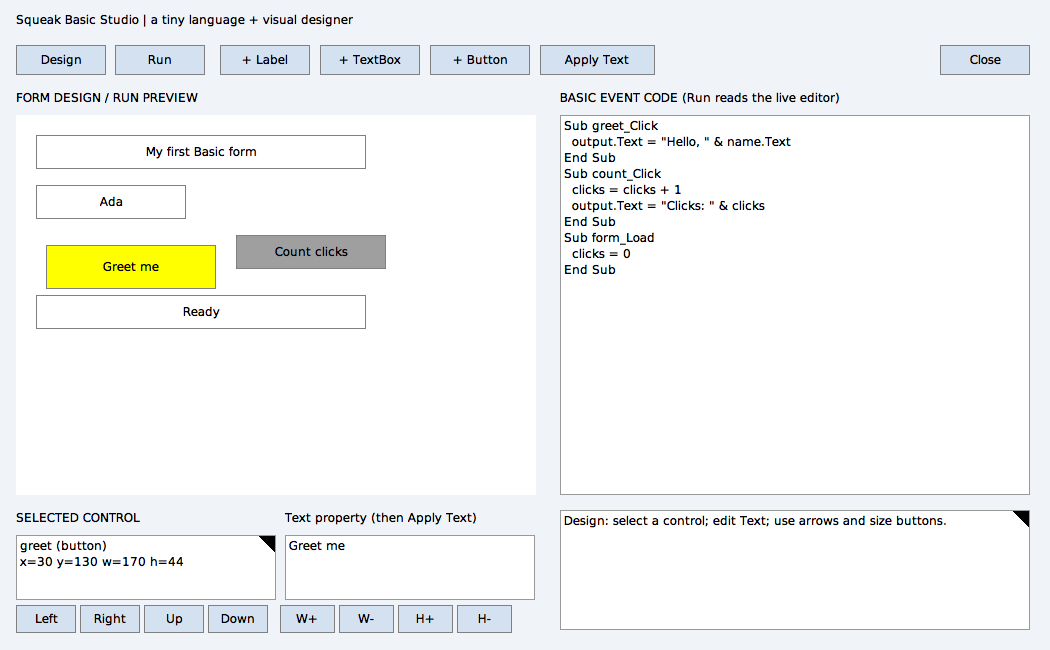
self changed: #selectedInfo; changed: #selectedText; changed: #statusTry selecting the greeting button, moving it with the arrow buttons, and changing its width. The design controls provide explicit movement/resizing; this version does not claim drag handles, a grid, docking or a full Visual Studio property browser.
8. Run a form and dispatch Click
Run reads the current editor buffer, creates a fresh interpreter and installs the form controls. A button click becomes a handler name such as greet_Click. The interpreter runs that handler’s assignments, then the studio refreshes the form.
run
 | dictionary |
 codeEditor ifNotNil: [source := codeEditor text asString].
 dictionary := Dictionary new. controls do: [:c | dictionary at: c name asLowercase put: c].
 interpreter := LSBBasic new controls: dictionary; yourself.
 [interpreter load: source. (interpreter hasHandler: 'form_Load') ifTrue: [interpreter trigger: 'form_Load']. running := true. status := 'Run mode: accept input with Return, then click a button. Run resets variables.']
on: Error do: [:e | running := false. status := 'BASIC error: ', e messageText]. self refreshfire: eventName
[interpreter trigger: eventName. status := 'Ran ', eventName] on: Error do: [:e | status := 'BASIC error: ', e messageText].
self refreshRun resets language variables. It does not reconstruct an untouched form: control text and layout remain part of the model. Design switches back to selection/editing. Errors appear in the status area; an error does not roll back earlier assignments in the same handler.
9. Design and use your own form
- Change a property. In Design mode, select Say hello. Edit its Text in the lower property editor and click Apply Text. Move it using Left/Right/Up/Down; resize with W+/W-/H+/H-. The inspector shows its name and rectangle. Movement and size are clamped within the form.
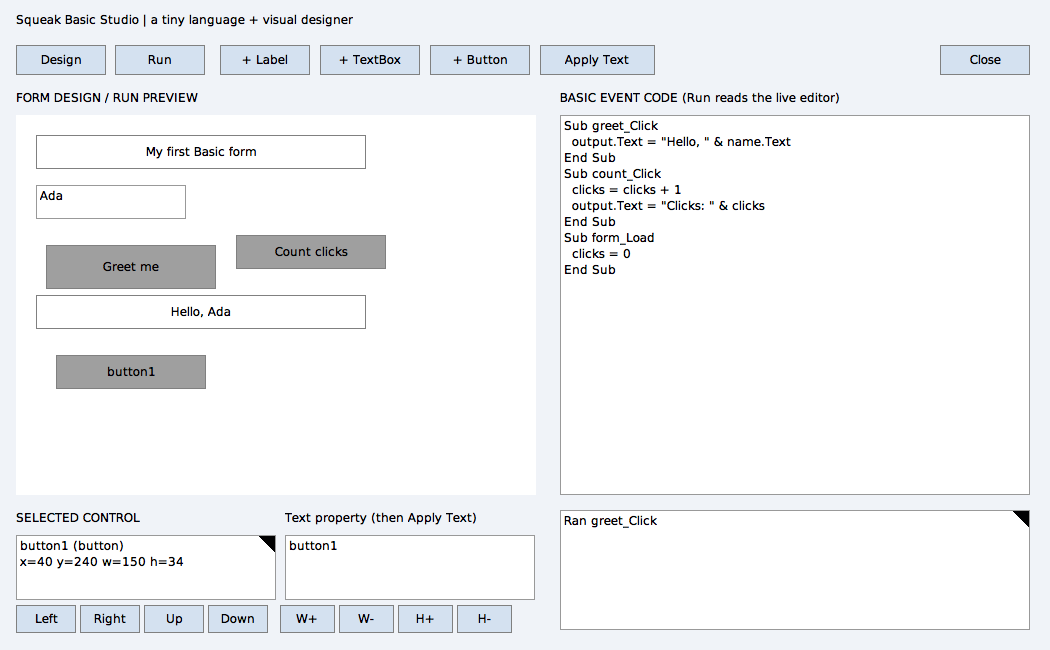
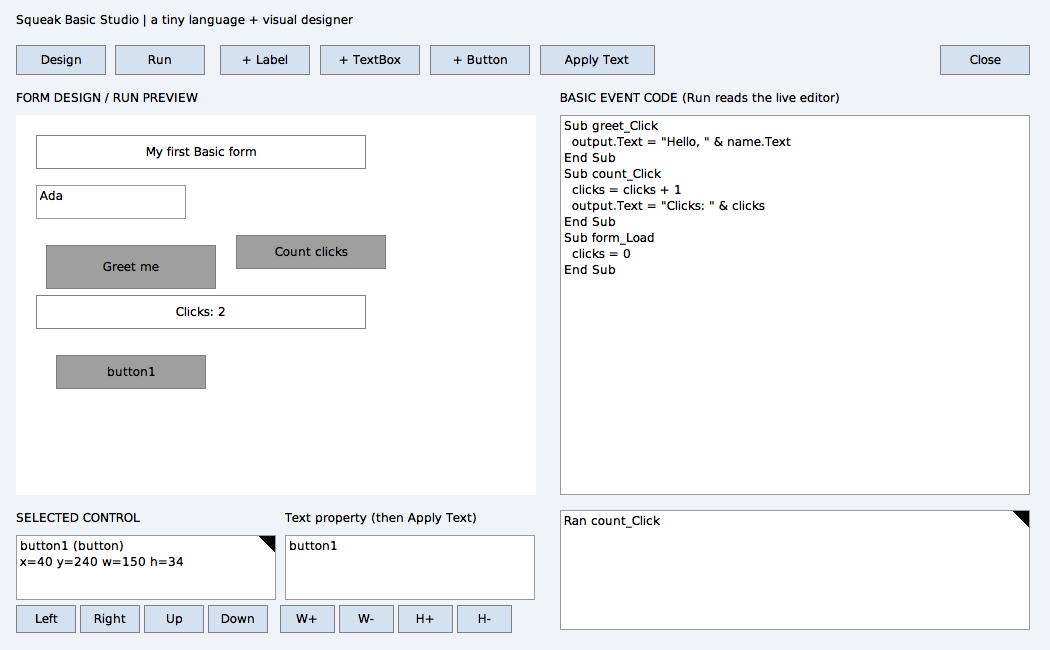
- Run the first program. Click Run, then the greeting button. The output becomes Hello, Ada. Click Count clicks twice and the output becomes Clicks: 2.
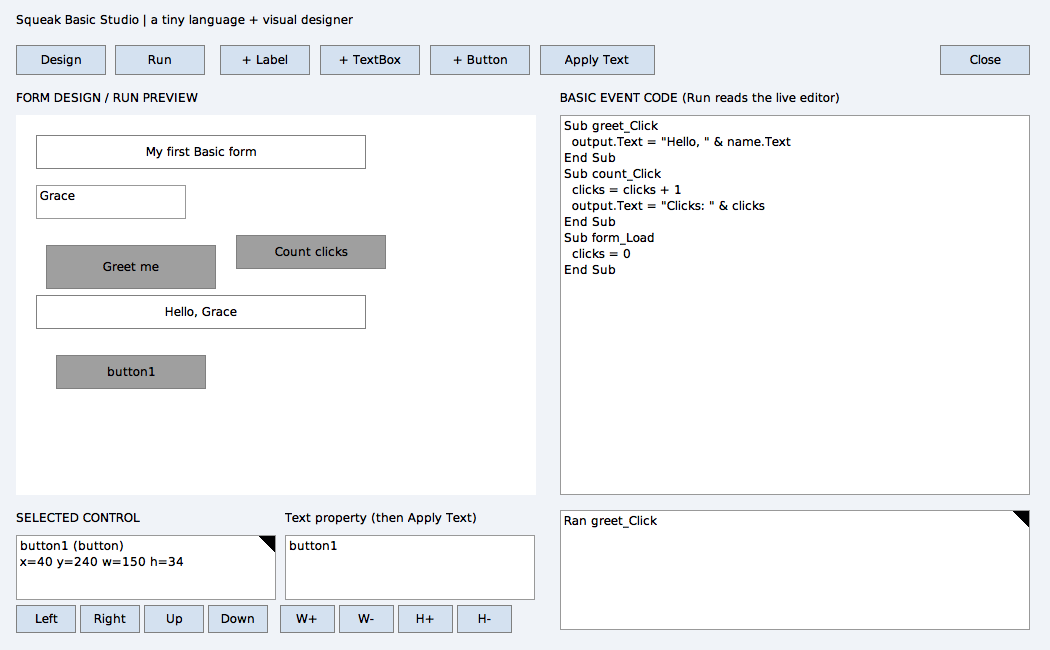
- Accept input. Replace Ada in the live textbox with Grace, press Return to accept it, then click the greeting button. The textbox is not continuously bound: an unaccepted edit is not the model’s current Text.
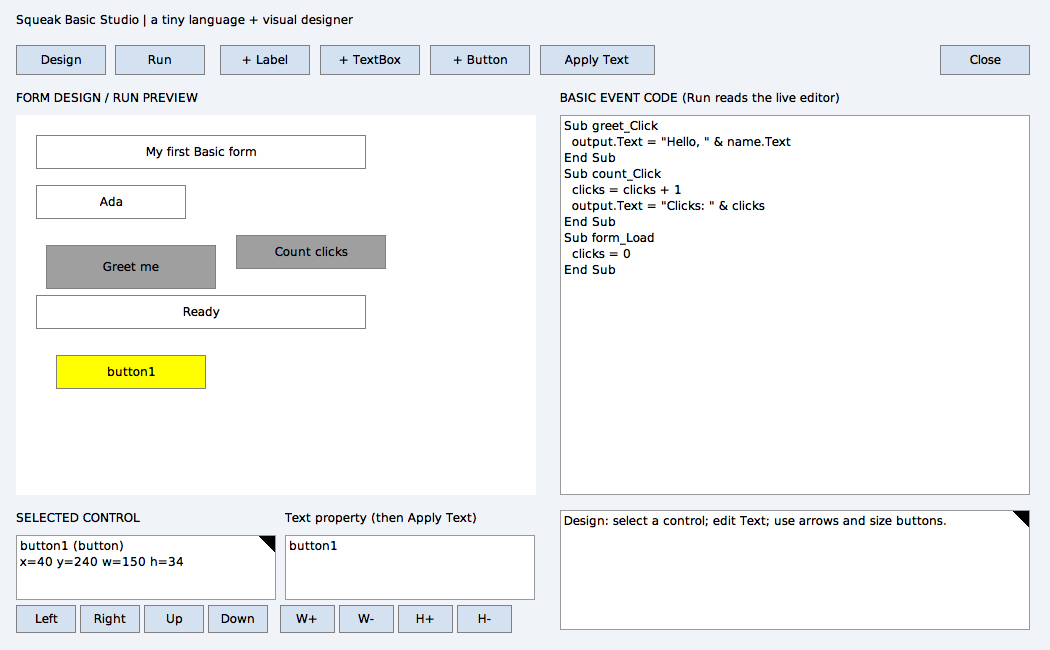
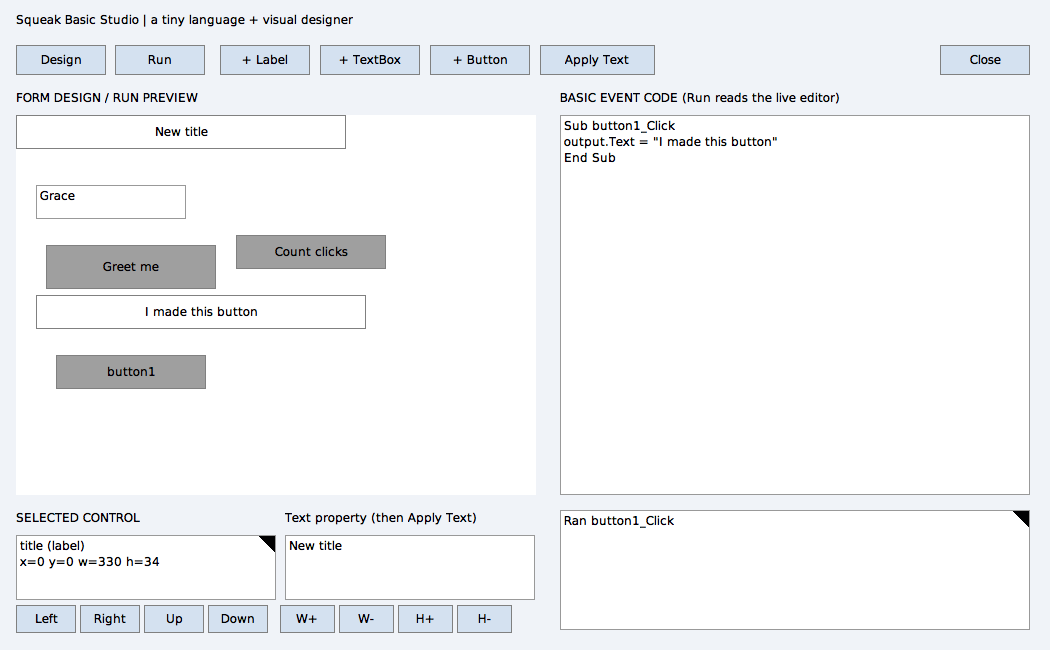
- Add a control. Click Design, then + Button. Its generated name appears in the inspector, for example button1. Change its caption with Apply Text and place it using the movement buttons. The GUI does not rename controls.
- Write its event. Append the following handler to the BASIC editor, matching the actual generated control name. Click Run, then the new button. You now have behavior you authored, not just the supplied demo.
Sub button1_Click
  output.Text = "I made this button"
End Sub
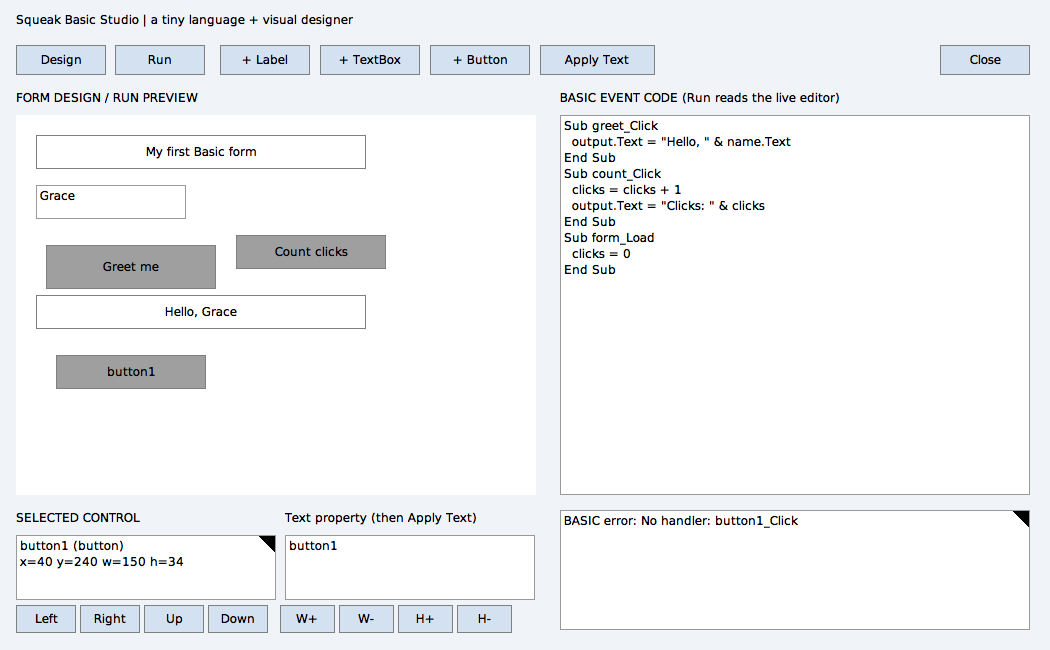
The editor does not generate handlers automatically. A button with no matching handler reports an error. The optional form_Load handler runs when Run is pressed; use it to initialize any variables your handlers require. Run reads the live code editor, so a separate Accept is not necessary there.
10. Test, inspect and extend
The package was tested in a separate native Squeak 6.1 learning image. The downloadable SUnit suite passed 11 tests, zero failures and zero errors. The 47 development checkpoints additionally exercised syntax errors, unknown references, model changes, native button action wiring, repeated Run, accepted input and recovery. These checks are not a claim that every possible interaction is covered.
File in SqueakBasicStudioTests.st after the implementation and run LSBBasicStudioTests suite run with Print it, or select LSBBasicStudioTests in Test Runner.
Try a missing handler or output.Text = unknown. Read the error in the status panel, repair the program and press Run again. An error in a later statement can leave earlier changes in place. Control texts and geometry also persist across Run; only language variables reset.
Verification limits: screenshots are genuine imageForm renders of the running native Morphic app. Tests invoke model operations and native button actions, rather than claiming a complete physical mouse/keyboard walkthrough. No SqueakJS/browser-runtime compatibility was tested.
Deliberate limits: only Text and geometry are edited by the GUI; no drag handles, delete/rename UI, undo, project-file save/load, syntax coloring inside the IDE, debugger or executable export is included. Source examples on this web page are syntax-colored by LearnSqueak.
Useful next changes are a checked numeric-conversion function, an If statement, a delete-control command, project serialization and an undo stack. Each addition needs both language semantics and IDE behavior. Do not present these as existing features.
Saving the Squeak image can preserve installed classes and live objects. This tutorial does not provide a standalone executable export or a project-file format. Keep the source download to recreate the tools in another learning image.
Native forms and events · Squeak development tools · Microsoft’s designer overview (conceptual comparison; this project uses Morphic).